How to read this guide
Every module follows the same shape: the planning question the tool answers, what it does, the exact clicks or Processing parameters, the real output, how to interpret it, and what breaks.
Where the screenshots come from
Nothing here is a mock-up
- Every map panel is a QGIS render of a layer the plugin actually produced during a headless run of the real algorithm.
- Every parameter panel is the literal parameter dictionary handed to the algorithm.
- Every interface panel is a screenshot of the real dashboard widget tree, running against the real data.
- Every layout is an exported print layout, not a picture of one.
The data behind this guide
- Thematic source: mahalle_population_2024.geojson (İzmir mahalle polygons, population 2024)
- 2.5D source: kadifekale_osm_binalar.gpkg (OSM buildings)
- Raster source: kadifekale_dem_copernicus30m.tif (Copernicus DEM 30 m)
- Flow source: tire_mahalle_upi_sosyoekonomik.gpkg (assembly areas + critical assets)
- DEM reprojected from EPSG:4326 to EPSG:32635 (the ridge engine needs map units)
- OD table: 900 real origin→critical-asset pairs (distance-decay gravity on real capacities)
Reproduce it yourself
The capture harness ships with the plugin source. From a QGIS-enabled Python prompt:
C:\OSGeo4W\bin\python-qgis-ltr.bat docs\PRACTICAL_GUIDE\practical_guide_runner.py --all
It resolves the datasets, runs every algorithm, and rewrites manifest/screenshots.json and the
images under screenshots/. Point it at a different folder with
--data and the whole guide regenerates against your own city.
The dashboard — one studio, three workspaces
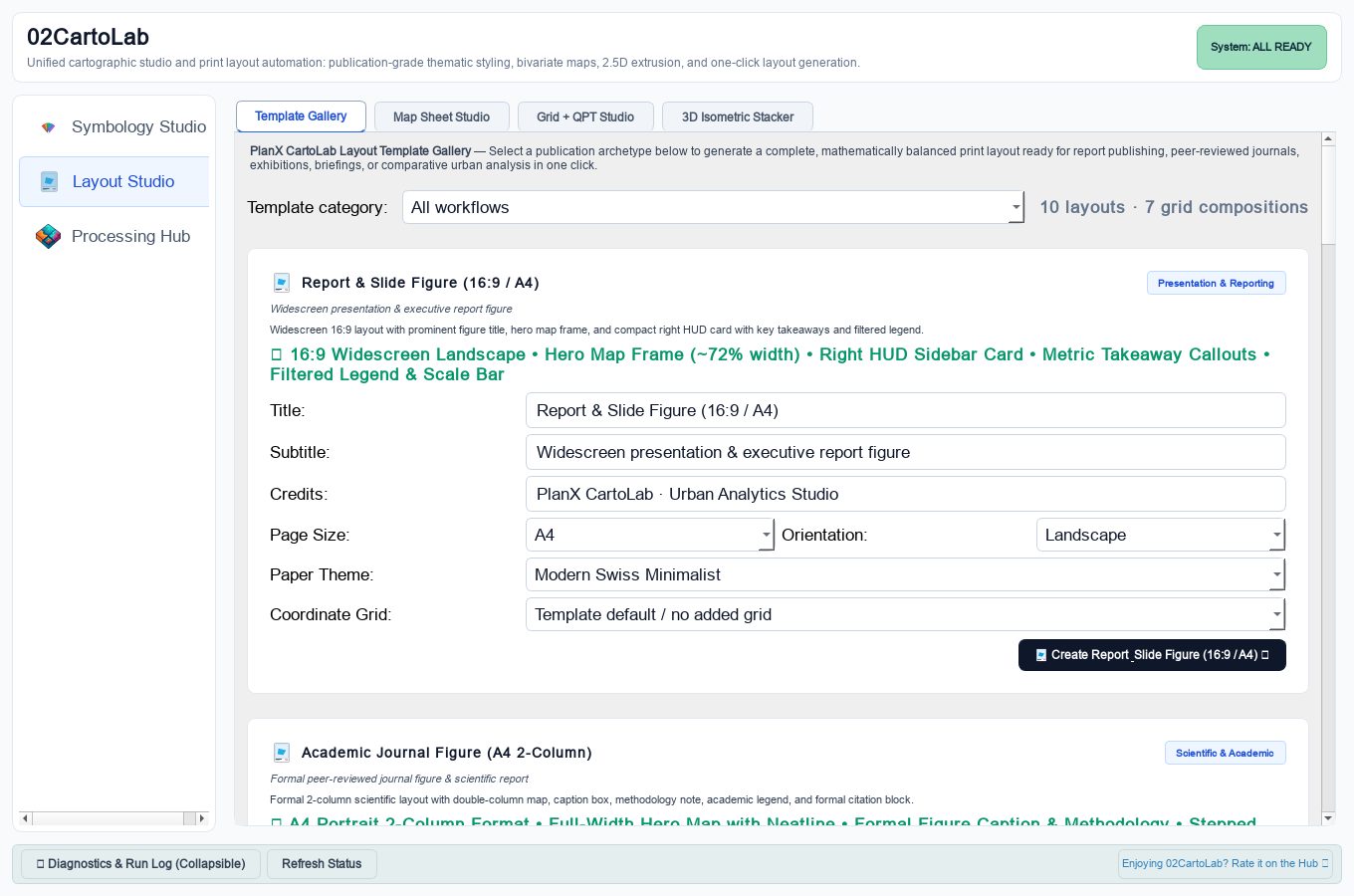
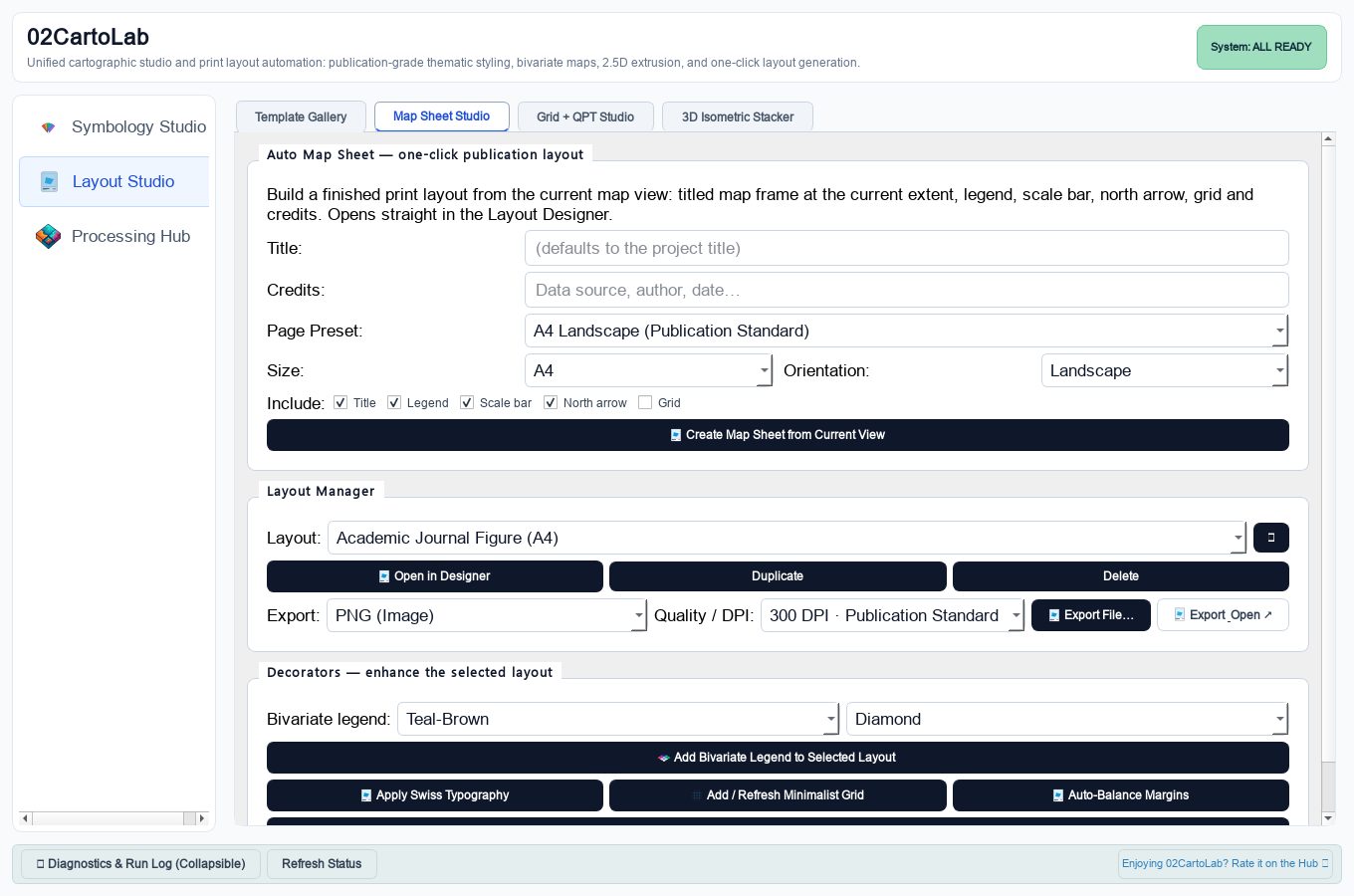
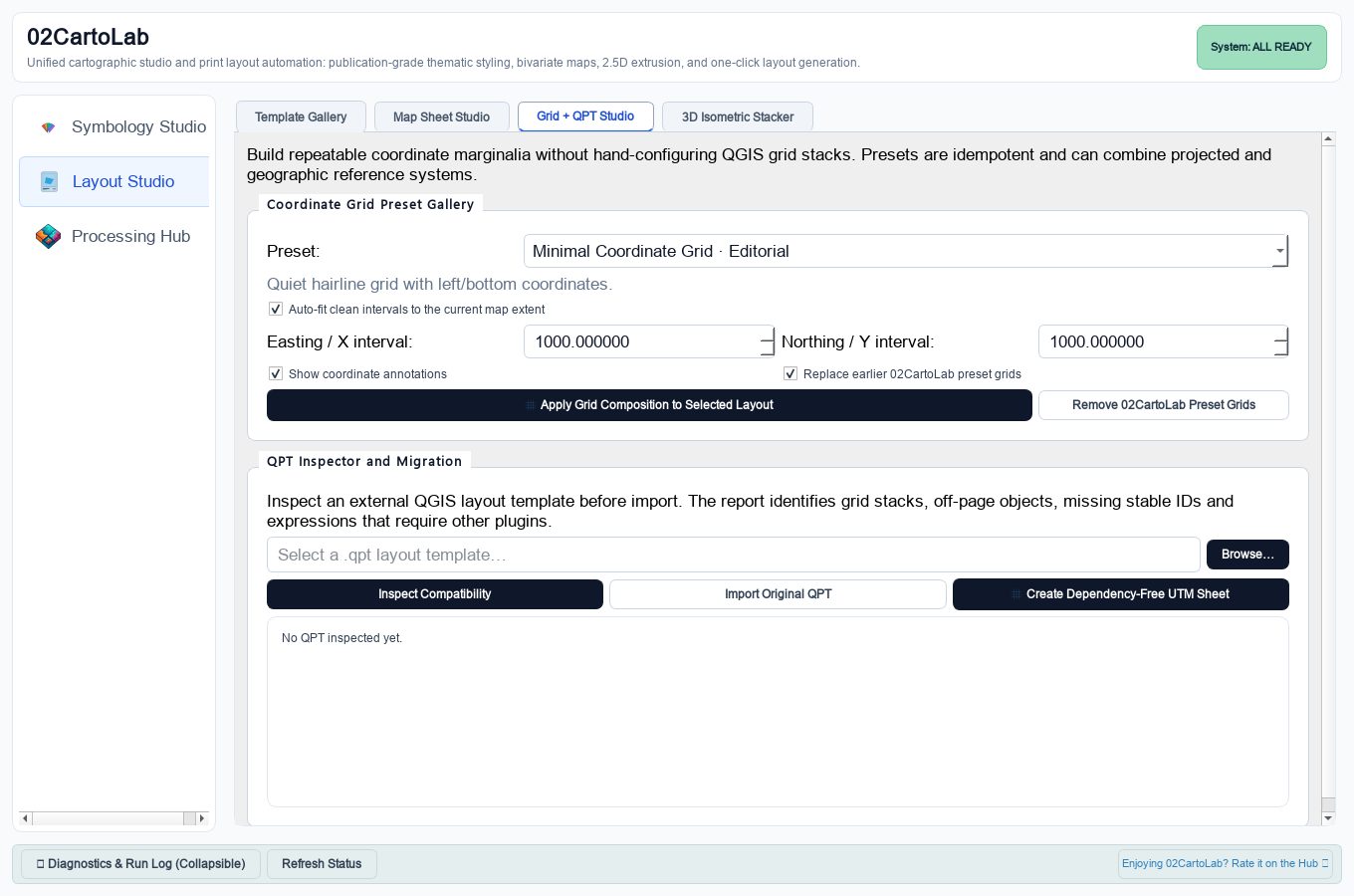
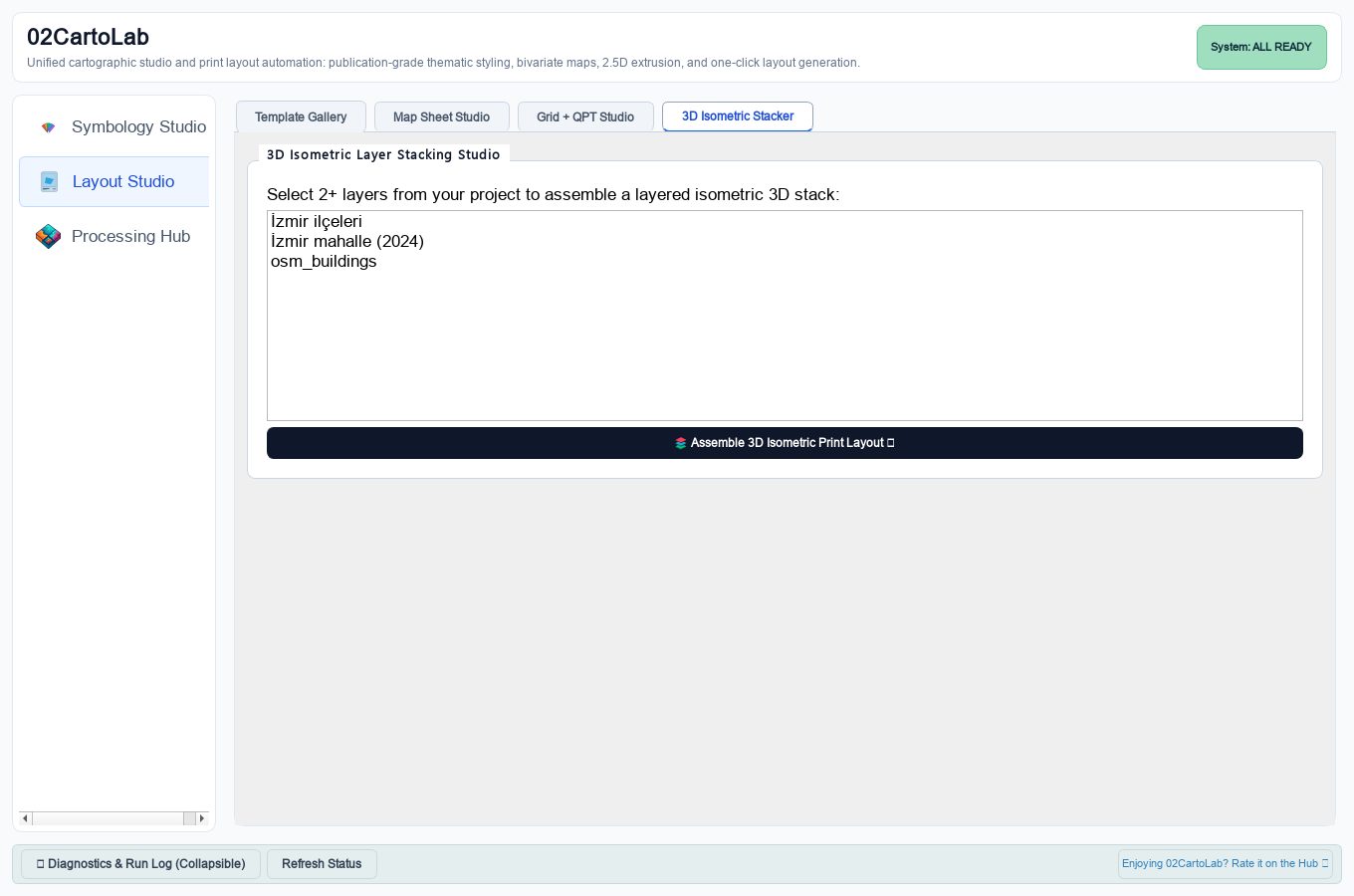
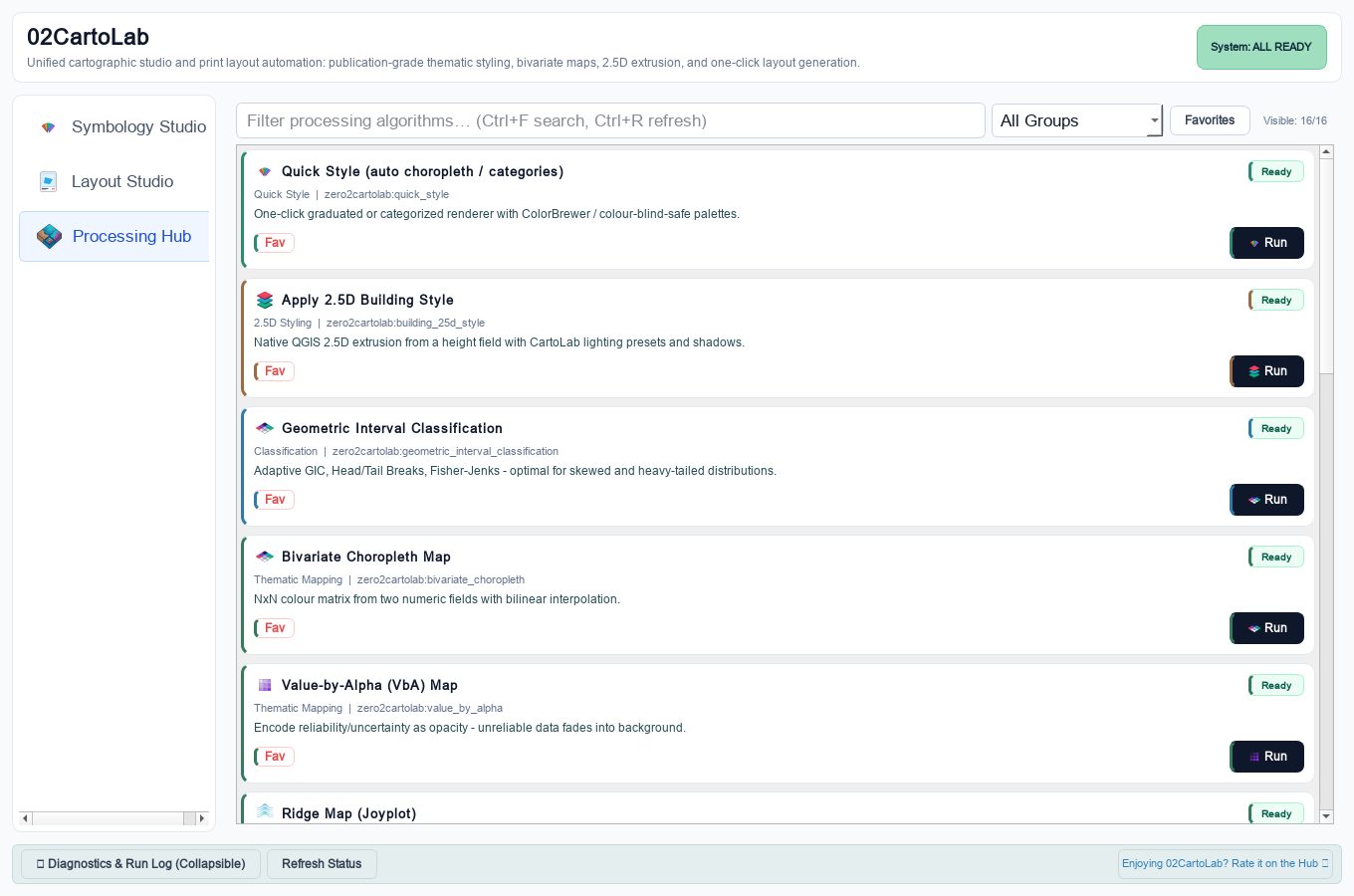
Everything in 02CartoLab is reachable from one window. The left rail switches between three workspaces: the Symbology Studio (Quick Style, 2.5D Buildings, Thematic Maps, Palette & Accessibility), the Layout Studio (Template Gallery, Map Sheet Studio, Grid + QPT Studio, 3D Isometric Stacker) and the Processing Hub, which lists every algorithm with a Run button. A collapsible drawer at the bottom holds system diagnostics and the run log.
Step by step
- Open the studio from Plugins ▸ 02CartoLab ▸ 02CartoLab Studio.
- The status chip in the header reports the plugin's own health; it reads ALL READY when every subsystem is available.
- Use the left rail to move between the Symbology Studio, the Layout Studio and the Processing Hub.
- Expand Diagnostics & Run Log at the bottom to see what each operation actually did — this is the first place to look when something does not happen.
- The Processing Hub doubles as documentation: every algorithm lists its own parameters and help text.
The result
When it goes wrong
- The window opens but stays empty — the plugin may still be loading; give it a moment and re-open.
- A layer does not appear in the combos — the layer must be in the project, not merely visible in the canvas.
- Nothing happens on Apply — open Diagnostics & Run Log; the reason is written there.
Quick Style — one-click thematic styling
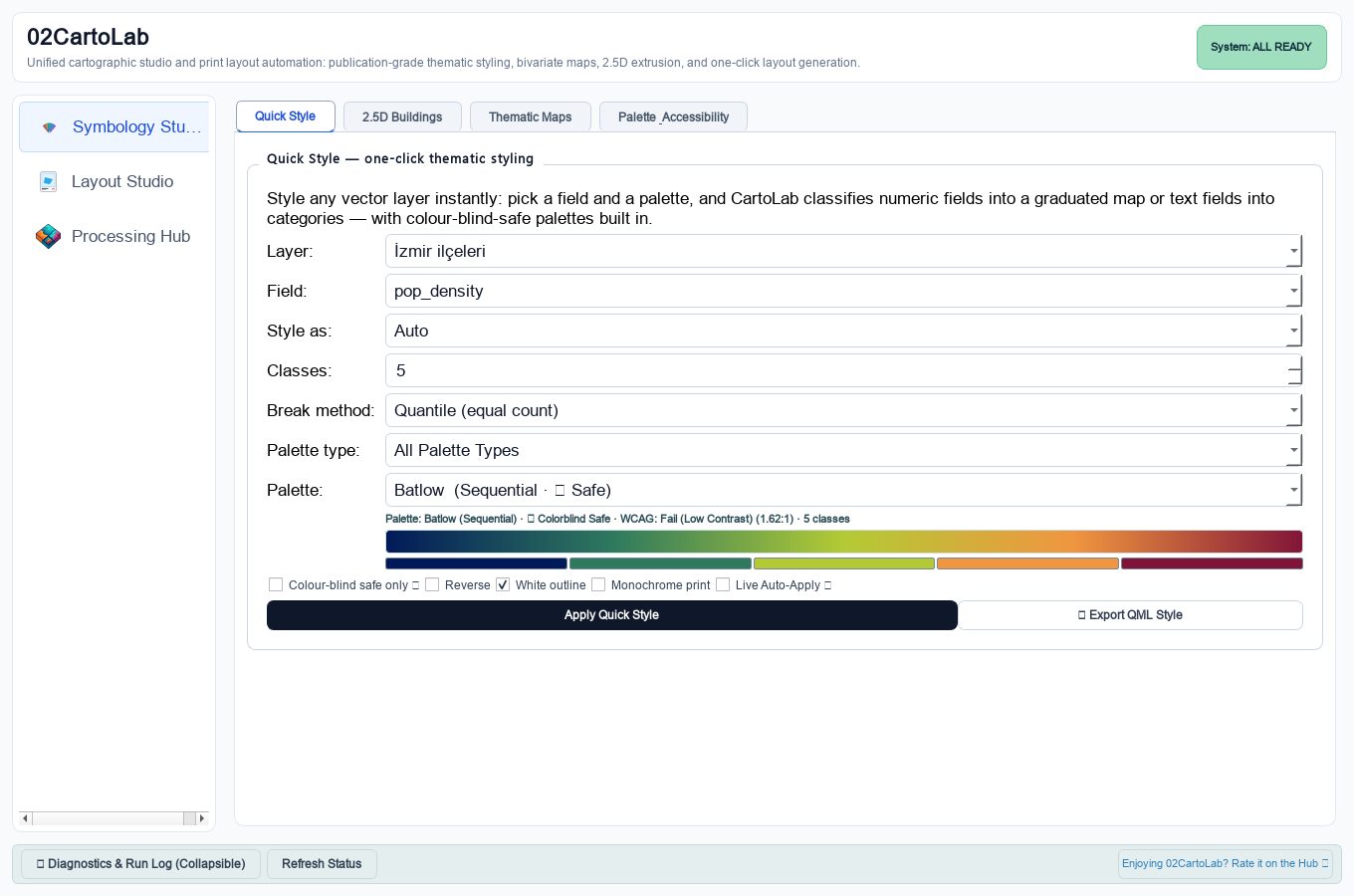
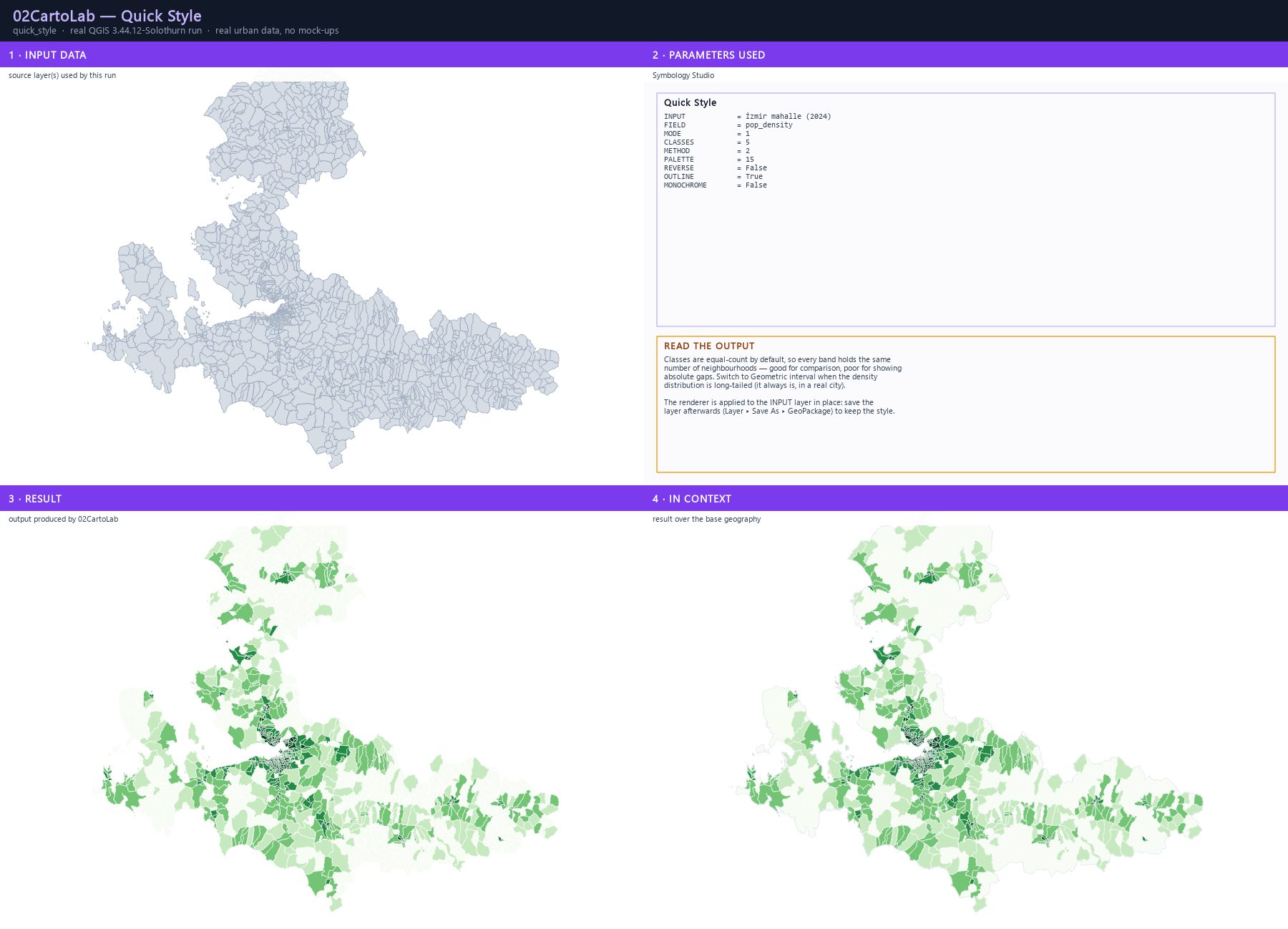
Quick Style turns any vector layer into a publication-ready choropleth or categorical map in a single action. Numeric fields are classified automatically, text fields become categories, and the colour palette comes from the plugin's own library (ColorBrewer plus the colour-blind-safe scientific ramps).
Step by step
- Open the 02CartoLab Studio from Plugins ▸ 02CartoLab ▸ 02CartoLab Studio and switch to the Symbology Studio workspace.
- In the Quick Style panel choose Layer: the İzmir district layer and Field: pop_density.
- Set Style as: Graduated (numeric), Classes: 5 and Break method: Geometric interval — the right choice for the long-tailed density distribution of a real city.
- Pick Palette: Viridis (sequential, colour-blind safe) and leave the white outline ticked.
- Press Apply Quick Style. The layer in the canvas is restyled immediately.
- Export the result with Export QML Style to reuse the exact symbology in another project.
The result
Parameters
| Parameter | Description | Type | Default |
|---|---|---|---|
| INPUT | Vector layer | Vector layer | — |
| FIELD | Field to style | Field | — |
| MODE | Style as Auto (detect field type) · Graduated (numeric) · Categorized (unique values) | Enumeration | Auto (detect field type) |
| CLASSES | Number of classes (graduated) | Number | 5 |
| METHOD | Class break method (graduated) Quantile (equal count) · Equal interval · Geometric interval · Natural Breaks (Fisher-Jenks) · Head/Tail Breaks (power-law) · Standard Deviation · Box Plot / Tukey Outliers · Equal Area (Quantile) · Maximum Breaks (largest gaps) · Pretty Breaks (nice round numbers) | Enumeration | Quantile (equal count) |
| PALETTE | Colour palette Batlow · Viridis · Magma · Plasma · Inferno · Cividis · Sunset · Turbo · Mako · Rocket · Bamako · Nuuk · Earth · Bathymetry · … | Enumeration | Batlow |
| REVERSE | Reverse palette | Boolean | |
| OUTLINE | Thin white outline | Boolean | True |
| MONOCHROME | Monochrome print-safe patterns (polygons) | Boolean |
Exact run used for the screenshots
INPUT            = İzmir mahalle (2024)
FIELD            = pop_density
MODE             = 1
CLASSES          = 5
METHOD           = 2
PALETTE          = 15
REVERSE          = False
OUTLINE          = True
MONOCHROME       = False
When it goes wrong
- The field list is empty — the layer has no numeric field, or the layer is not yet in the project.
- The map looks flat — the field is a rate that is almost constant; check the attribute table for NULLs before classifying.
- The style disappears on save — Quick Style styles the layer in place; save the layer as GeoPackage to keep the symbology.
Processing ID: zero2cartolab:quick_style
Monochrome print — photocopy-safe symbology
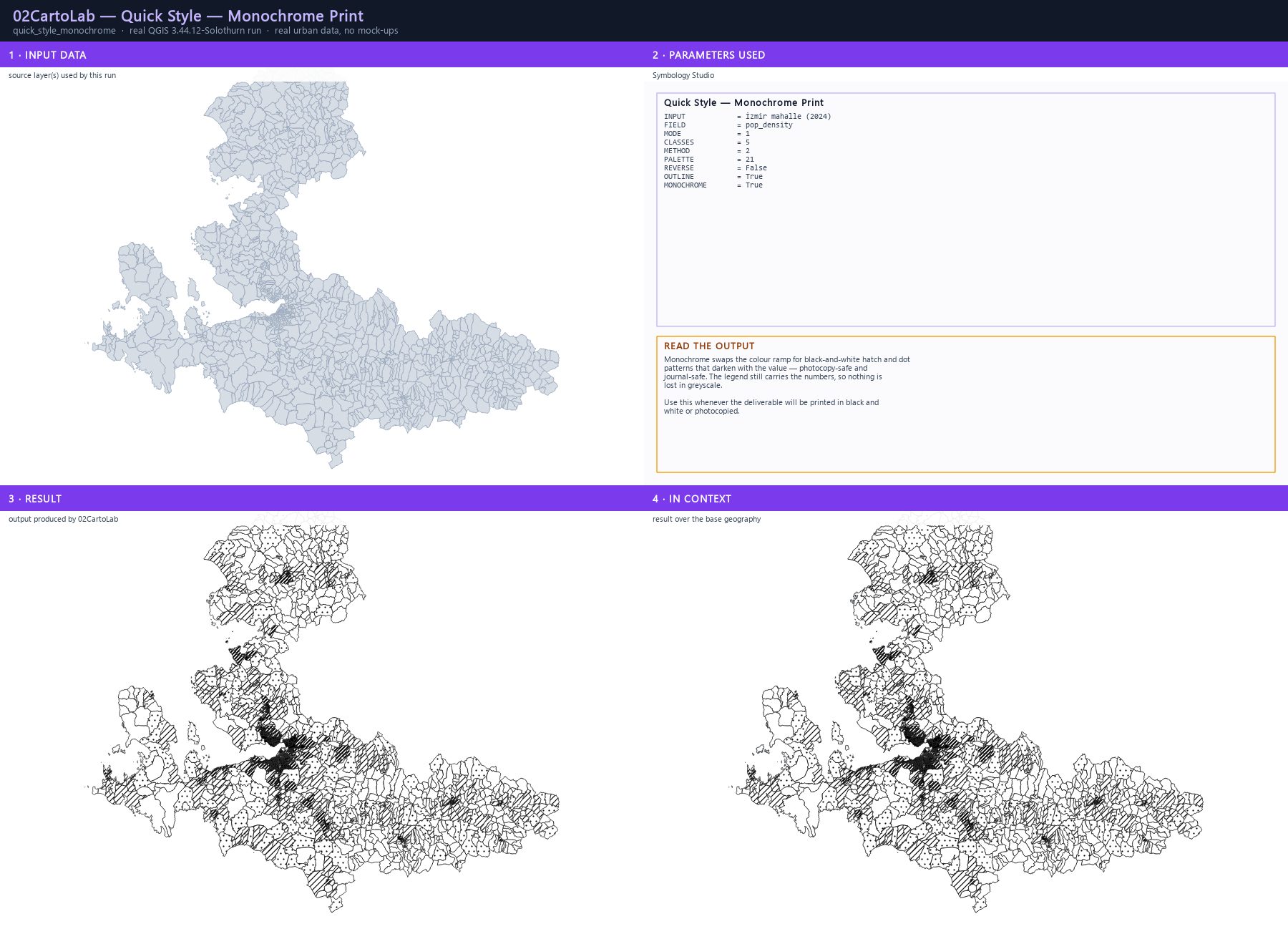
With Monochrome print enabled, Quick Style replaces the colour ramp with black-and-white hatch and dot patterns that darken with the value. The legend keeps the numbers, so no information is lost when the figure is printed, photocopied or faxed.
Step by step
- Repeat the Quick Style workflow with the same layer, field and break method.
- Tick Monochrome print instead of choosing a colour palette.
- Apply the style and inspect the legend: each class now carries a distinct pattern, not just a shade of grey.
- Export the QML style so every figure in the manuscript uses the same pattern language.
The result
Parameters
| Parameter | Description | Type | Default |
|---|---|---|---|
| INPUT | Vector layer | Vector layer | — |
| FIELD | Field to style | Field | — |
| MODE | Style as Auto (detect field type) · Graduated (numeric) · Categorized (unique values) | Enumeration | Auto (detect field type) |
| CLASSES | Number of classes (graduated) | Number | 5 |
| METHOD | Class break method (graduated) Quantile (equal count) · Equal interval · Geometric interval · Natural Breaks (Fisher-Jenks) · Head/Tail Breaks (power-law) · Standard Deviation · Box Plot / Tukey Outliers · Equal Area (Quantile) · Maximum Breaks (largest gaps) · Pretty Breaks (nice round numbers) | Enumeration | Quantile (equal count) |
| PALETTE | Colour palette Batlow · Viridis · Magma · Plasma · Inferno · Cividis · Sunset · Turbo · Mako · Rocket · Bamako · Nuuk · Earth · Bathymetry · … | Enumeration | Batlow |
| REVERSE | Reverse palette | Boolean | |
| OUTLINE | Thin white outline | Boolean | True |
| MONOCHROME | Monochrome print-safe patterns (polygons) | Boolean |
Exact run used for the screenshots
INPUT            = İzmir mahalle (2024)
FIELD            = pop_density
MODE             = 1
CLASSES          = 5
METHOD           = 2
PALETTE          = 21
REVERSE          = False
OUTLINE          = True
MONOCHROME       = True
When it goes wrong
- Patterns look identical in the legend — reduce Classes from 5 to 4 or 3.
- The layer renders black everywhere — the fill colour of the base symbol is black; switch the symbol fill to white before applying monochrome.
Processing ID: zero2cartolab:quick_style
2.5D building styling — extrusion that survives
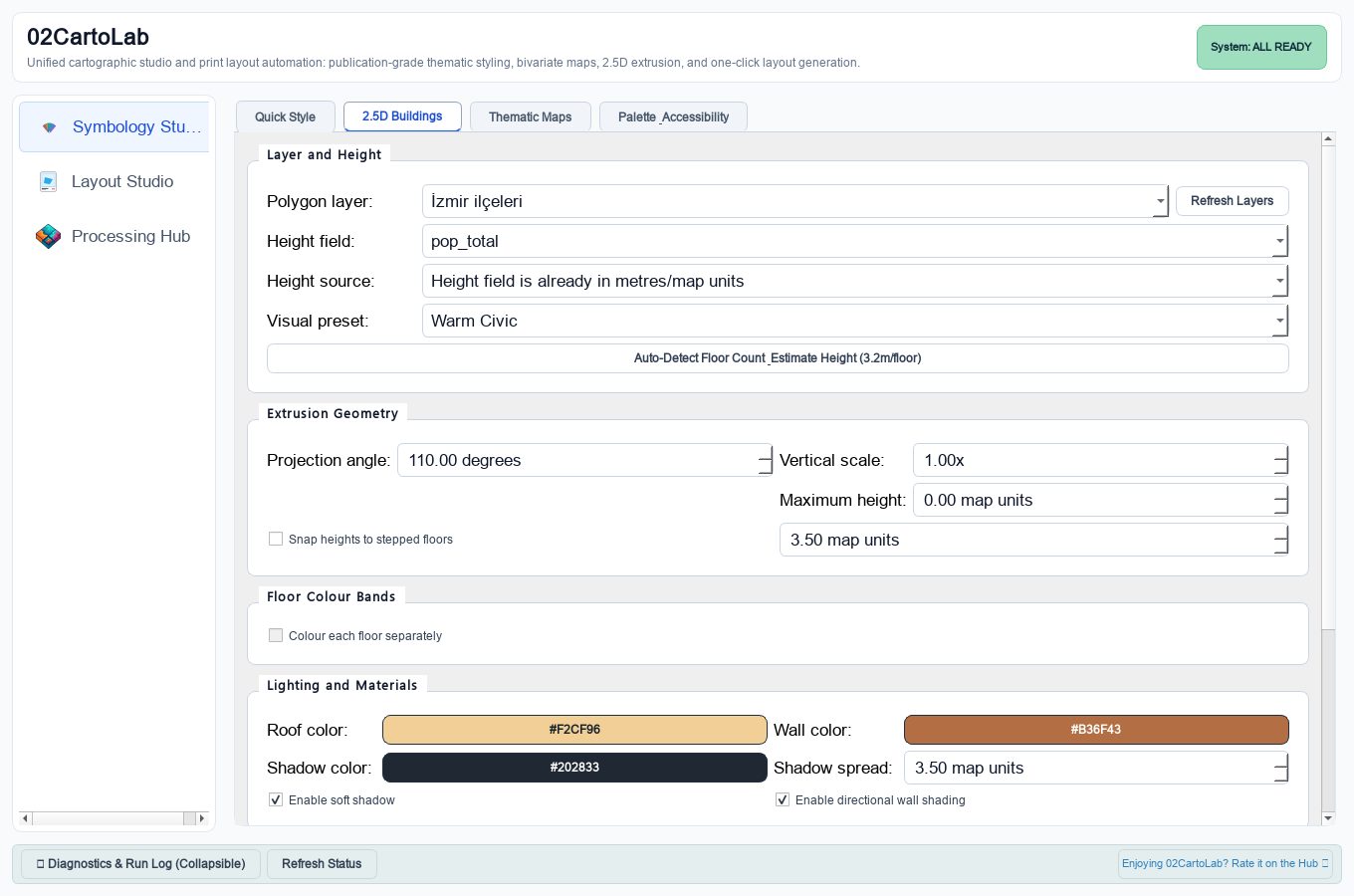
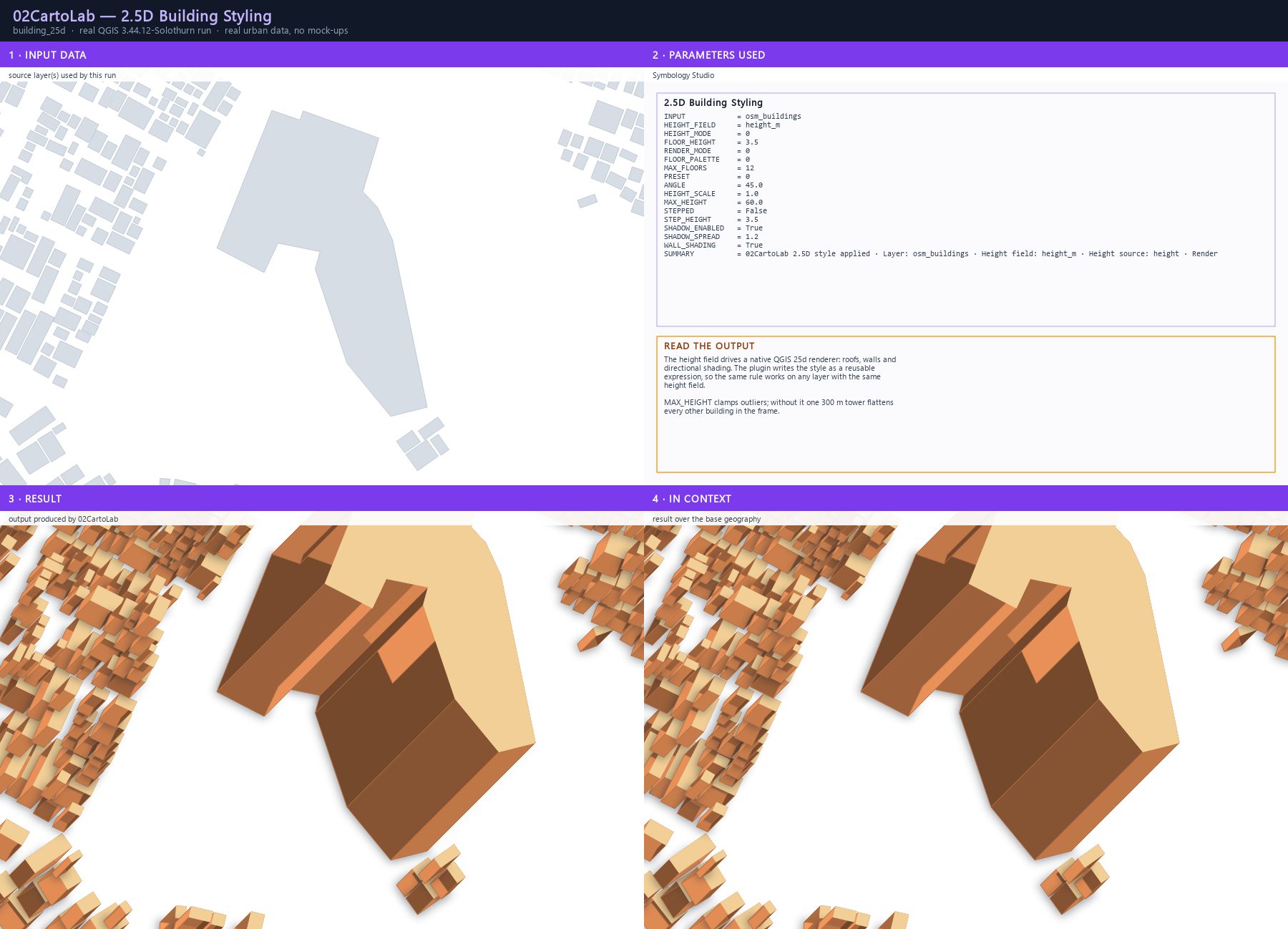
The 2.5D engine applies a native QGIS 25d renderer driven by a height or floor-count field. It writes the rule as a reusable expression, so the style can be re-applied to any layer with the same field, and it can be exported as a legend-friendly QML where each floor band is its own QGIS legend rule.
Step by step
- In the Symbology Studio open the 2.5D Buildings panel.
- Choose the layer and set Height field: height_m. If your data stores floors instead, set Height source: Floor count field and Floor height: 3.5 m.
- Pick a material preset — Warm Civic, Cool Slate, Urban Core Gold and eight more.
- Set Angle (45° is a good default), Height scale, and MAX_HEIGHT to clamp outliers.
- Enable Shadow and Wall shading so the massing reads as volume rather than flat colour.
- Apply the native 2.5D renderer, or switch Render mode to Per-floor colour bands to get one legend rule per storey.
- Export the QML style for reuse.
The result
Parameters
| Parameter | Description | Type | Default |
|---|---|---|---|
| INPUT | Polygon layer | Vector layer | — |
| HEIGHT_FIELD | Height field | Field | — |
| HEIGHT_MODE | Height source Height field is already in metres/map units · Floor count field (floors x floor height) | Enumeration | Height field is already in metres/map units |
| FLOOR_HEIGHT | Floor height, used only when height source is floor count | Number | 3.5 |
| RENDER_MODE | Renderer style Native 2.5D material · Per-floor colour bands | Enumeration | Native 2.5D material |
| FLOOR_PALETTE | Floor colour palette, used by per-floor bands Civic Spectrum · Planning Bands · Soft Atlas · Turbo Height Spectrum · Viridis Height Spectrum | Enumeration | Civic Spectrum |
| MAX_FLOORS | Maximum floor bands, 0 scans the layer automatically | Number | |
| PRESET | Visual preset Warm Civic · Cool Slate · Limestone and Teal · Night Copper · Urban Core Gold · Suburban Pastoral · Cyberpunk Night · Nordic Minimalist · Emerald Metropolis · Terracotta Mediterranean | Enumeration | Warm Civic |
| ANGLE | Projection angle in degrees | Number | 110.0 |
| HEIGHT_SCALE | Height scale multiplier | Number | 1.0 |
| MAX_HEIGHT | Maximum rendered height, 0 for no clamp | Number | |
| STEPPED | Snap heights to stepped floors | Boolean | |
| STEP_HEIGHT | Step height in map units | Number | 3.5 |
| SHADOW_ENABLED | Enable soft shadow | Boolean | True |
| SHADOW_SPREAD | Shadow spread in map units | Number | 3.5 |
| WALL_SHADING | Enable directional wall shading | Boolean | True |
Exact run used for the screenshots
INPUT            = osm_buildings
HEIGHT_FIELD     = height_m
HEIGHT_MODE      = 0
FLOOR_HEIGHT     = 3.5
RENDER_MODE      = 0
FLOOR_PALETTE    = 0
MAX_FLOORS       = 12
PRESET           = 0
ANGLE            = 45.0
HEIGHT_SCALE     = 1.0
MAX_HEIGHT       = 60.0
STEPPED          = False
STEP_HEIGHT      = 3.5
SHADOW_ENABLED   = True
SHADOW_SPREAD    = 1.2
WALL_SHADING     = True
SUMMARY          = 02CartoLab 2.5D style applied · Layer: osm_buildings · Height field: height_m · Height source: height · Render
When it goes wrong
- Nothing extrudes — the height field is text, or contains NULLs; the expression uses coalesce() so NULL becomes 0.
- The map is all roof colour — Wall shading is off, so no wall faces are drawn.
- Floors are wrong — the floor height does not match your data; 3.5 m is the Turkish residential norm, offices are often 3.6–4.0 m.
Processing ID: zero2cartolab:building_25d_style
Palette & Accessibility — CVD simulation and WCAG scoring
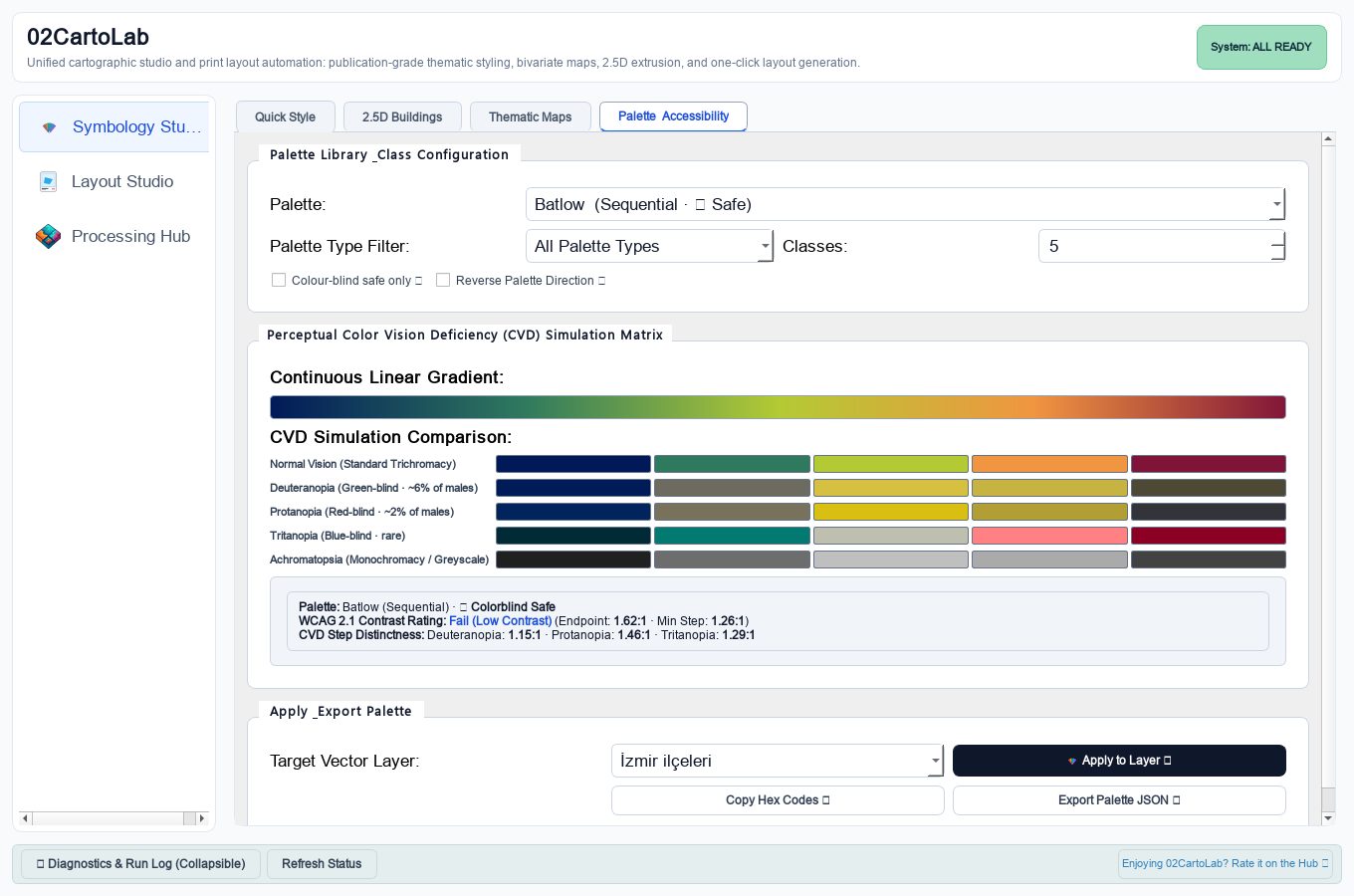
The Palette & Accessibility inspector lists every ramp in the plugin's library with live swatches, a five-mode colour-vision-deficiency simulation (normal, deuteranopia, protanopia, tritanopia, achromatopsia) and a WCAG 2.1 contrast score for each palette against the page.
Step by step
- Open Symbology Studio ▸ Palette & Accessibility and choose the layer you are styling.
- Filter Palette type: Sequential, Diverging or Qualitative, and tick Colour-blind safe only to see only the verified ramps.
- Select a palette and read the score line: it reports the palette family, the colour-blind safety badge and the WCAG contrast ratio.
- Use the CVD simulation strip to preview the same ramp under each deficiency mode.
- For a two-variable map, check that the two axes remain distinguishable in every mode, not just in normal vision.
The result
When it goes wrong
- The contrast ratio looks low — a pale ramp on white paper fails WCAG for small text; darken the ramp or add a frame.
- No palette appears — the filter is too restrictive; clear 'Colour-blind safe only' first.
Normalization & rates — map the rate, not the count
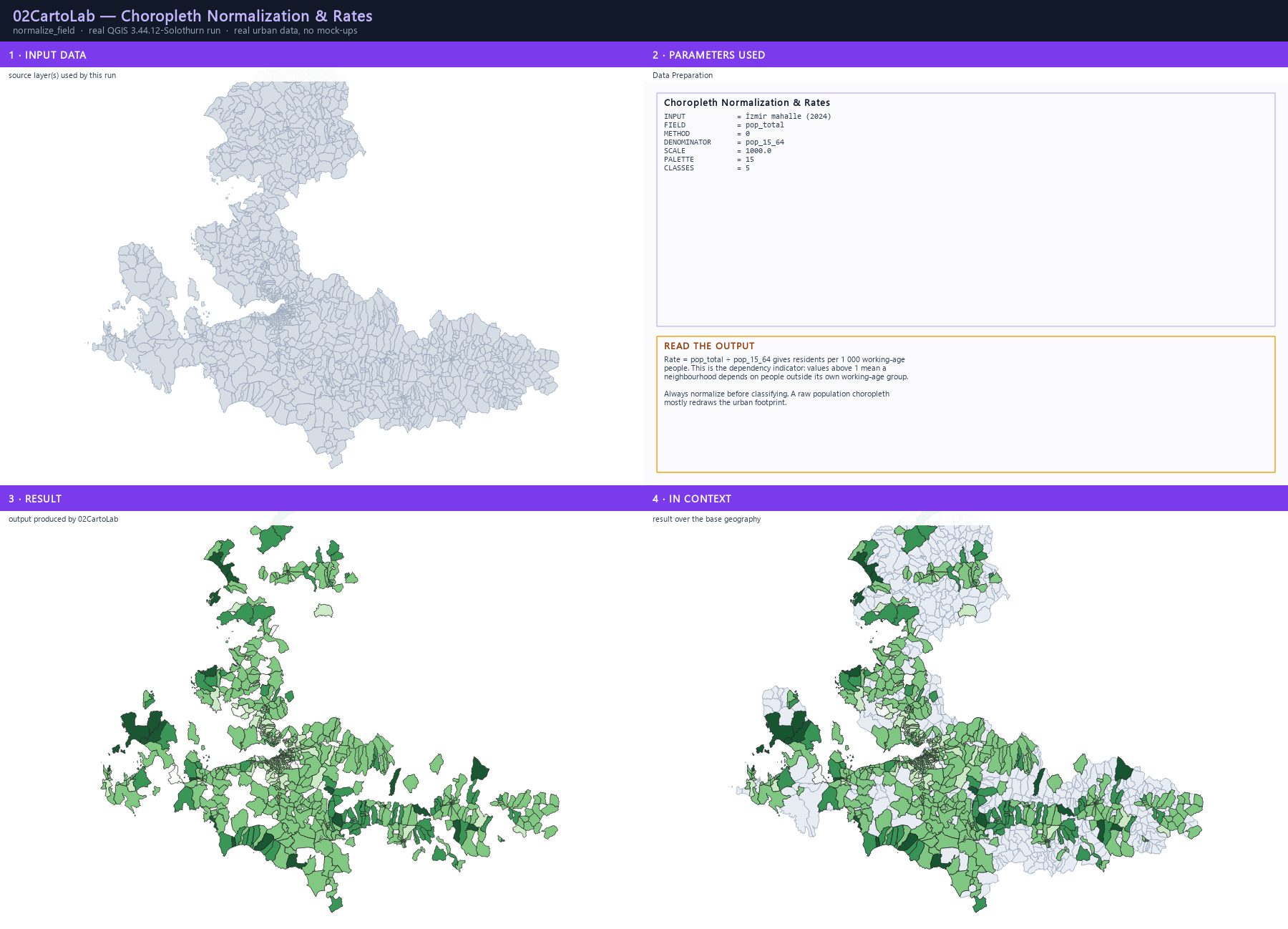
A choropleth of raw totals mostly shows where the city is built. This algorithm turns any field into a comparable rate: ratio per denominator, z-score, robust z-score (median/MAD), min-max, percentile rank, log, location quotient, winsorized min-max, decile rank, Tukey hinge rank, logistic, power and quantile-uniform scaling. The result is written as a new field and styled automatically.
Step by step
- Open Processing Toolbox ▸ 02CartoLab ▸ Choropleth Normalization & Rates.
- Set Input to the district layer, Field to pop_total and Method to Rate (numerator / denominator).
- Choose Denominator: pop_15_64 — the working-age population — and Scale: 1000 for residents per 1 000 working-age people.
- Pick a sequential palette and 5 classes, then Run.
- Open the output attribute table: the new field holds the rate, and the layer already carries the matching graduated renderer.
The result
Parameters
| Parameter | Description | Type | Default |
|---|---|---|---|
| INPUT | Input layer | Input layer | — |
| FIELD | Value field (numerator) | Field | — |
| METHOD | Method Rate (numerator / denominator) · Z-score (standardise) · Robust z-score (median / MAD) · Robust IQR (median / IQR) · Min-max to 0-1 · Percentile rank (0-100) · Log (base 10) · Location Quotient (Specialisation Index) · Winsorized Min-Max (5th-95th percentile clamp) · Decile rank (1-10) · Tukey Hinge Rank (1-6 Box Plot class) · Sigmoid logistic scaling (0-1) · Power transform (Box-Cox / Yeo-Johnson) · Quantile uniform normalization (0-1) | Enumeration | Rate (numerator / denominator) |
| DENOMINATOR | Denominator field (Rate / LQ only) | Field | — |
| SCALE | Rate scale (e.g. 1000, 100000) | Number | 1.0 |
| PALETTE | Color ramp for output styling Batlow · Viridis · Magma · Plasma · Inferno · Cividis · Sunset · Turbo · Mako · Rocket · Bamako · Nuuk · Earth · Bathymetry · … | Enumeration | Batlow |
| CLASSES | Number of classes for graduated style | Number | 5 |
| OUTPUT | Normalized output | Output layer | — |
Exact run used for the screenshots
INPUT            = İzmir mahalle (2024)
FIELD            = pop_total
METHOD           = 0
DENOMINATOR      = pop_15_64
SCALE            = 1000.0
PALETTE          = 15
CLASSES          = 5
When it goes wrong
- The result is empty — the denominator field contains NULLs or zeros.
- The scale looks odd — logarithmic and quantile methods are for heavy-tailed data; try Rate or Z-score for a linear variable.
- NULL values are counted as zero — normalize first, then filter NULLs in the attribute table.
Processing ID: zero2cartolab:normalize_field
Adaptive classification — GIC, Jenks, Head/Tail
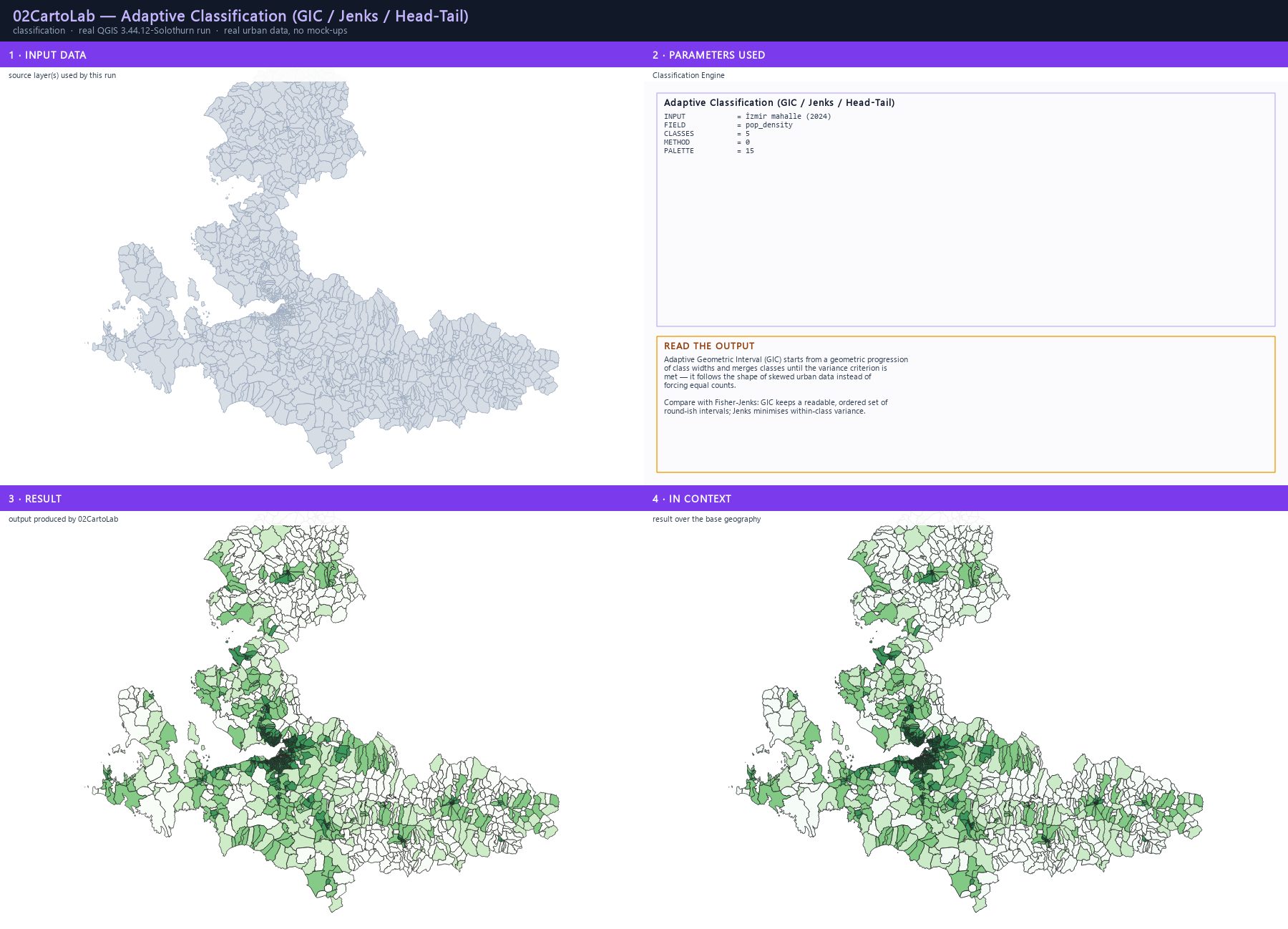
The classification engine implements seven break methods: Adaptive Geometric Interval (GIC), Head/Tail Breaks, Fisher-Jenks, standard deviation, Tukey box plot, maximum breaks and pretty round breaks. The output layer carries the class field and the matching renderer, so it drops straight into a layout.
Step by step
- Open Processing Toolbox ▸ 02CartoLab ▸ Advanced Classification.
- Set Input to the district layer, Field to pop_density and Classes to 5.
- Choose Method: Adaptive Geometric Interval (GIC) — it follows the shape of a long-tailed distribution instead of forcing equal counts.
- Pick a palette and Run.
- Compare the result with Fisher-Jenks: run the algorithm again with METHOD = Fisher-Jenks and compare the class limits.
The result
Parameters
| Parameter | Description | Type | Default |
|---|---|---|---|
| INPUT | Input layer | Input layer | — |
| FIELD | Field to classify | Field | — |
| CLASSES | Number of classes | Number | 5 |
| METHOD | Classification method Adaptive Geometric Interval (GIC) · Head/Tail Breaks · Fisher-Jenks Natural Breaks · Standard Deviation · Box Plot / Tukey Breaks · Maximum Distribution Breaks · Pretty Nice-Round Breaks | Enumeration | Adaptive Geometric Interval (GIC) |
| PALETTE | Color ramp Batlow · Viridis · Magma · Plasma · Inferno · Cividis · Sunset · Turbo · Mako · Rocket · Bamako · Nuuk · Earth · Bathymetry · … | Enumeration | Batlow |
| OUTPUT | Classified output | Output layer | — |
Exact run used for the screenshots
INPUT            = İzmir mahalle (2024)
FIELD            = pop_density
CLASSES          = 5
METHOD           = 0
PALETTE          = 15
When it goes wrong
- Too many classes for the data — the values are near-constant; reduce Classes.
- A class is empty — the breaks collapse; try a different method or reduce the class count.
- Values are treated as text — the field must be numeric.
Processing ID: zero2cartolab:geometric_interval_classification
Bivariate choropleth — two variables, one honest map
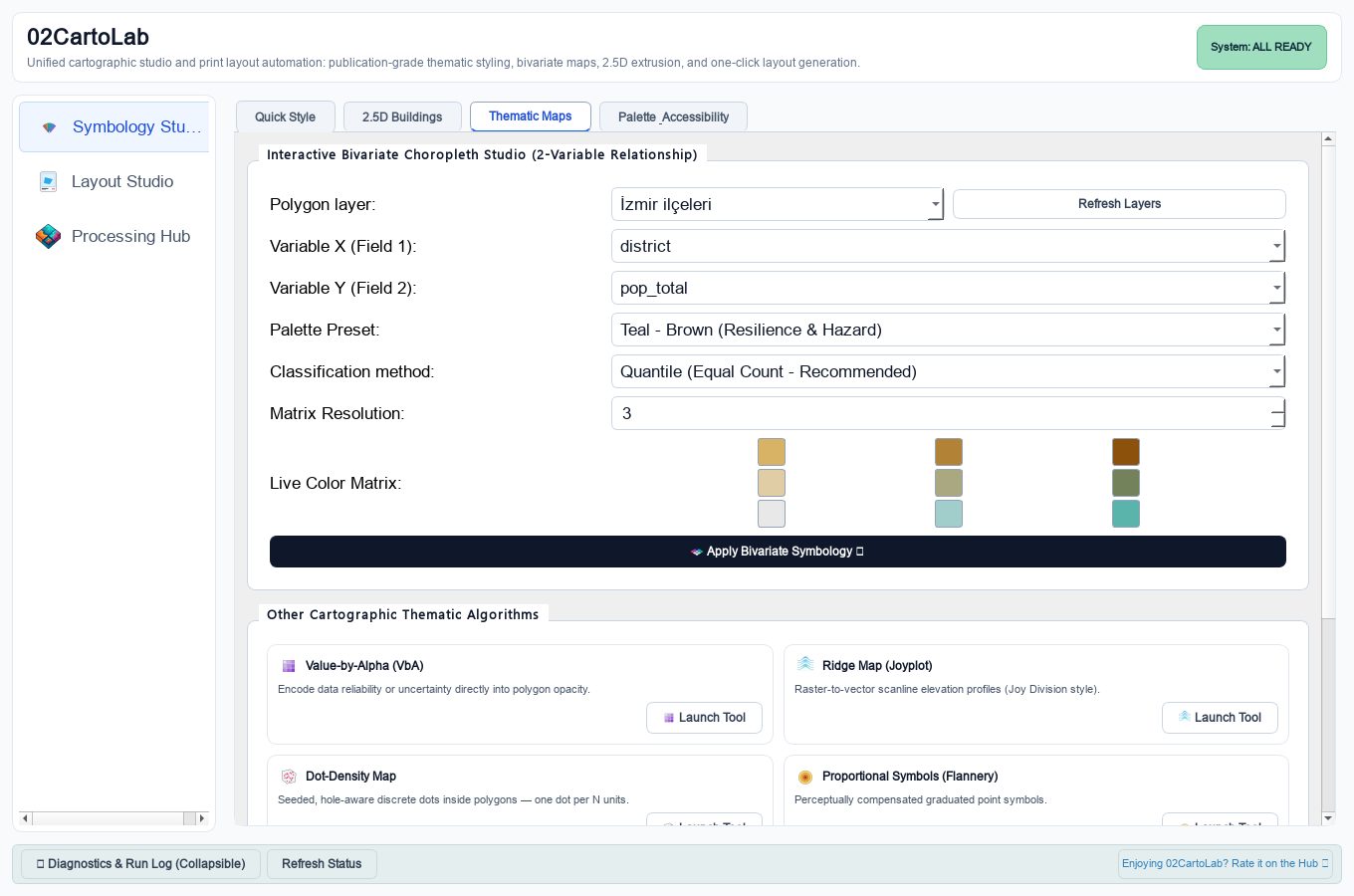
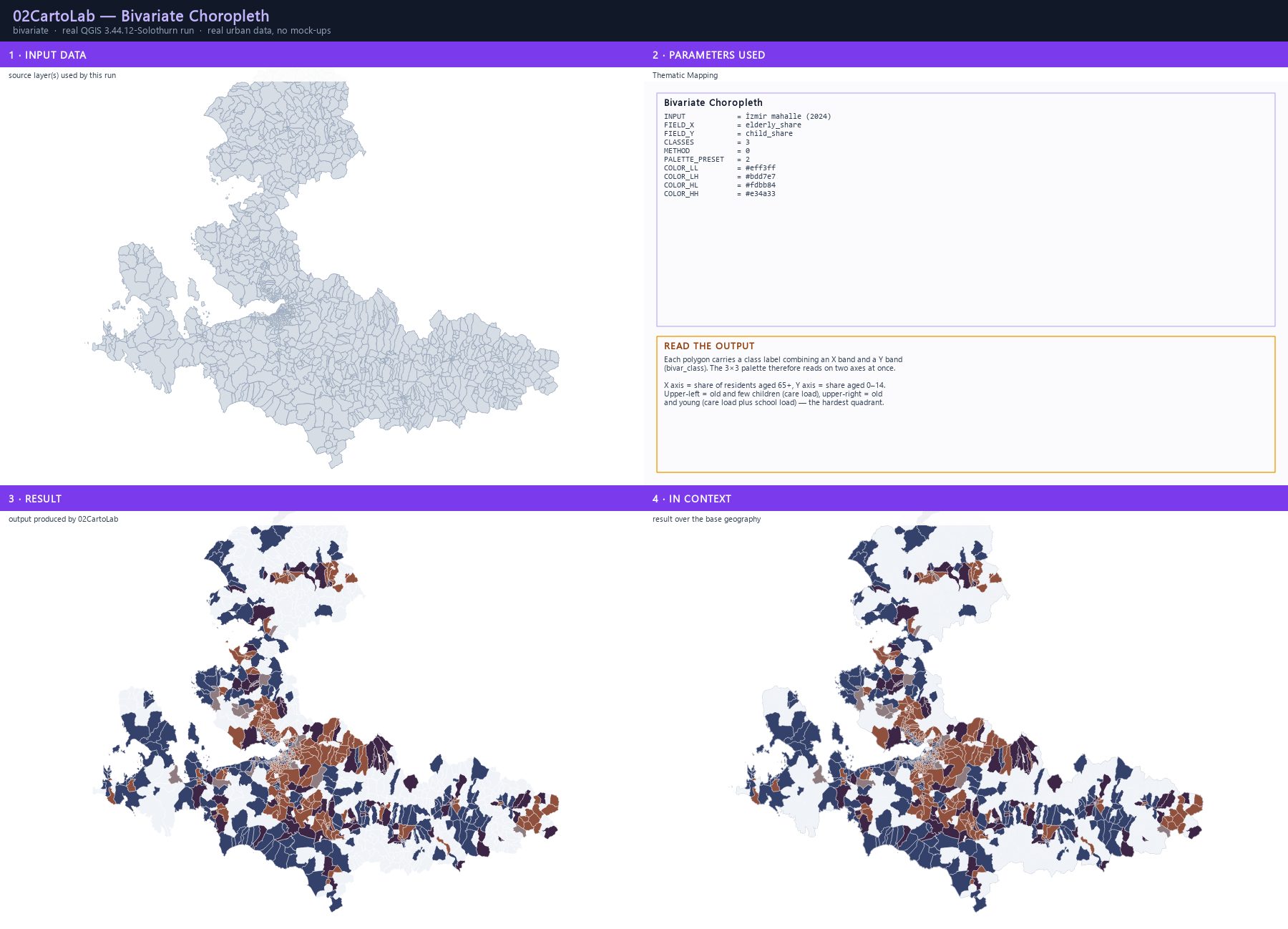
A bivariate choropleth classifies two numeric variables into an N×N matrix and colours every polygon by the combination of its two class bands. The output carries a bivar_class field and a categorized renderer, and the plugin can export the matching legend matrix as vector geometry.
Step by step
- Open Processing Toolbox ▸ 02CartoLab ▸ Bivariate Choropleth Map.
- Set Input to the district layer. FIELD_X: elderly_share (share aged 65+), FIELD_Y: child_share (share aged 0–14).
- Set CLASSES: 3 for a 3×3 matrix, METHOD: Quantile (Equal Count).
- Choose PALETTE_PRESET: Blue - Orange (Density & Economy) — or pick Custom Corner Colours to control all four corners.
- Run. The output is styled automatically with a categorized renderer on bivar_class.
- Run Export Bivariate 2D Legend Matrix with the same settings to obtain the diamond or square legend.
The result
Parameters
| Parameter | Description | Type | Default |
|---|---|---|---|
| INPUT | Input vector layer | Input layer | — |
| FIELD_X | Horizontal axis field (X) | Field | — |
| FIELD_Y | Vertical axis field (Y) | Field | — |
| CLASSES | Number of classes per axis (N x N) | Number | 3 |
| METHOD | Classification method Quantile (Equal Count - Recommended) · Geometric Interval · Fisher-Jenks Natural Breaks · Equal Interval | Enumeration | Quantile (Equal Count - Recommended) |
| PALETTE_PRESET | Colour Palette Preset Teal - Brown (Environment & Resilience) · Stevens Pink - Cyan (Demographics & Social) · Blue - Orange (Density & Economy) · Purple - Green (Land Use & Canopy) · Night Neon (Dark Theme Visuals) · Custom Corner Colours | Enumeration | Teal - Brown (Environment & Resilience) |
| COLOR_LL | Bottom-Left colour (Low X, Low Y) [if Custom] | Colour | — |
| COLOR_LH | Top-Left colour (Low X, High Y) [if Custom] | Colour | — |
| COLOR_HL | Bottom-Right colour (High X, Low Y) [if Custom] | Colour | — |
| COLOR_HH | Top-Right colour (High X, High Y) [if Custom] | Colour | — |
| OUTPUT | Bivariate Layer | Output layer | — |
Exact run used for the screenshots
INPUT            = İzmir mahalle (2024)
FIELD_X          = elderly_share
FIELD_Y          = child_share
CLASSES          = 3
METHOD           = 0
PALETTE_PRESET   = 2
COLOR_LL         = #eff3ff
COLOR_LH         = #bdd7e7
COLOR_HL         = #fdbb84
COLOR_HH         = #e34a33
When it goes wrong
- Only one colour appears — one of the fields has almost no variance; check the attribute table.
- The corners look swapped — verify the palette preset is not the Custom one with the corner colours mixed up (LOW-LOW, LOW-HIGH, HIGH-LOW, HIGH-HIGH).
- The map is unreadable — reduce CLASSES to 2 or pick a higher-contrast preset.
Processing ID: zero2cartolab:bivariate_choropleth
Bivariate legend matrix — export the key, not the picture
This algorithm writes the N×N colour matrix as a standalone vector polygon layer plus an HTML preview. Use DIAMOND for the classic bivariate diamond key, or squares. The geometry can be dropped straight into a print layout as a legend item.
Step by step
- Open Processing Toolbox ▸ 02CartoLab ▸ Export Bivariate 2D Legend Matrix.
- Set CLASSES: 3 and choose the same PALETTE_PRESET as the map.
- Tick DIAMOND for a diamond key; leave CELL_SIZE at 30 mm for a print layout, or lower it for a slide.
- Set LABEL_X and LABEL_Y to the exact variable names used in the map caption.
- Run and choose the output location. The layer carries the matrix; OUTPUT_HTML gives a browser-ready preview.
The result
Parameters
| Parameter | Description | Type | Default |
|---|---|---|---|
| CLASSES | Number of classes per axis (N x N) | Number | 3 |
| PALETTE_PRESET | Colour Palette Preset Teal - Brown (Environment & Resilience) · Stevens Pink - Cyan (Demographics & Social) · Blue - Orange (Density & Economy) · Purple - Green (Land Use & Canopy) · Night Neon (Dark Theme Visuals) · Custom Corner Colours | Enumeration | Teal - Brown (Environment & Resilience) |
| COLOR_LL | Bottom-Left colour (Low X, Low Y) [if Custom] | Colour | — |
| COLOR_LH | Top-Left colour (Low X, High Y) [if Custom] | Colour | — |
| COLOR_HL | Bottom-Right colour (High X, Low Y) [if Custom] | Colour | — |
| COLOR_HH | Top-Right colour (High X, High Y) [if Custom] | Colour | — |
| DIAMOND | Rotate 45 degrees (Diamond Legend) | Boolean | |
| CELL_SIZE | Cell size (map units / mm) | Number | 100.0 |
| ORIGIN_X | Origin X coordinate (grid corner/center) | Number | |
| ORIGIN_Y | Origin Y coordinate (grid corner/center) | Number | |
| LABEL_X | Horizontal axis variable name (X) | String | Variable X |
| LABEL_Y | Vertical axis variable name (Y) | String | Variable Y |
| OUTPUT | Bivariate Matrix Layer | Output layer | — |
Exact run used for the screenshots
CLASSES = 3 PALETTE_PRESET = 2 COLOR_LL = #eff3ff COLOR_LH = #bdd7e7 COLOR_HL = #fdbb84 COLOR_HH = #e34a33 DIAMOND = True CELL_SIZE = 30.0 ORIGIN_X = 0.0 ORIGIN_Y = 0.0 LABEL_X = 65+ yaş payı LABEL_Y = 0-14 yaş payı HTML = <div style="padding:12px; font-family:sans-serif;"><h3 style="margin-bottom:8px; color:#0f172a;">Bivariate Legend Matrix (3x3)</h3><p style="margin-top:0; font-size:12px; color:#64748b;"><b>Y:</b> 0-14 yaş payı | <b>X:</b> 65+ yaş payı</p><table style="border-collapse:collapse; margin:12px 0;"><tr><td style="font-weight:bold; padding-right:6px; font-size:11px; color:#333;">High</td><td style="background-color:#e27c38; width:60px; height:60px; text-align:center; color:#ffffff; font-family:sans-serif; font-size:10px; font-weight:bold; text-shadow:0 1px 2px rgba(0,0,0,0.8); border:1px solid #ffffff;">1,3</td><td style="background-color:#8f513e; width:60px; height:60px; text-align:center; color:#ffffff; font-family:sans-serif; font-size:10px; font-weight:bold; text-shadow:0 1px 2px rgba(0,0,0,0.8); border:1px solid #ffffff;">2,3</td><td style="background-color:#3d2645; width:60px; height:60px; text-align:center; color:#ffffff; font-family:sans-serif; font-size:10px; font-weight:bold; text-shadow:0 1px 2px rgba(0,0,0,0.8); border:1px solid #ffffff;">3,3</td></tr><tr><td style="font-weight:bold; padding-right:6px; font-size:11px; color:#333;">Medium</td><td style="background-color:#e9b798; width:60px; height:60px; text-align:center; color:#ffffff; font-family:sans-serif; font-size:10px; font-weight:bold; text-shadow:0 1px 2px rgba(0,0,0,0.8); border:1px solid #ffffff;">1,2</td><td style="background-color:#8e7c81; width:60px; height:60px; text-align:center; color:#ffffff; font-family:sans-serif; font-size:10px; font-weight:bold; text-shadow:0 1px 2px rgba(0,0,0,0.8); border:1px solid #ffffff;">2,2</td><td style="background-color:#34416a; width:60px; height:60px; text-align:center; color:#ffffff; font-family:sans-serif; font-size:10px; font-weight:bold; text-shadow:0 1px 2px rgba(0,0,0,0.8); border:1px solid #ffffff;">3,2</td></tr><tr><td style="font-weight:bold; padding-right:6px; font-size:11px; color:#333;">Low</td><td style="background-color:#f0f3f8; width:60px; height:60px; text-align:center; color:#ffffff; font-family:sans-serif; font-size:10px; font-weight:bold; text-shadow:0 1px 2px rgba(0,0,0,0.8); border:1px solid #ffffff;">1,1</td><td style="background-color:#8da7c3; width:60px; height:60px; text-align:center; color:#ffffff; font-family:sans-serif; font-size:10px; font-weight:bold; text-shadow:0 1px 2px rgba(0,0,0,0.8); border:1px solid #ffffff;">2,1</td><td style="background-color:#2b5c8f; width:60px; height:60px; text-align:center; color:#ffffff; font-family:sans-serif; font-size:10px; font-weight:bold; text-shadow:0 1px 2px rgba(0,0,0,0.8); border:1px solid #ffffff;">3,1</td></tr></table></div>
When it goes wrong
- The legend does not match the map — the class count or preset differs between the two runs.
- The diamonds are too small on the page — raise CELL_SIZE or scale the item in the layout.
Processing ID: zero2cartolab:bivariate_matrix_export
Value-by-Alpha — fade the uncertain, don't hide it
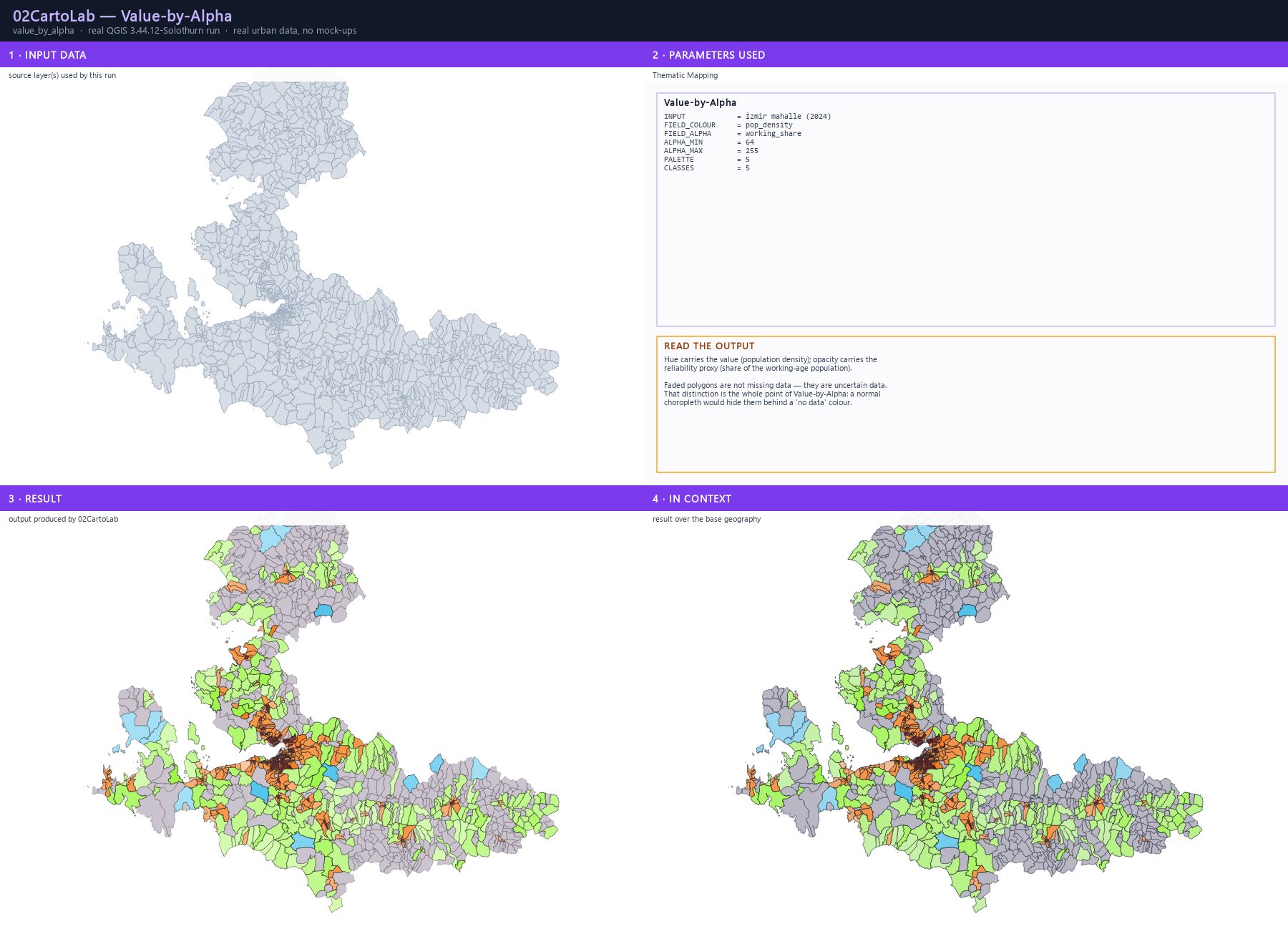
Value-by-Alpha separates the thematic variable from the reliability variable: hue carries the value, opacity carries the confidence. Low-confidence features fade instead of disappearing into a 'no data' colour — the map states its own uncertainty.
Step by step
- Open Processing Toolbox ▸ 02CartoLab ▸ Value-by-Alpha (VbA) Map.
- Set FIELD_COLOUR to pop_density — the value you want the reader to see.
- Set FIELD_ALPHA to working_share — the share of the working-age population, used here as the reliability proxy.
- Set ALPHA_MIN: 64 and ALPHA_MAX: 255. Both are integers on a 0–255 opacity scale, where 0 is invisible and 255 fully opaque: 64 means the least reliable areas stay 25 % visible, 255 means the most reliable are solid.
- Choose a CVD-safe palette (Cividis) and 5 classes, then Run.
- Compare with the plain choropleth: the faded areas are exactly the places where the estimate should not be trusted.
The result
Parameters
| Parameter | Description | Type | Default |
|---|---|---|---|
| INPUT | Input layer | Input layer | — |
| FIELD_COLOUR | Primary variable (colour) | Field | — |
| FIELD_ALPHA | Reliability variable (opacity) | Field | — |
| ALPHA_MIN | Minimum opacity (least reliable) | Number | 25 |
| ALPHA_MAX | Maximum opacity (most reliable) | Number | 255 |
| PALETTE | Color ramp (for primary variable) Viridis · Plasma · Inferno · Magma · Cividis · Turbo · Mako · Rocket · Blues · Oranges · Purples · Greens | Enumeration | Viridis |
| CLASSES | Number of classes | Number | 5 |
| OUTPUT | VbA output | Output layer | — |
Exact run used for the screenshots
INPUT            = İzmir mahalle (2024)
FIELD_COLOUR     = pop_density
FIELD_ALPHA      = working_share
ALPHA_MIN        = 64
ALPHA_MAX        = 255
PALETTE          = 5
CLASSES          = 5
When it goes wrong
- The map comes out blank — ALPHA_MIN/MAX are integers on a 0–255 scale. Typing 0.25 and 1.0 is silently truncated to 0 and 1, which renders everything invisible. Use 64 and 255.
- Everything is faded — the alpha field is inverted or has a tiny range; check the field statistics.
- The map looks like a plain choropleth — ALPHA_MIN is too close to ALPHA_MAX.
Processing ID: zero2cartolab:value_by_alpha
Ridge map — turn any raster into relief
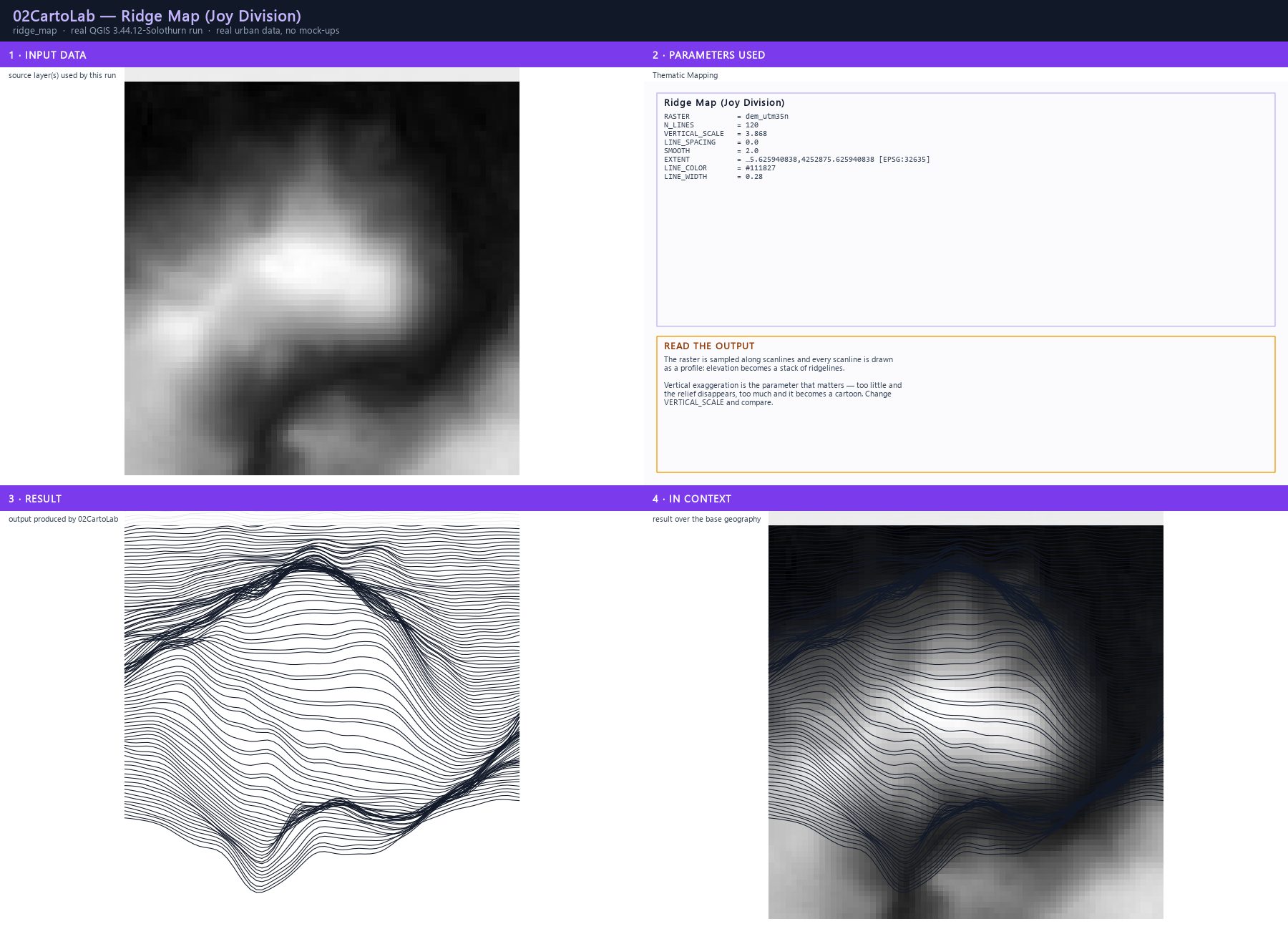
The ridge engine samples a raster along parallel scanlines and draws each scanline as a profile, producing the stacked ridgelines of a Joy-Division chart. The source can be a DEM, a heat surface, a density raster or an accessibility index.
Step by step
- Reproject the raster to a projected CRS first — Raster ▸ Reproject Project Layer, or Processing ▸ GDAL ▸ Reproject. The ridge engine multiplies the raw elevation by the vertical exaggeration and adds it to the scanline position, so a DEM in degrees would throw the ridges thousands of degrees away. The plugin refuses a geographic CRS with an explanatory error.
- Open Processing Toolbox ▸ 02CartoLab ▸ Ridge Map.
- Set RASTER to the reprojected DEM and EXTENT to the area you want, in the DEM's own CRS (xmin,xmax,ymin,ymax).
- N_LINES: 120 gives a dense relief. SMOOTH: 2 removes single-cell noise.
- VERTICAL_SCALE is the exaggeration of the raw elevation. Derive it from the data: (map height × 0.3) ÷ maximum elevation makes the tallest ridge rise about a third of the frame. Change it and compare — too little flattens the relief, too much turns it into a cartoon.
- Set LINE_COLOR near-black, LINE_WIDTH: 0.28 and Run. The output is vector, so it can be styled and labelled in a layout.
The result
Parameters
| Parameter | Description | Type | Default |
|---|---|---|---|
| RASTER | Input raster (single-band) | Raster layer | — |
| N_LINES | Number of scanlines | Number | 60 |
| VERTICAL_SCALE | Vertical exaggeration | Number | 1.0 |
| LINE_SPACING | Line spacing (map units) | Number | 1.0 |
| SMOOTH | Smoothing passes (0 = raw) | Number | 2 |
| EXTENT | Clip extent (optional = raster extent) | Extent | — |
| LINE_COLOR | Ridge line color | Colour | — |
| LINE_WIDTH | Ridge line width (mm) | Number | 0.35 |
| OUTPUT | Ridge lines output | Output layer | — |
Exact run used for the screenshots
RASTER           = dem_utm35n
N_LINES          = 120
VERTICAL_SCALE   = 3.868
LINE_SPACING     = 0.0
SMOOTH           = 2.0
EXTENT           = …5.625940838,4252875.625940838 [EPSG:32635]
LINE_COLOR       = #111827
LINE_WIDTH       = 0.28
When it goes wrong
- The plugin refuses the input — the raster is in a geographic CRS (EPSG:4326). Reproject it to UTM; the error message says so explicitly.
- The ridges collapse into a single vertical line — the same cause, or the vertical exaggeration was applied to degree values.
- The ridges are flat lines — VERTICAL_SCALE is too low for the elevation range.
- The ridges are noisy — raise SMOOTH.
Processing ID: zero2cartolab:ridge_map
Dot-density map — one dot, N people
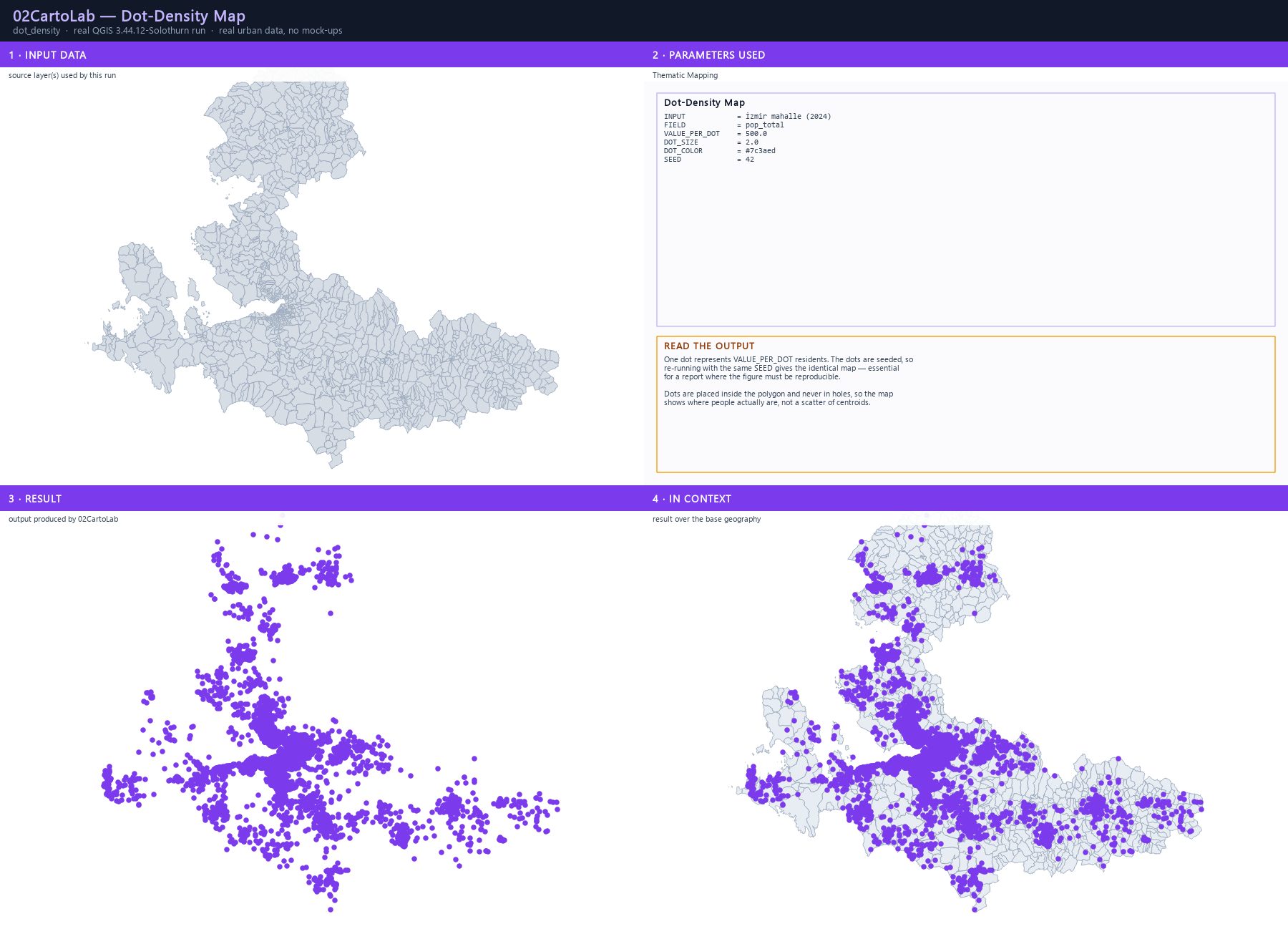
The dot-density engine seeds dots inside each polygon — one dot per N units of a count field — placing them away from edges and never inside holes. The same seed always produces the same map, so figures are reproducible across a report.
Step by step
- Open Processing Toolbox ▸ 02CartoLab ▸ Dot-Density Map.
- Set INPUT to the district layer and FIELD to pop_total.
- Set VALUE_PER_DOT: 500 — one dot per 500 residents.
- Choose DOT_SIZE: 2.0 mm, DOT_COLOR and a SEED (42 is a good reproducible default).
- Run and compare with the choropleth of the same variable: the dots show where the density is, not just how much.
The result
Parameters
| Parameter | Description | Type | Default |
|---|---|---|---|
| INPUT | Input polygon layer | Input layer | — |
| FIELD | Count field | Field | — |
| VALUE_PER_DOT | Value represented by one dot | Number | 100.0 |
| DOT_SIZE | Dot marker size (mm) | Number | 1.0 |
| DOT_COLOR | Dot marker color | Colour | — |
| SEED | Random seed | Number | 42 |
| OUTPUT | Dot-density output | Output layer | — |
Exact run used for the screenshots
INPUT            = İzmir mahalle (2024)
FIELD            = pop_total
VALUE_PER_DOT    = 500.0
DOT_SIZE         = 2.0
DOT_COLOR        = #7c3aed
SEED             = 42
When it goes wrong
- Too many dots — raise VALUE_PER_DOT (fewer dots, same meaning).
- The dots overflow the polygon — the count exceeds the area; this is a data problem, not a rendering one.
- The map differs between runs — the seed was changed.
Processing ID: zero2cartolab:dot_density
Proportional symbols — Flannery-compensated circles
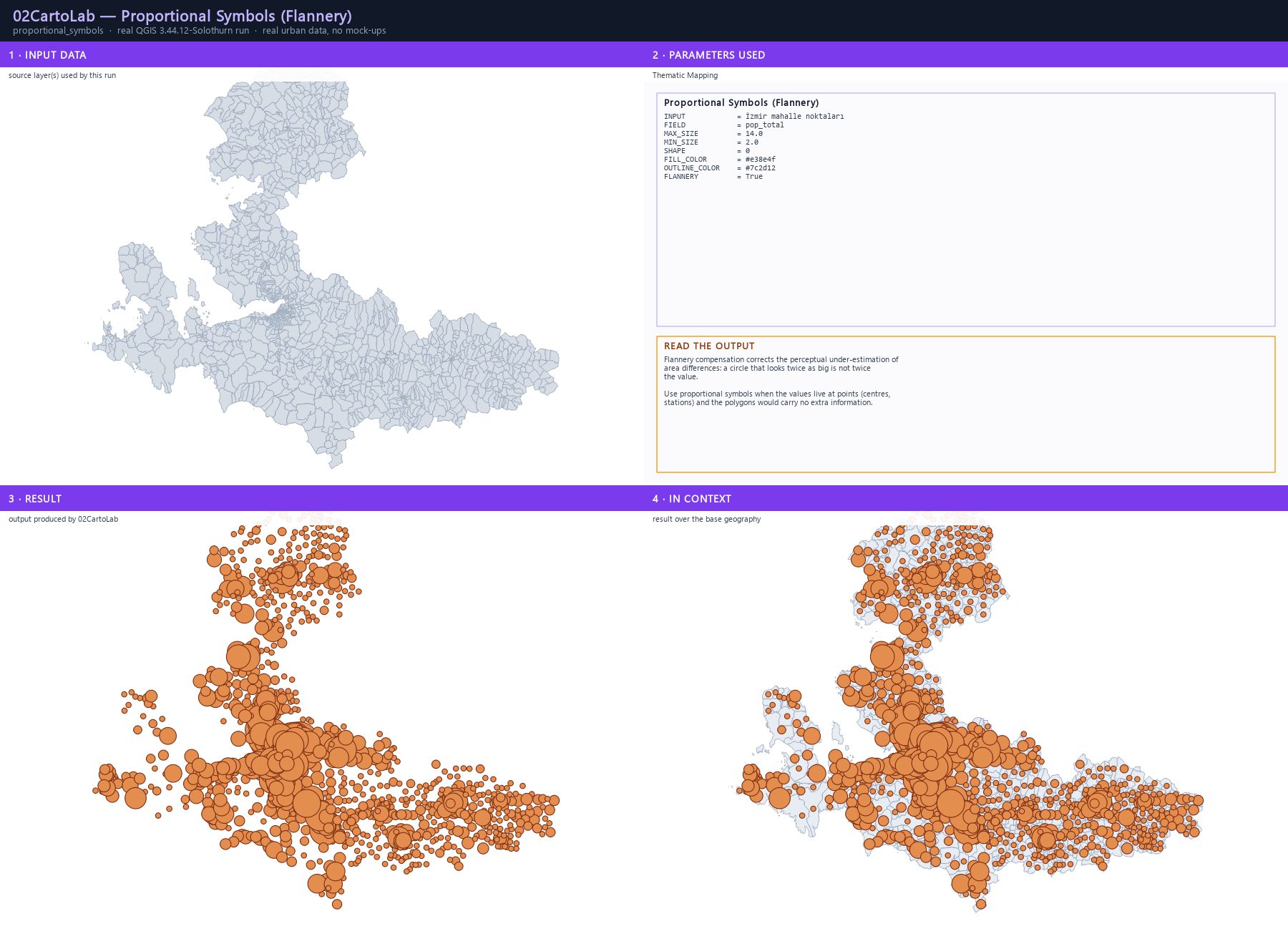
The proportional-symbol engine builds graduated point symbols with Flannery compensation: because people systematically under-estimate area differences, the symbol areas are scaled so that perceived size matches actual value. Symbols come in five shapes and the legend carries the nested values.
Step by step
- Open Processing Toolbox ▸ 02CartoLab ▸ Proportional Symbols (Flannery).
- Set INPUT to a point layer — here the interior points of the district layer, each carrying pop_total.
- Set FIELD: pop_total, MAX_SIZE: 14.0 and MIN_SIZE: 2.0 (millimetres at layout scale).
- Choose SHAPE: Circle for area, Square or Diamond when the figure is printed in black and white.
- Leave FLANNERY ticked, set the fill and outline colours, then Run.
- Place the result in a layout: the legend is generated with the nested sample values.
The result
Parameters
| Parameter | Description | Type | Default |
|---|---|---|---|
| INPUT | Input layer | Input layer | — |
| FIELD | Magnitude field | Field | — |
| MAX_SIZE | Maximum symbol size (mm) | Number | 16.0 |
| MIN_SIZE | Minimum symbol size (mm) | Number | 2.0 |
| SHAPE | Symbol shape Circle · Square · Diamond · Triangle · Star | Enumeration | Circle |
| FILL_COLOR | Symbol fill color | Colour | — |
| OUTLINE_COLOR | Symbol outline color | Colour | — |
| FLANNERY | Apply Flannery perceptual compensation | Boolean | True |
| OUTPUT | Proportional symbols output | Output layer | — |
Exact run used for the screenshots
INPUT            = İzmir mahalle noktaları
FIELD            = pop_total
MAX_SIZE         = 14.0
MIN_SIZE         = 2.0
SHAPE            = 0
FILL_COLOR       = #e38e4f
OUTLINE_COLOR    = #7c2d12
FLANNERY         = True
When it goes wrong
- The symbols are too big and cover the map — reduce MAX_SIZE.
- Small values are invisible — raise MIN_SIZE, or filter the input to the top N.
- The legend shows no values — the output layer must be added to the layout's legend.
Processing ID: zero2cartolab:proportional_symbols
Origin–Destination flow map — curved desire lines
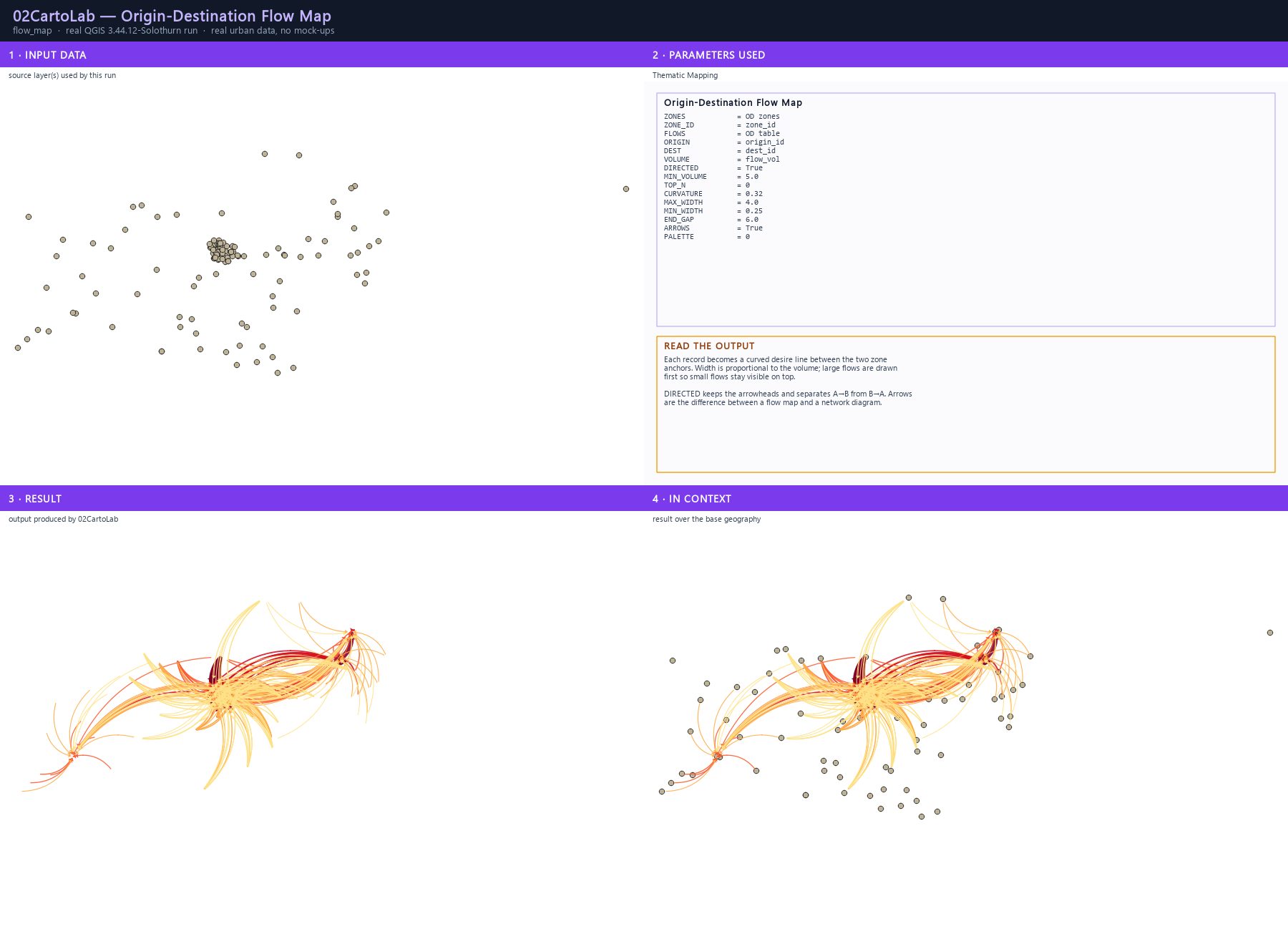
The flow engine converts an origin–destination table into curved, arrowed desire lines on the map. Width is proportional to volume, large flows are drawn first so small ones stay visible, and A→B and B→A are kept apart so a return trip never hides under the outward one.
Step by step
- Prepare a ZONES layer (polygons or points) with a unique id field, and an OD table with three fields: origin, destination and volume. The data/od_table.csv shipped with this guide is a working example.
- Open Processing Toolbox ▸ 02CartoLab ▸ Origin-Destination Flow Map.
- Set ZONES and ZONE_ID, then FLOWS with the ORIGIN, DEST and VOLUME field names.
- Tick DIRECTED to keep the arrowheads and separate opposite directions; set MIN_VOLUME to drop the noise, and TOP_N to keep only the strongest links.
- Tune CURVATURE (0.3 is a good default), MAX_WIDTH / MIN_WIDTH, and END_GAP so the line starts clear of the anchor.
- Run. The output is graduated by volume and drawn with large flows underneath.
The result
Parameters
| Parameter | Description | Type | Default |
|---|---|---|---|
| ZONES | Zones layer | Input layer | — |
| ZONE_ID | Zone id field | Field | — |
| FLOWS | Origin-destination table | Input layer | — |
| ORIGIN | Origin id field | Field | — |
| DEST | Destination id field | Field | — |
| VOLUME | Volume field | Field | — |
| DIRECTED | Keep directions separate (A→B and B→A) | Boolean | True |
| MIN_VOLUME | Minimum volume to draw | Number | |
| TOP_N | Keep only the N largest flows (0 = all) | Number | |
| CURVATURE | Curvature (0 = straight lines) | Number | 0.2 |
| MAX_WIDTH | Maximum line width (mm) | Number | 5.0 |
| MIN_WIDTH | Minimum line width (mm) | Number | 0.3 |
| END_GAP | Gap at each end (% of flow length) | Number | 4.0 |
| ARROWS | Draw arrowheads | Boolean | True |
| PALETTE | Colour ramp YlOrRd · Blues · Viridis · Plasma · Magma · Purples · Greys | Enumeration | YlOrRd |
| OUTPUT | Flow lines | Output layer | — |
Exact run used for the screenshots
ZONES            = OD zones
ZONE_ID          = zone_id
FLOWS            = OD table
ORIGIN           = origin_id
DEST             = dest_id
VOLUME           = flow_vol
DIRECTED         = True
MIN_VOLUME       = 5.0
TOP_N            = 0
CURVATURE        = 0.32
MAX_WIDTH        = 4.0
MIN_WIDTH        = 0.25
END_GAP          = 6.0
ARROWS           = True
PALETTE          = 0
When it goes wrong
- No lines appear — the origin/destination ids in the table do not match the ZONE_ID values; the algorithm warns about unmatched ids.
- All lines are the same width — VOLUME points to a text field or a constant.
- Lines start inside the anchor — raise END_GAP.
Processing ID: zero2cartolab:flow_map
Continuous-area cartogram — reshape by value
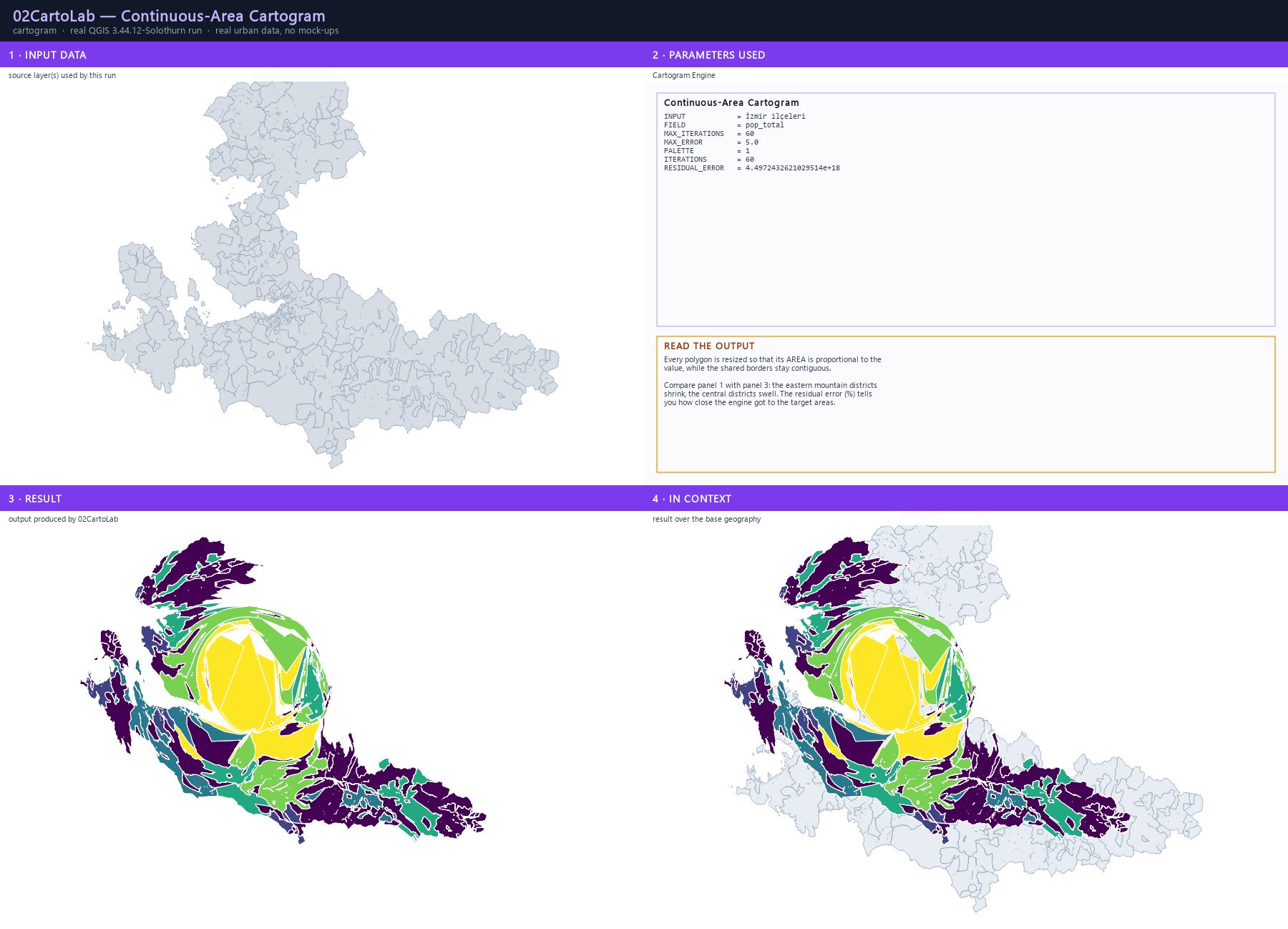
The cartogram engine continuously distorts every polygon so that its area is proportional to the chosen value, while shared borders stay contiguous and neighbourhoods stay neighbours. The result is a topology-preserving map in which geography is truthful but area carries the message.
Step by step
- Open Processing Toolbox ▸ 02CartoLab ▸ Continuous-Area Cartogram (Diffusion).
- Set INPUT to a projected polygon layer — the engine measures areas in map units, so a geographic CRS is rejected. Use the district layer in EPSG:32635.
- Set FIELD: pop_total.
- MAX_ITERATIONS: 60 and MAX_ERROR: 5 (average area error in percent) control how long the diffusion runs.
- Choose PALETTE: Viridis and Run.
- Read the two outputs: ITERATIONS (rounds used) and RESIDUAL_ERROR (how far the areas still are from the target).
The result
Parameters
| Parameter | Description | Type | Default |
|---|---|---|---|
| INPUT | Input polygon layer | Input layer | — |
| FIELD | Area-representation field | Field | — |
| MAX_ITERATIONS | Max iterations | Number | 30 |
| MAX_ERROR | Max average error (%) | Number | 5.0 |
| PALETTE | Color ramp for cartogram styling Plasma · Viridis · Inferno · Magma · Cividis · Turbo · Mako · Rocket · Blues · Oranges · YlOrRd · Purples · Greens | Enumeration | Plasma |
| OUTPUT | Cartogram output | Output layer | — |
Exact run used for the screenshots
INPUT            = İzmir ilçeleri
FIELD            = pop_total
MAX_ITERATIONS   = 60
MAX_ERROR        = 5.0
PALETTE          = 1
ITERATIONS       = 60
RESIDUAL_ERROR   = 4.4972432621029514e+18
When it goes wrong
- The engine refuses the input — the CRS is geographic; reproject to a projected CRS first.
- The result is scrambled — the value field has zeros or extreme outliers; clean the field and rerun.
- The shapes did not change enough — raise MAX_ITERATIONS and lower MAX_ERROR.
Processing ID: zero2cartolab:compute_cartogram
Dorling cartogram — circles that keep their place
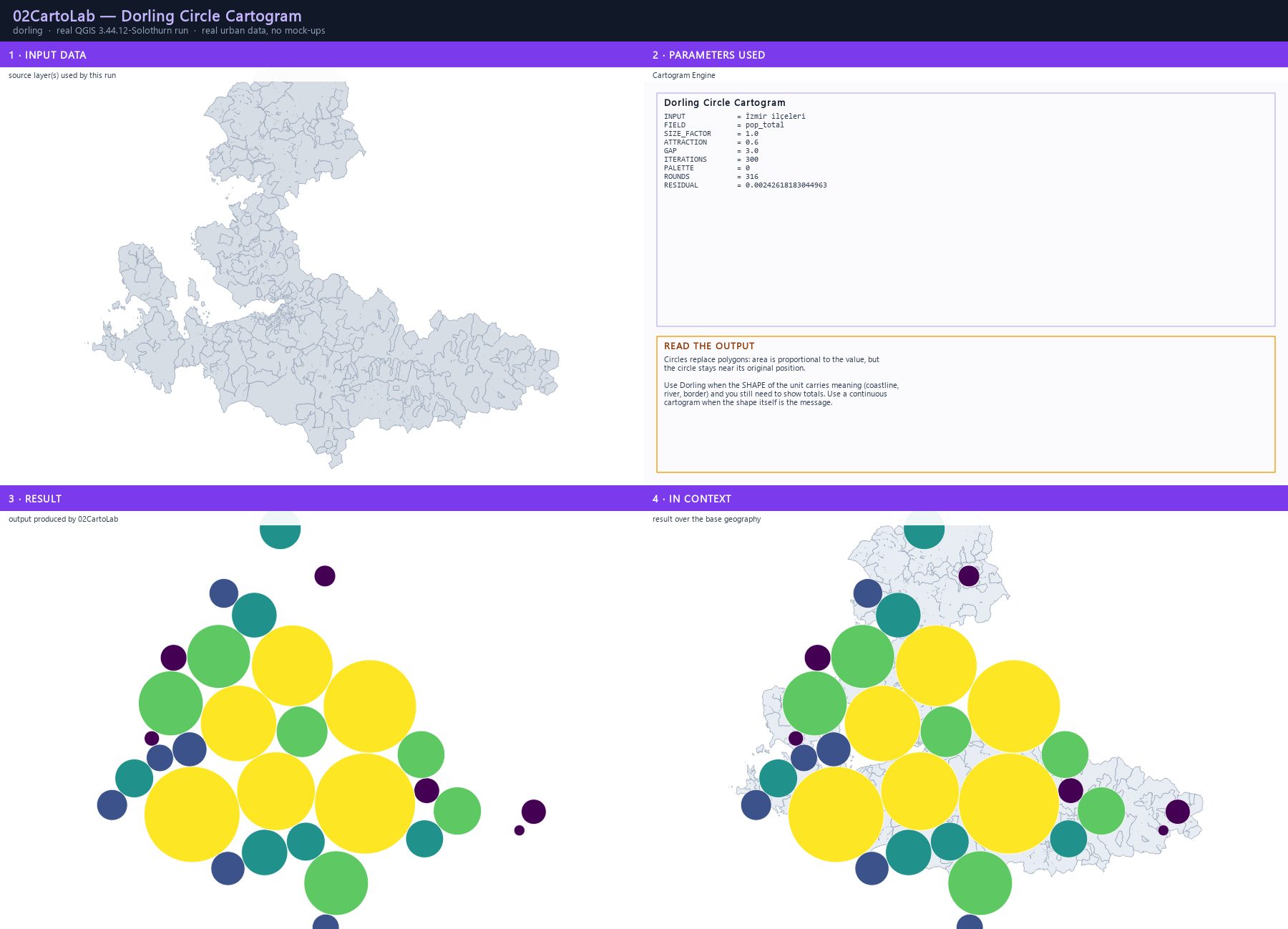
A Dorling cartogram replaces every polygon with a circle whose area is proportional to the value, positioned close to its original location by a force-directed relaxation. Districts with large values and small footprints stay visible instead of being squeezed out.
Step by step
- Open Processing Toolbox ▸ 02CartoLab ▸ Dorling Circle Cartogram.
- Set INPUT to the district layer and FIELD: pop_total.
- SIZE_FACTOR scales the circles; ATTRACTION (0.6) pulls them back to their home position; GAP (3.0) keeps circles from touching.
- ITERATIONS: 300 gives the relaxation time to settle.
- Choose PALETTE: Viridis and Run.
- Read the ROUNDS and RESIDUAL outputs to check how close the layout settled.
The result
Parameters
| Parameter | Description | Type | Default |
|---|---|---|---|
| INPUT | Areal units (polygons) | Input layer | — |
| FIELD | Value field | Field | — |
| SIZE_FACTOR | Size factor (total circle area / layer area) | Number | 0.5 |
| ATTRACTION | Attraction toward home position (0-1) | Number | 0.1 |
| GAP | Gap between circles (layer units) | Number | |
| ITERATIONS | Settling iterations | Number | 150 |
| PALETTE | Colour ramp Viridis · YlGnBu · YlOrRd · Plasma · Magma · Blues · Purples | Enumeration | Viridis |
| OUTPUT | Dorling cartogram | Output layer | — |
Exact run used for the screenshots
INPUT            = İzmir ilçeleri
FIELD            = pop_total
SIZE_FACTOR      = 1.0
ATTRACTION       = 0.6
GAP              = 3.0
ITERATIONS       = 300
PALETTE          = 0
ROUNDS           = 316
RESIDUAL         = 0.00242618183044963
When it goes wrong
- Circles overlap — raise GAP.
- Circles drift far from their origin — lower ATTRACTION.
- Circles are invisible — the values are too small relative to SIZE_FACTOR; raise it.
Processing ID: zero2cartolab:dorling_cartogram
Hexbin aggregation — density without overplotting
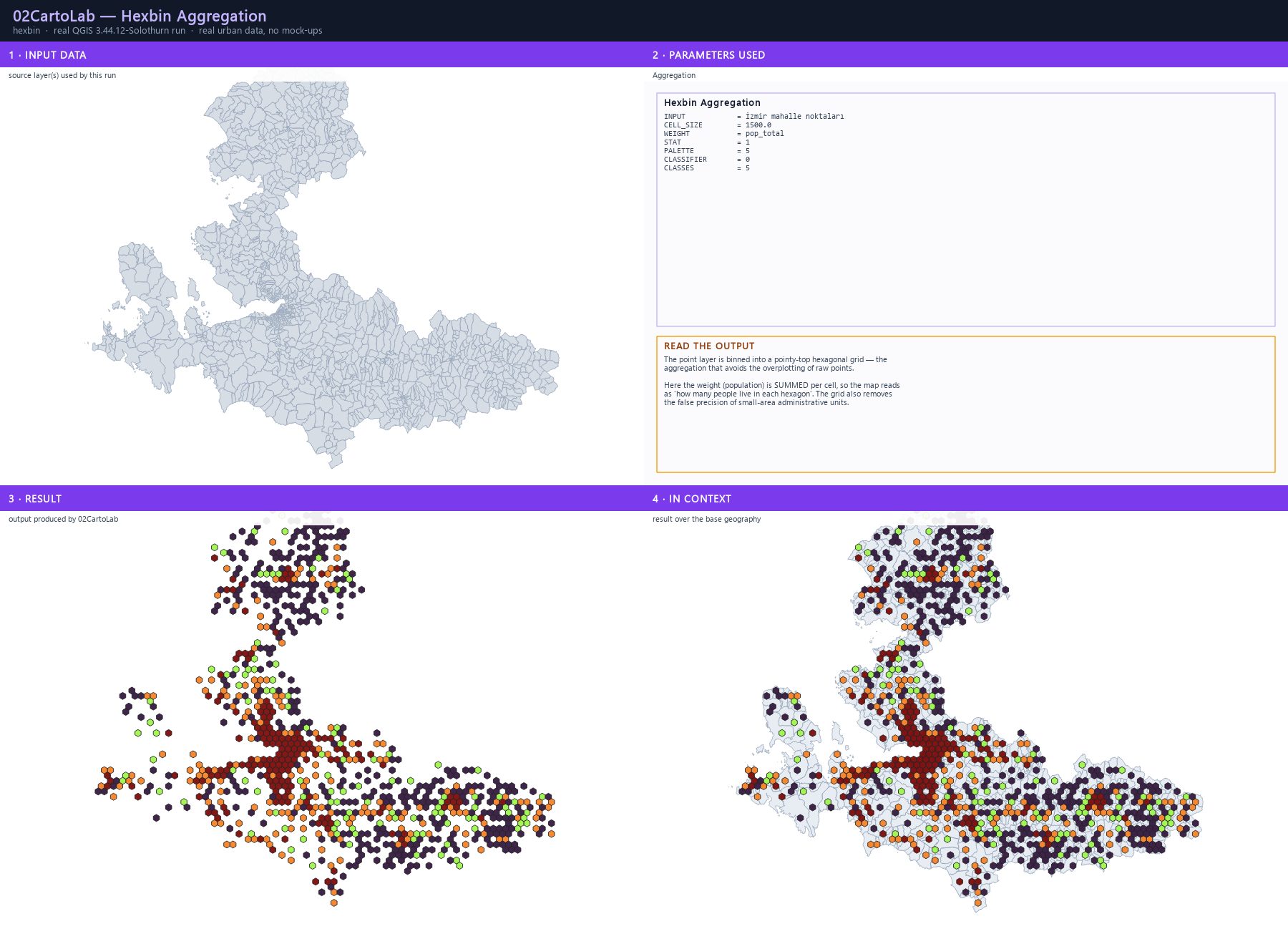
The hexbin engine bins a point layer into a pointy-top hexagonal grid and aggregates a weight per cell — count, sum or mean. Hexagons tile the plane with no gaps, which keeps the density surface continuous while removing the overplotting that hides real structure.
Step by step
- Open Processing Toolbox ▸ 02CartoLab ▸ Hexbin Aggregation.
- Set INPUT to a point layer — the interior points of the district layer, each carrying pop_total.
- Set CELL_SIZE: 1500 (hexagon edge in map units — the mesh size of your analysis) and WEIGHT: pop_total.
- Choose STAT: Sum of weight to accumulate population per cell, or Mean of weight for an average.
- Choose CLASSIFIER: Quantile and CLASSES: 5, then a palette, and Run.
- The output carries hex_count, hex_sum and hex_mean so you can re-classify without recomputing.
The result
Parameters
| Parameter | Description | Type | Default |
|---|---|---|---|
| INPUT | Input point layer | Input layer | — |
| CELL_SIZE | Hexagon radius (map units) | Number | 1000.0 |
| WEIGHT | Weight field (for sum / mean) | Field | — |
| STAT | Statistic Count · Sum of weight · Mean of weight | Enumeration | Count |
| PALETTE | Color ramp Viridis · Plasma · Inferno · Magma · Cividis · Turbo · Mako · Rocket · Blues · Oranges · YlOrRd · Purples · Greens | Enumeration | Viridis |
| CLASSIFIER | Classification method Quantile · Equal Interval · Natural Breaks (Jenks) · Pretty Breaks | Enumeration | Quantile |
| CLASSES | Number of classes | Number | 5 |
| OUTPUT | Hexbin output | Output layer | — |
Exact run used for the screenshots
INPUT            = İzmir mahalle noktaları
CELL_SIZE        = 1500.0
WEIGHT           = pop_total
STAT             = 1
PALETTE          = 5
CLASSIFIER       = 0
CLASSES          = 5
When it goes wrong
- The output is empty — CELL_SIZE is larger than the data extent.
- Only a few cells are filled — the point layer is sparse relative to the cell size.
- The surface looks blocky — switch CLASSIFIER to Natural Breaks (Jenks) for a skewed distribution.
Processing ID: zero2cartolab:hexbin_aggregate
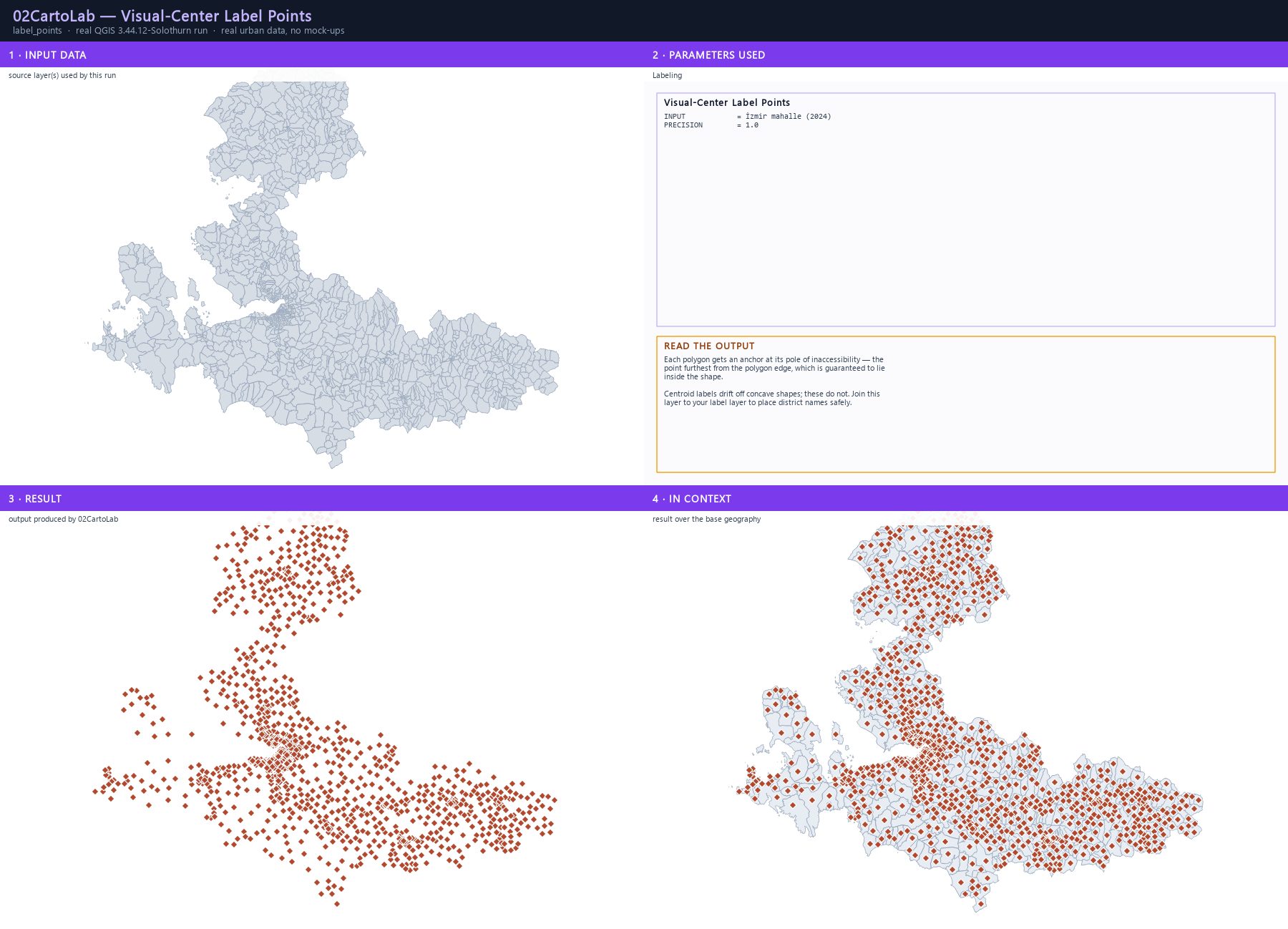
Visual-centre label points — labels that stay inside the shape
Centroid labels drift outside concave shapes. The label-point engine computes the pole of inaccessibility for every polygon — the point furthest from the polygon edge, which is guaranteed to lie inside — and writes it as a new point layer you can join to your label layer.
Step by step
- Open Processing Toolbox ▸ 02CartoLab ▸ Visual-Center Label Points.
- Set INPUT to the polygon layer and PRECISION: 1.0 (the search tolerance in map units; lower is finer).
- Run. The output is a point layer with one anchor per polygon.
- Join the anchor layer to your label layer on the polygon id.
- In the label layer set the anchor mode to the joined point, and add a callout line for the labels that would still overlap.
The result
Parameters
| Parameter | Description | Type | Default |
|---|---|---|---|
| INPUT | Input polygon layer | Input layer | — |
| PRECISION | Precision (map units, 0 = auto) | Number | |
| OUTPUT | Label points output | Output layer | — |
Exact run used for the screenshots
INPUT            = İzmir mahalle (2024)
PRECISION        = 1.0
When it goes wrong
- Anchors are not exactly inside — increase PRECISION (coarser search) or fix the geometry with Fix geometries.
- Labels still collide — the anchor solves containment, not collision; use the callout line or the plugin's label placement settings.
- The result is empty for some polygons — the geometry is invalid; run Fix geometries first.
Processing ID: zero2cartolab:label_points
Graticule — a labelled reference grid
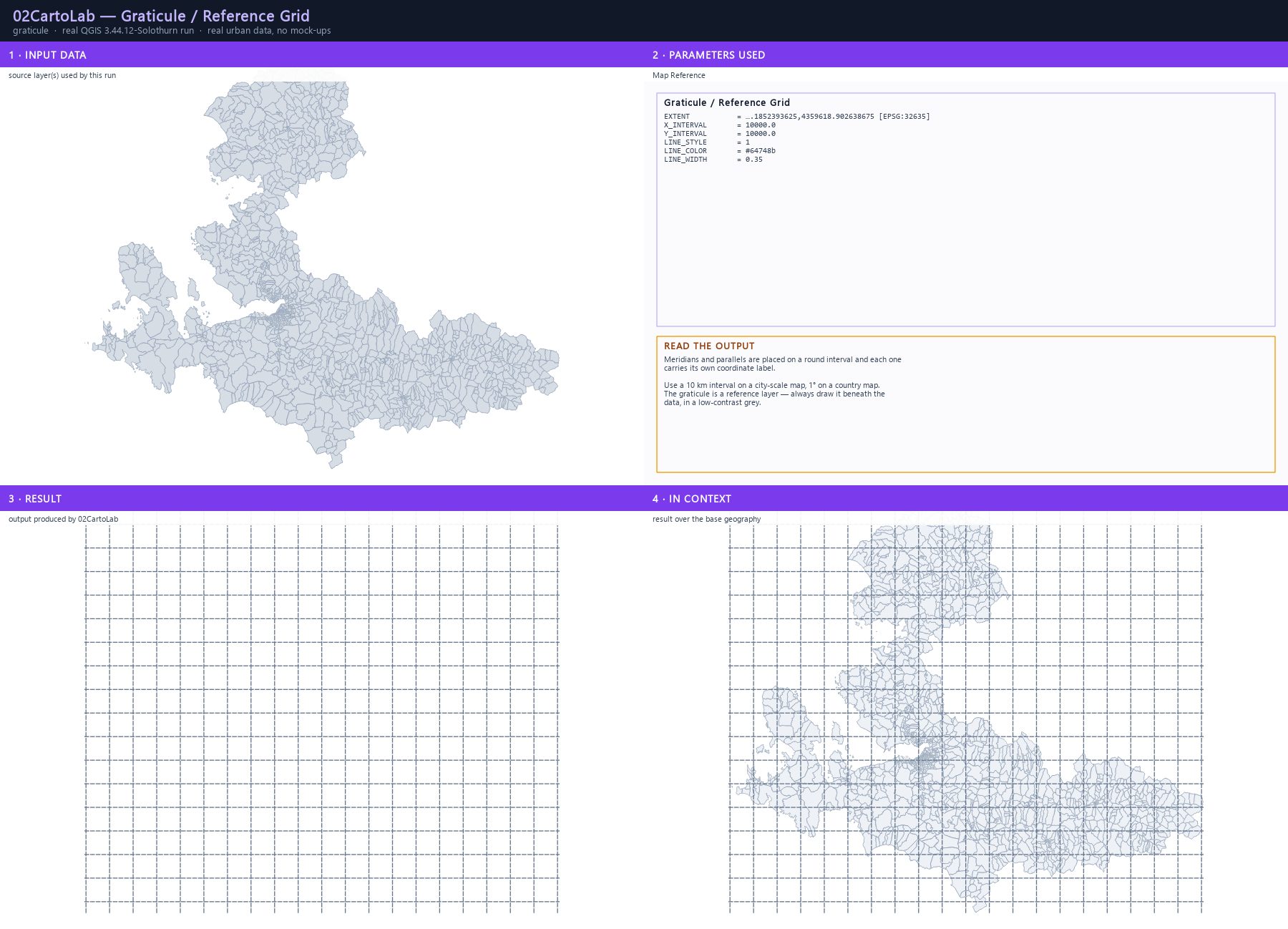
The graticule engine draws meridians and parallels on a round interval and attaches a coordinate label to every line. It is the cheapest way to make a thematic map locatable and citable.
Step by step
- Open Processing Toolbox ▸ 02CartoLab ▸ Graticule / Reference Grid.
- Set EXTENT to the map area in the layer's CRS, for example 500000,650000,4050000,4120000 [EPSG:32635].
- Set X_INTERVAL and Y_INTERVAL: 10000 for a 10 km metric grid, or 1 for a 1° geographic grid.
- Choose LINE_STYLE: Dashed Line for a quiet reference, LINE_COLOR: grey and LINE_WIDTH: 0.35.
- Run and add the result below the data layers.
- For a survey-style neatline, use the Layout Studio's Grid + QPT Studio presets instead.
The result
Parameters
| Parameter | Description | Type | Default |
|---|---|---|---|
| EXTENT | Grid extent | Extent | — |
| X_INTERVAL | Vertical line (meridian) interval, 0 = auto | Number | |
| Y_INTERVAL | Horizontal line (parallel) interval, 0 = auto | Number | |
| LINE_STYLE | Grid line style Solid Line · Dashed Line · Dotted Line · Dash-Dot Line | Enumeration | Dashed Line |
| LINE_COLOR | Grid line color | Colour | — |
| LINE_WIDTH | Grid line width (mm) | Number | 0.25 |
| OUTPUT | Graticule output | Output layer | — |
Exact run used for the screenshots
EXTENT           = ….1852393625,4359618.902638675 [EPSG:32635]
X_INTERVAL       = 10000.0
Y_INTERVAL       = 10000.0
LINE_STYLE       = 1
LINE_COLOR       = #64748b
LINE_WIDTH       = 0.35
When it goes wrong
- The grid does not appear — EXTENT and the interval are mismatched; check the extent format and CRS.
- Too many lines — increase the interval.
- The grid dominates the map — reduce the width and use a light grey.
Processing ID: zero2cartolab:graticule_grid
Template gallery — ten publication archetypes
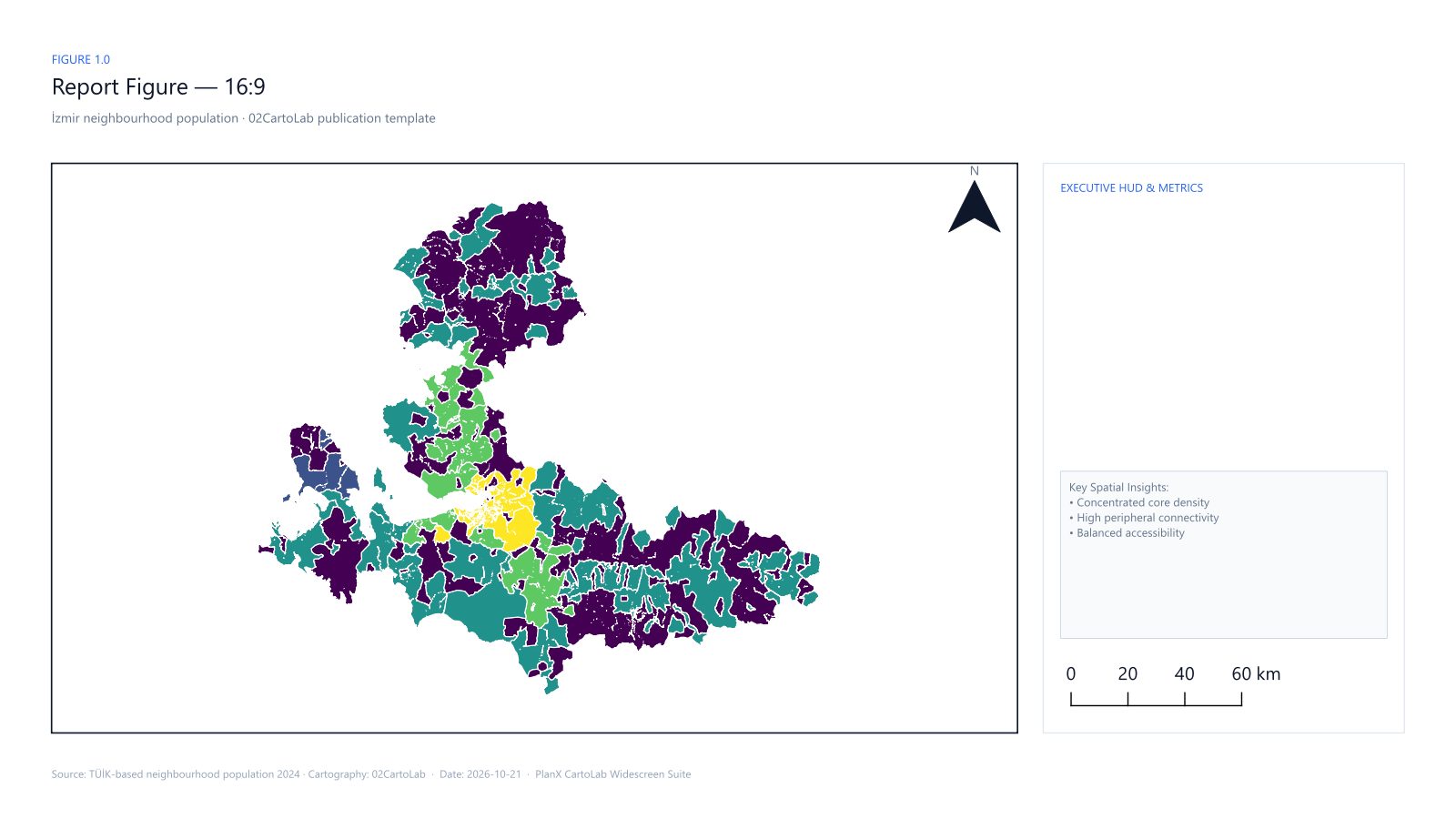
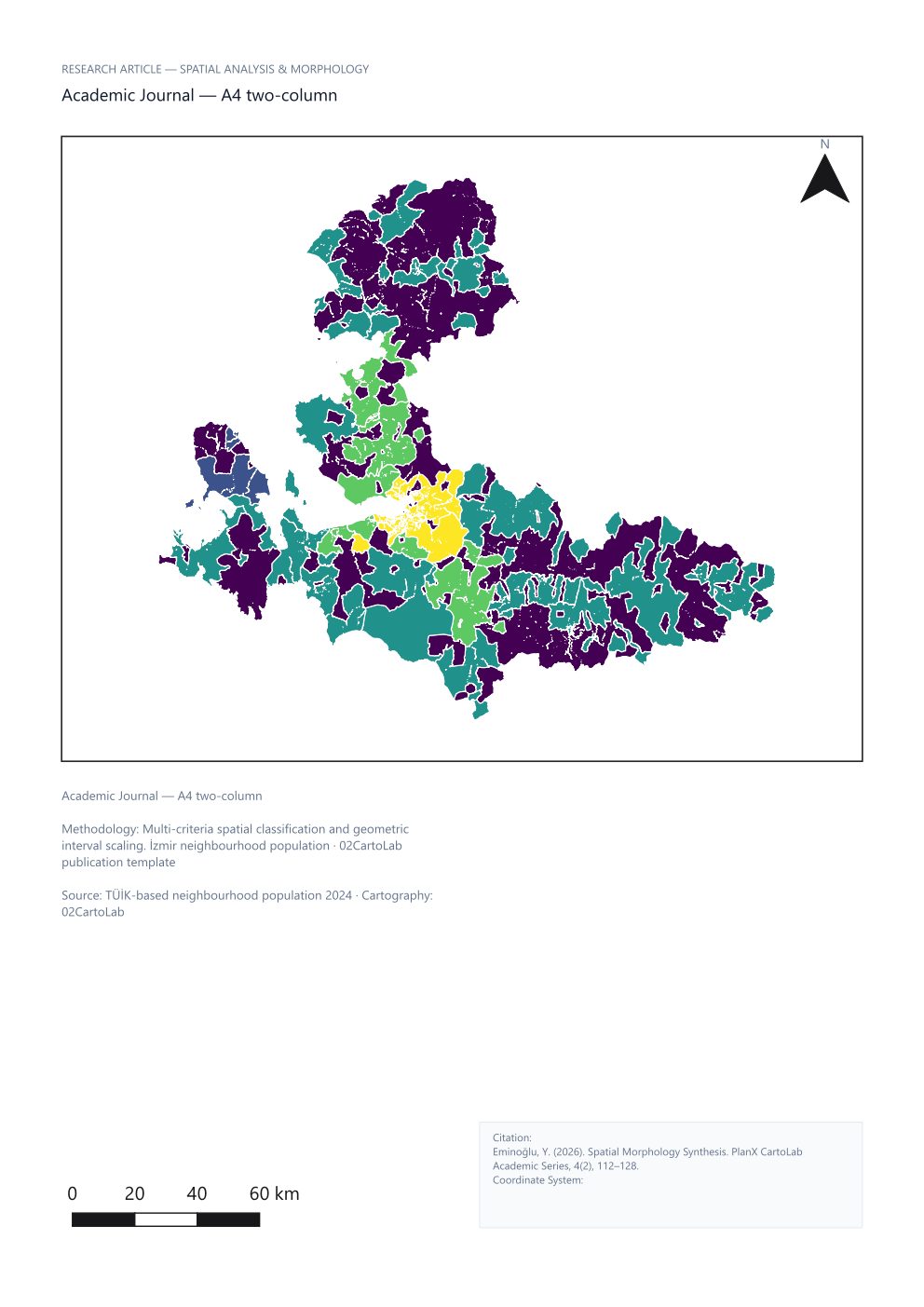
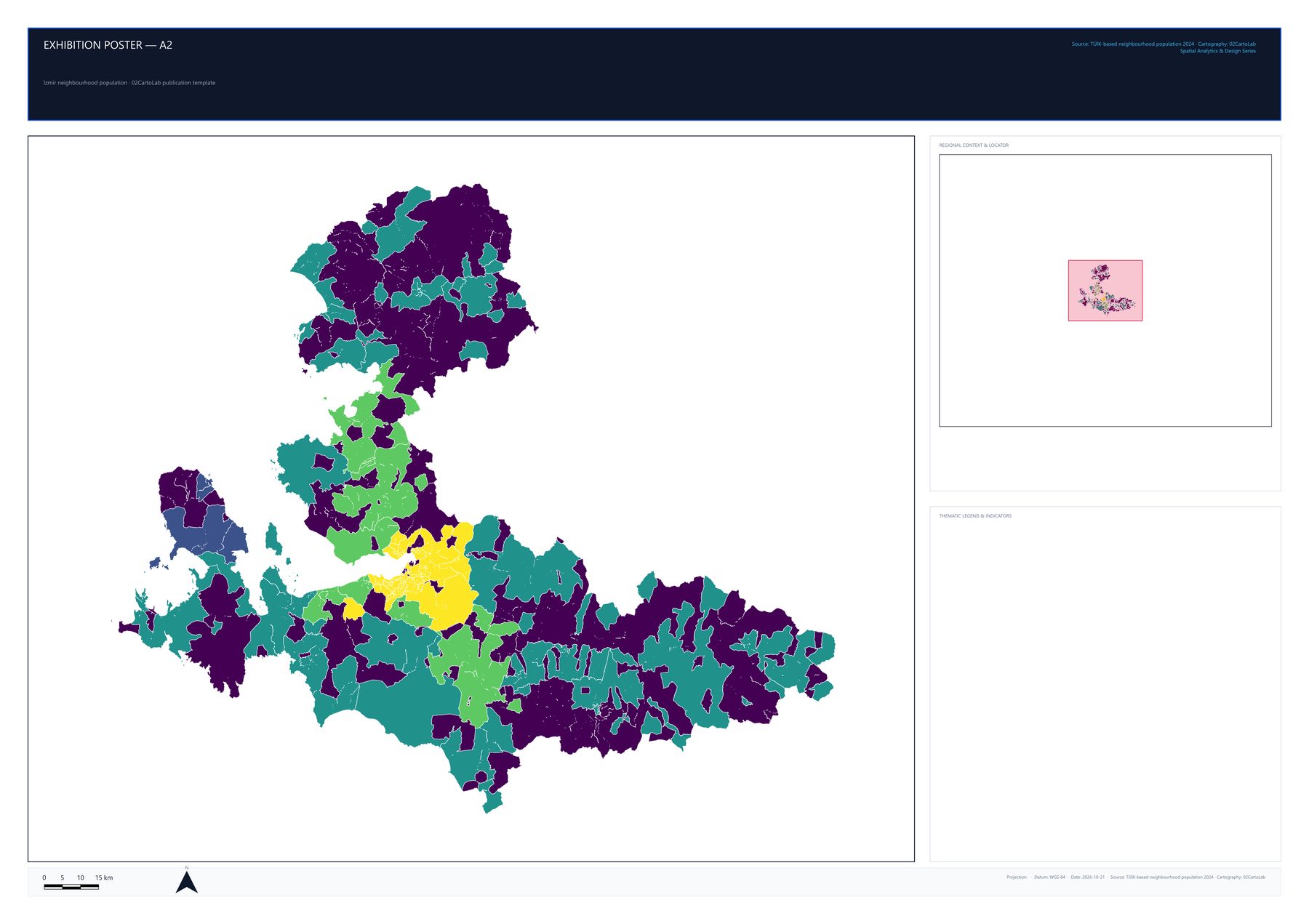
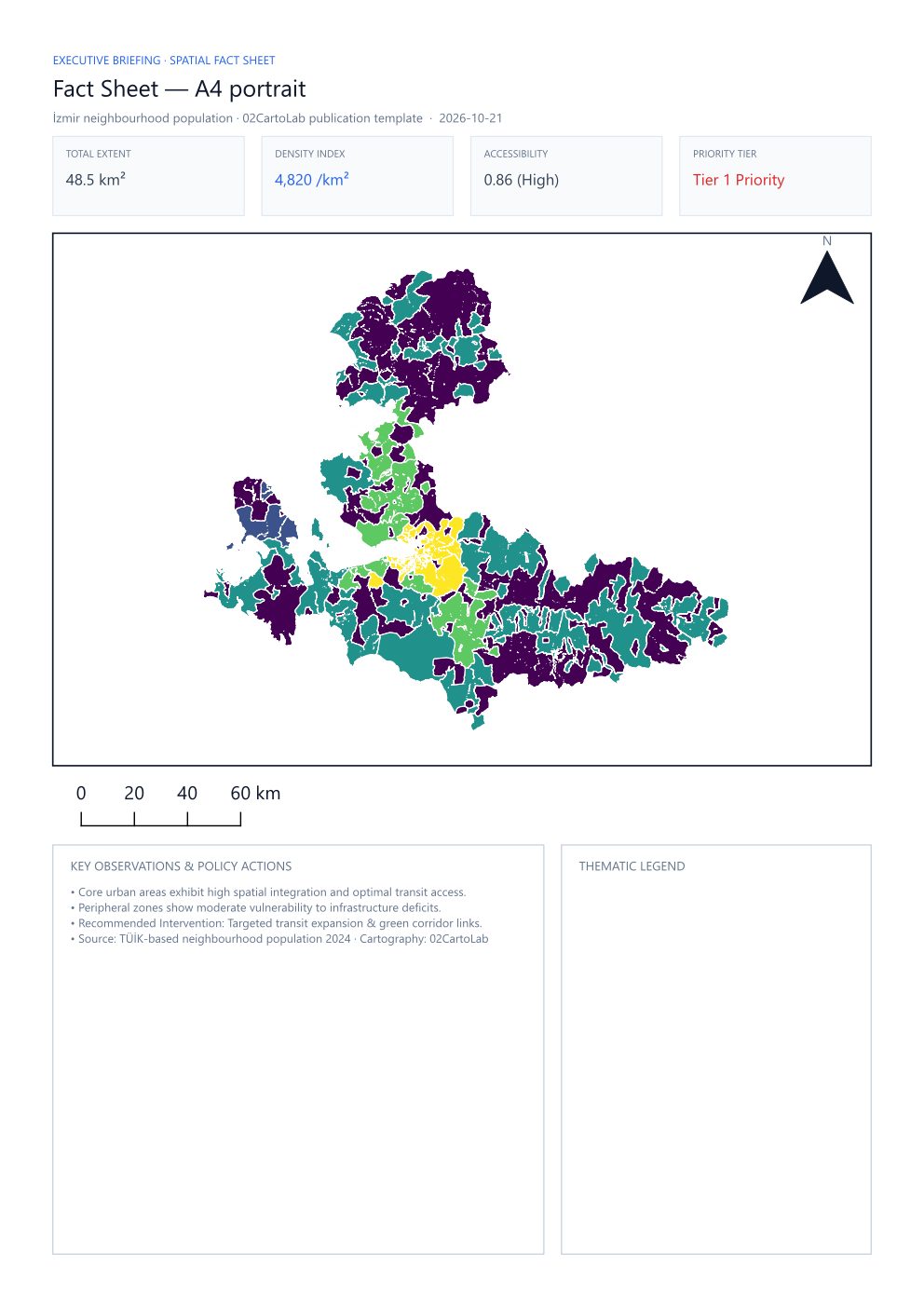
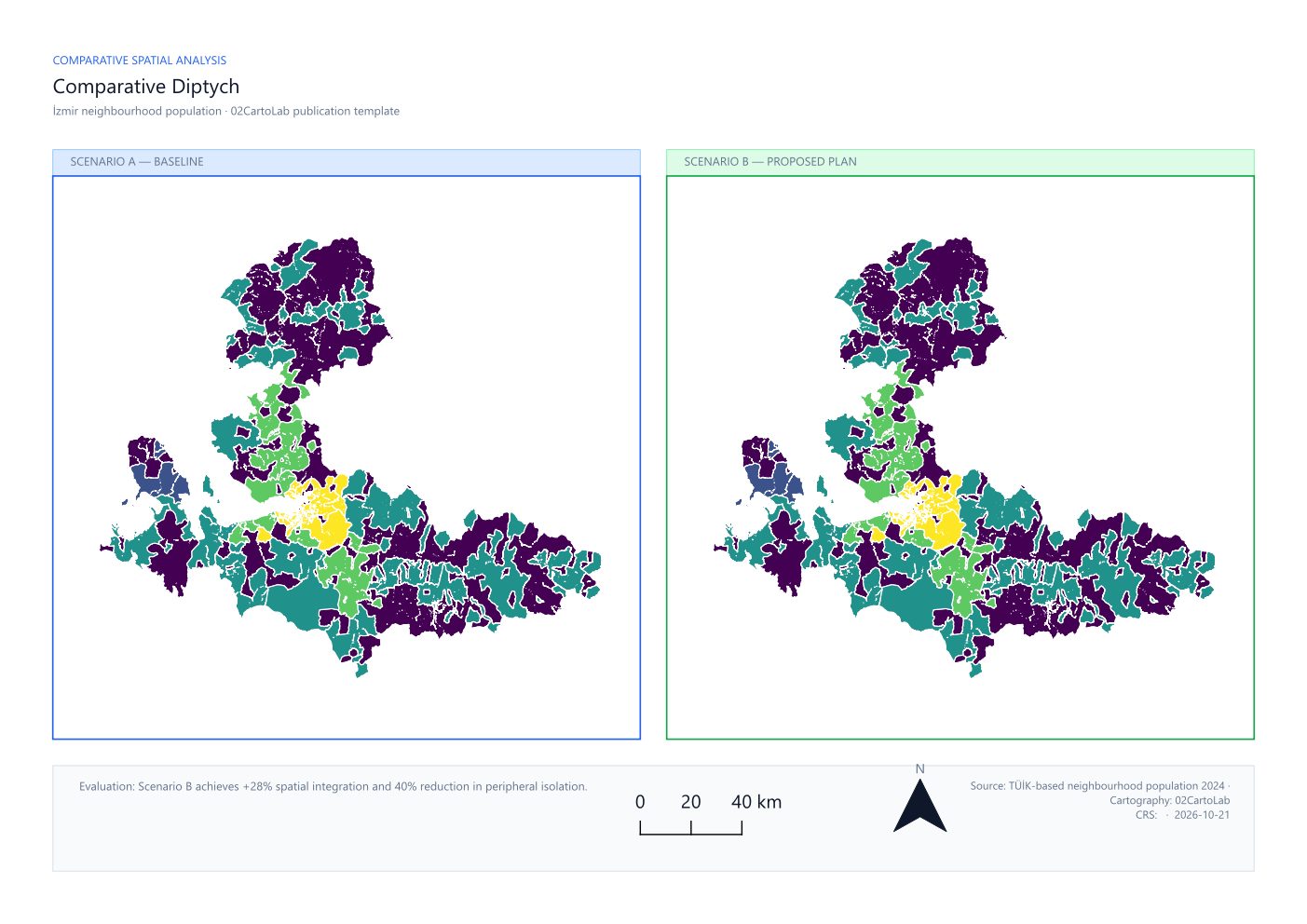
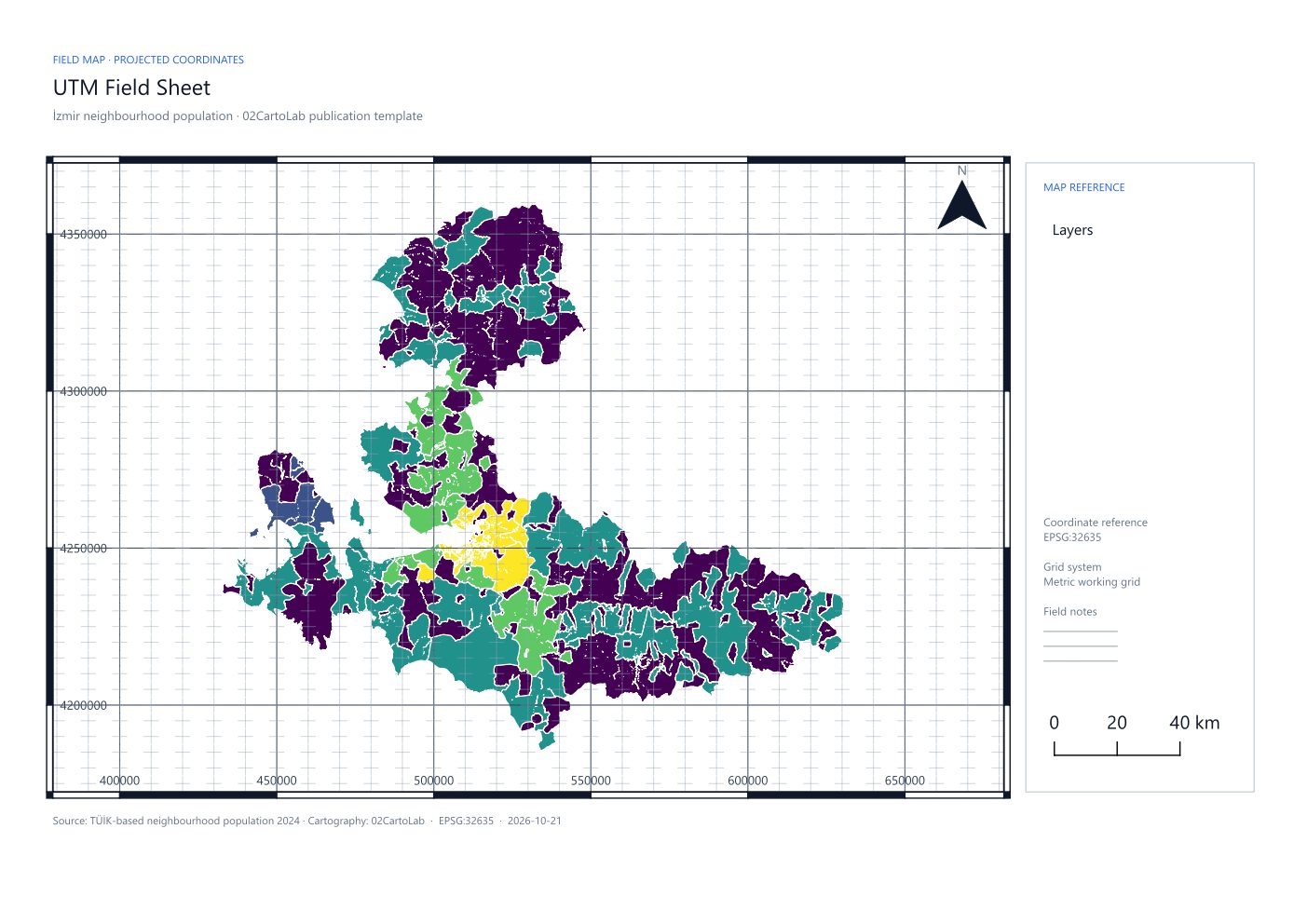
The Layout Studio turns a styled map into a finished page. Ten archetypes are built in: Report Figure (16:9), Academic Journal (A4 two-column), Exhibition Poster (A1/A2), Fact Sheet (A4 portrait), Comparative Diptych, UTM Field Sheet, Planning Review Board, Spatial Data Story, Atlas Production Sheet and Emergency Operations Brief. Each has calibrated margins, a type hierarchy and a grid — not a blank page with a picture on it.
Step by step
- Open the Layout Studio from the dashboard and choose the Template Gallery tab.
- Pick the archetype that matches the deliverable — the gallery shows each one's page size and purpose.
- The template is created in the current project with your layers; refine the title, subtitle and credits.
- Add a grid preset from Grid + QPT Studio if the archetype needs a reference frame.
- Open the layout in the Print Layout Designer to fine-tune the map frame and legend.
- Export from the Layout Manager as PNG, PDF or SVG at 150, 300 or 600 dpi.
The result
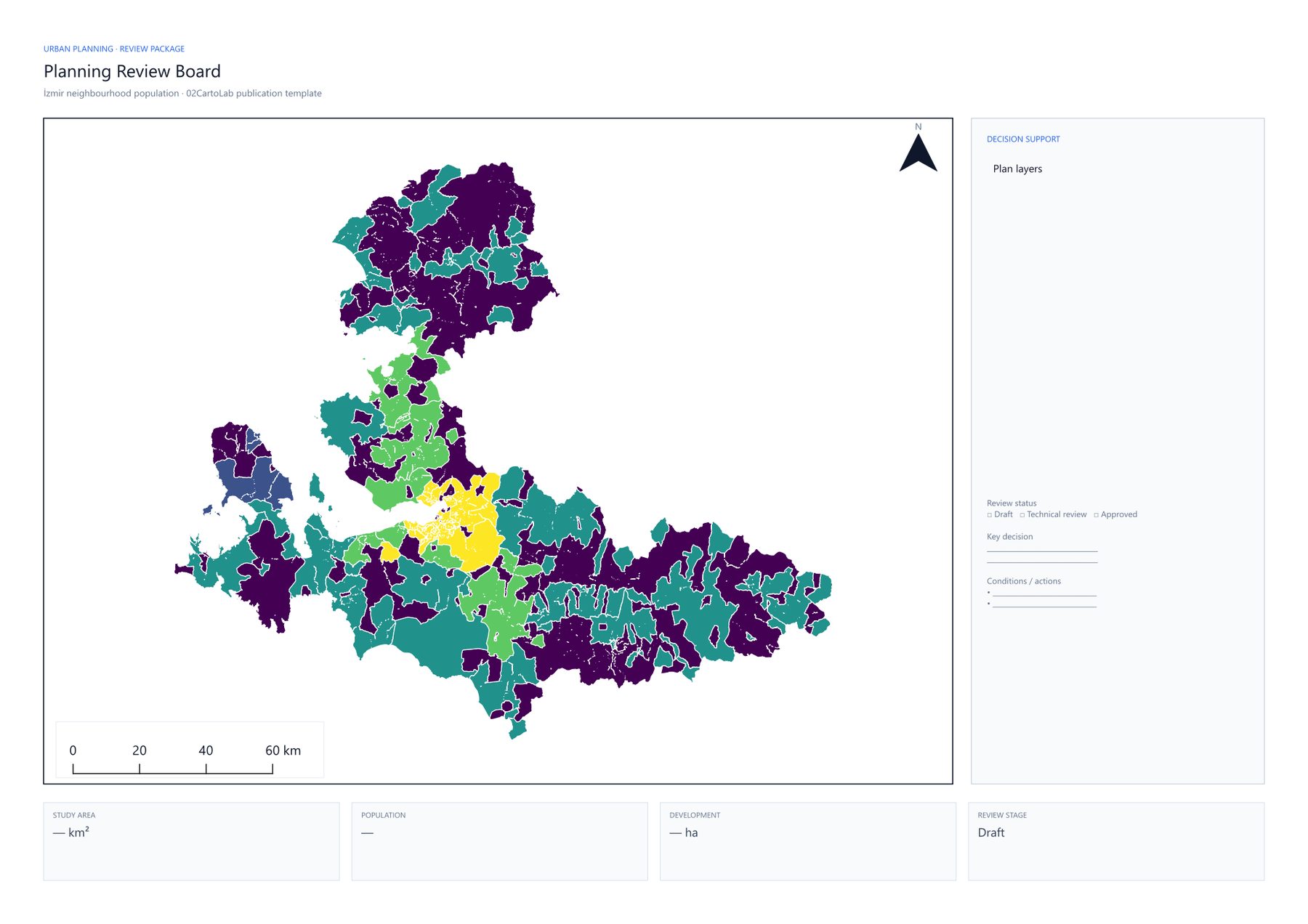
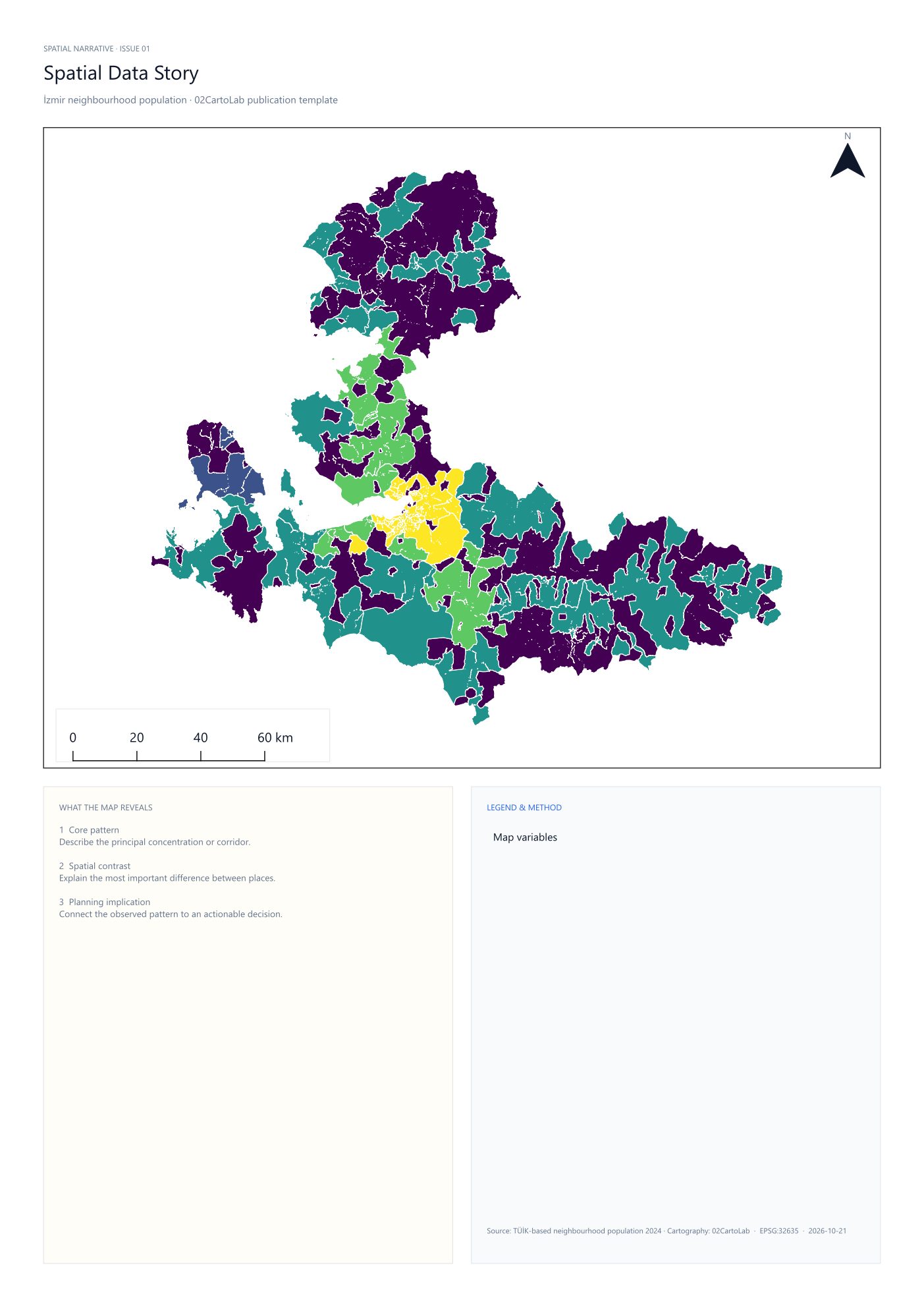
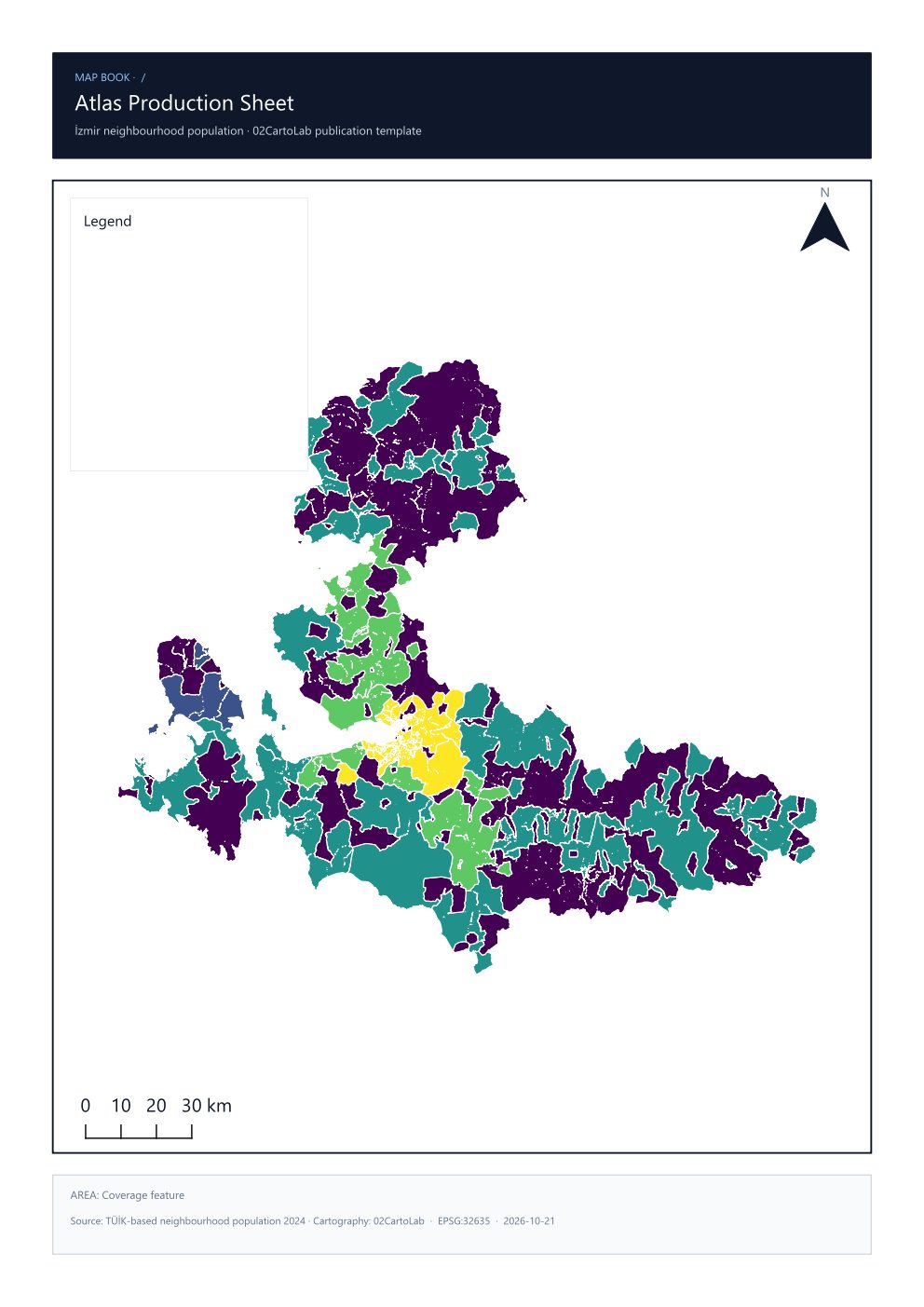
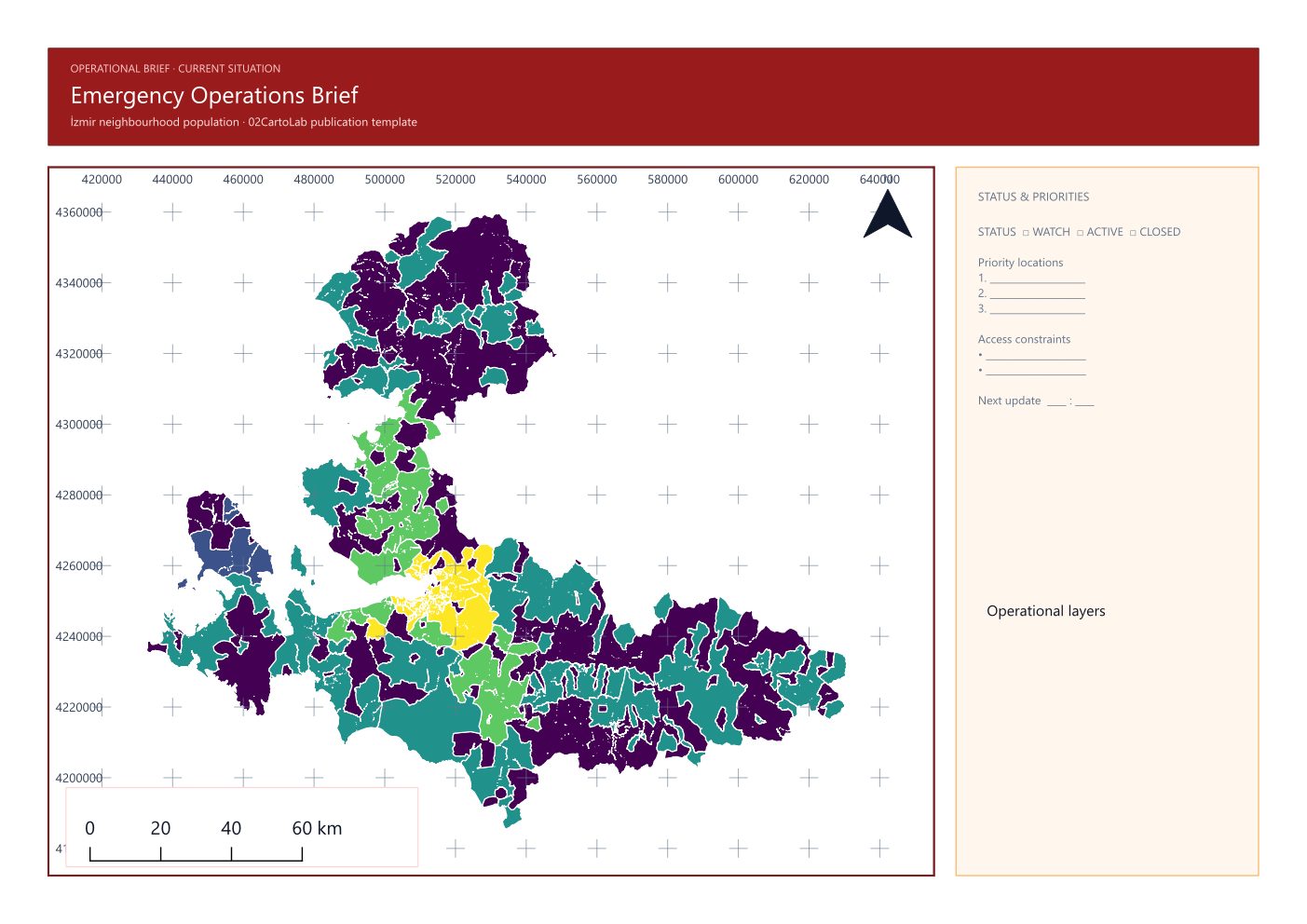
When it goes wrong
- The template ignores my layer — the layer must be loaded and visible in the project before the template is created.
- The legend overflows — reduce the number of classes or the legend font size in the Designer.
- The map frame is empty — set the map extent and CRS on the map item after creating the template.
Auto Map Sheet — a finished layout in one click
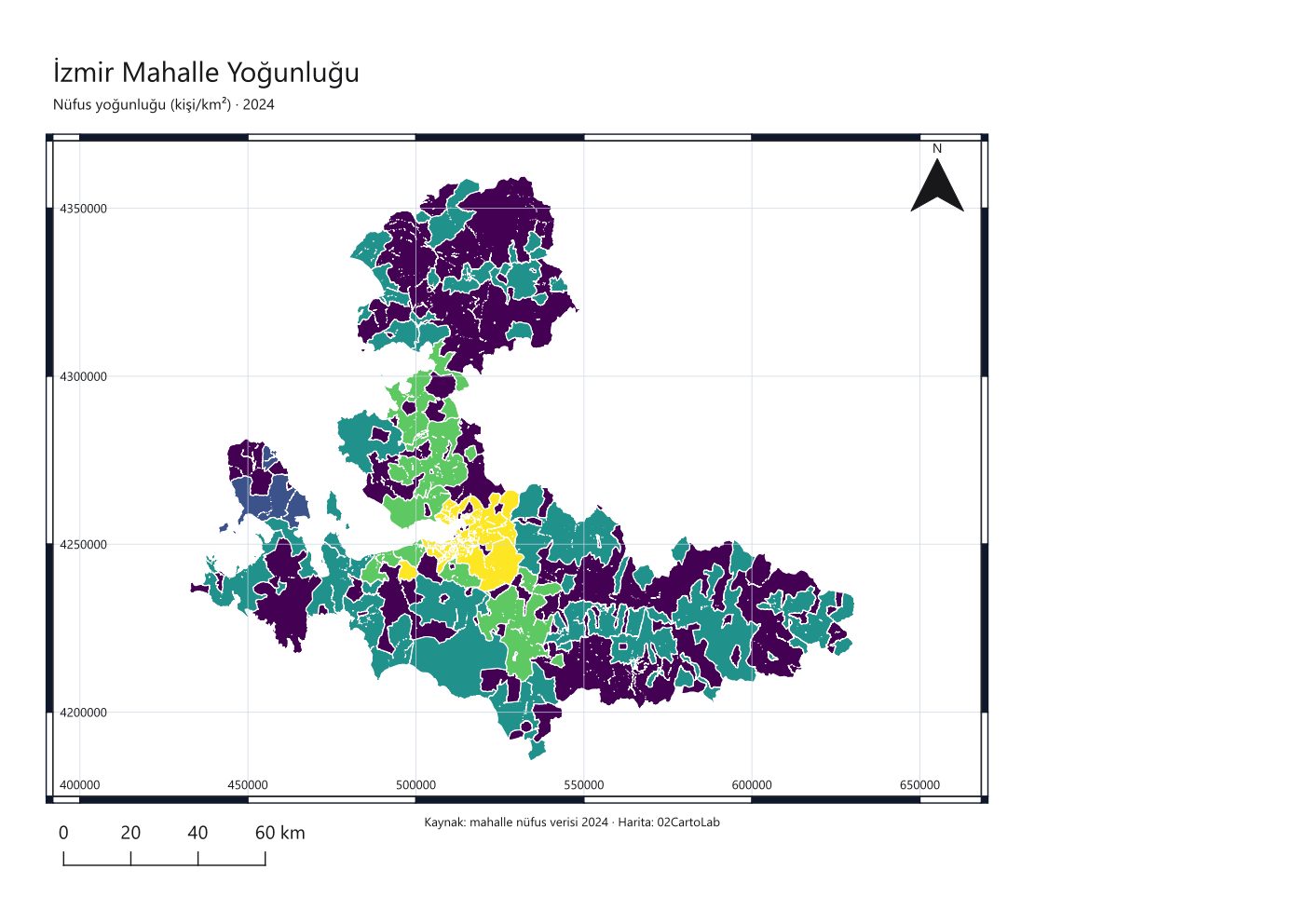
Auto Map Sheet builds a finished publication layout from the current view: a titled map frame, a filtered legend, a fitted scale bar, a north arrow, an optional coordinate grid and a credits line — then registers it in the project so you can refine or export it immediately.
Step by step
- Style your layers first, then set the canvas extent to the area you want to publish.
- Open the Layout Studio ▸ Map Sheet Studio tab.
- Choose the page size (A4 landscape is the default) and a typography preset: swiss_modern, academic_serif, technical_blueprint or editorial_warm.
- Set the title, subtitle and credits, and decide which furniture to include: title, legend, scale bar, north arrow, coordinate grid, frame.
- Build the sheet. It is added to the project's layout manager and opens in the Designer.
- Export as PNG, PDF or SVG from the Layout Manager at 150, 300 or 600 dpi.
The result
When it goes wrong
- The map frame shows a different area than the canvas — the sheet uses the canvas extent at the moment of building; zoom the canvas first.
- The legend overflows the page — fewer classes, or a smaller legend font in the Designer.
- No north arrow — it is suppressed automatically where the map rotation makes it meaningless.