02 Geo3D Analyzer
Reference Manual
A QGIS plugin for questions that are three-dimensional but are usually answered on flat maps. It builds a web scene from a DEM and your extruded layers in three steps, computes sun, shadow, sky, radiation, wind, comfort, terrain and earthwork results in the browser, and writes every result back into the QGIS project.
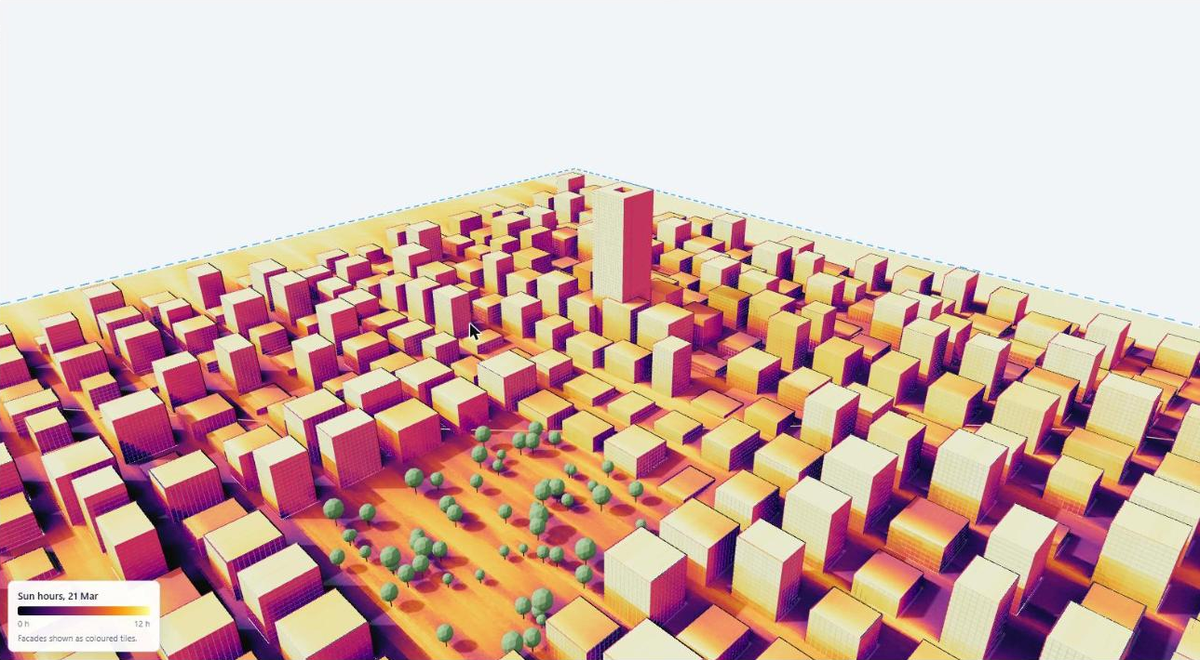
End-to-end guide: every tool on real data
This walkthrough runs every tool of the viewer on two real scenes and shows what each one produces. Every screenshot is the real viewer, and every number was measured in the run described here. Follow it once from top to bottom; afterwards the chapters below are the reference.
| Scene | Data | What it exercises |
|---|---|---|
| sa · Konak district | 30 m DEM, 2,367 building footprints with a floors field, EPW weather file (Izmir) | All Analyze tools, terrain tools, planning check, optimiser, exports, round trip to QGIS |
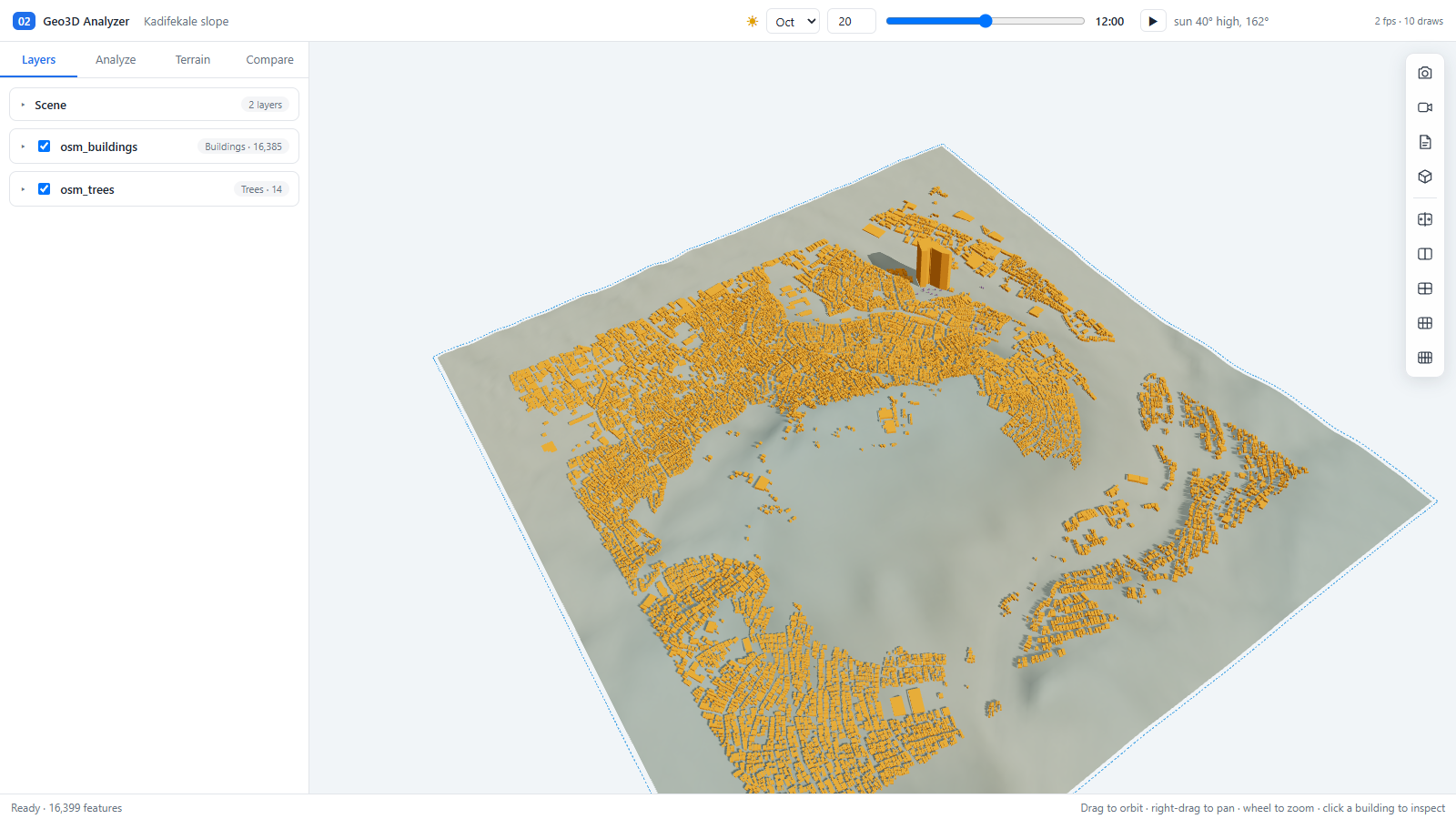
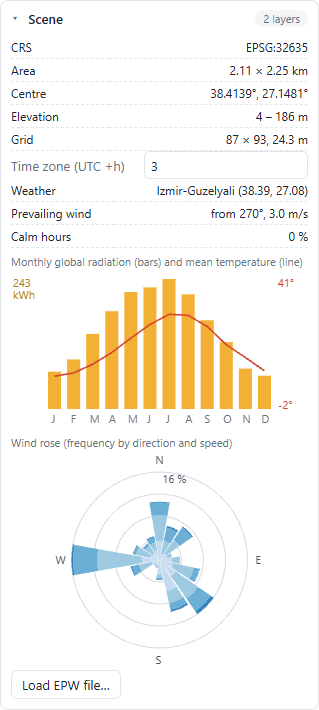
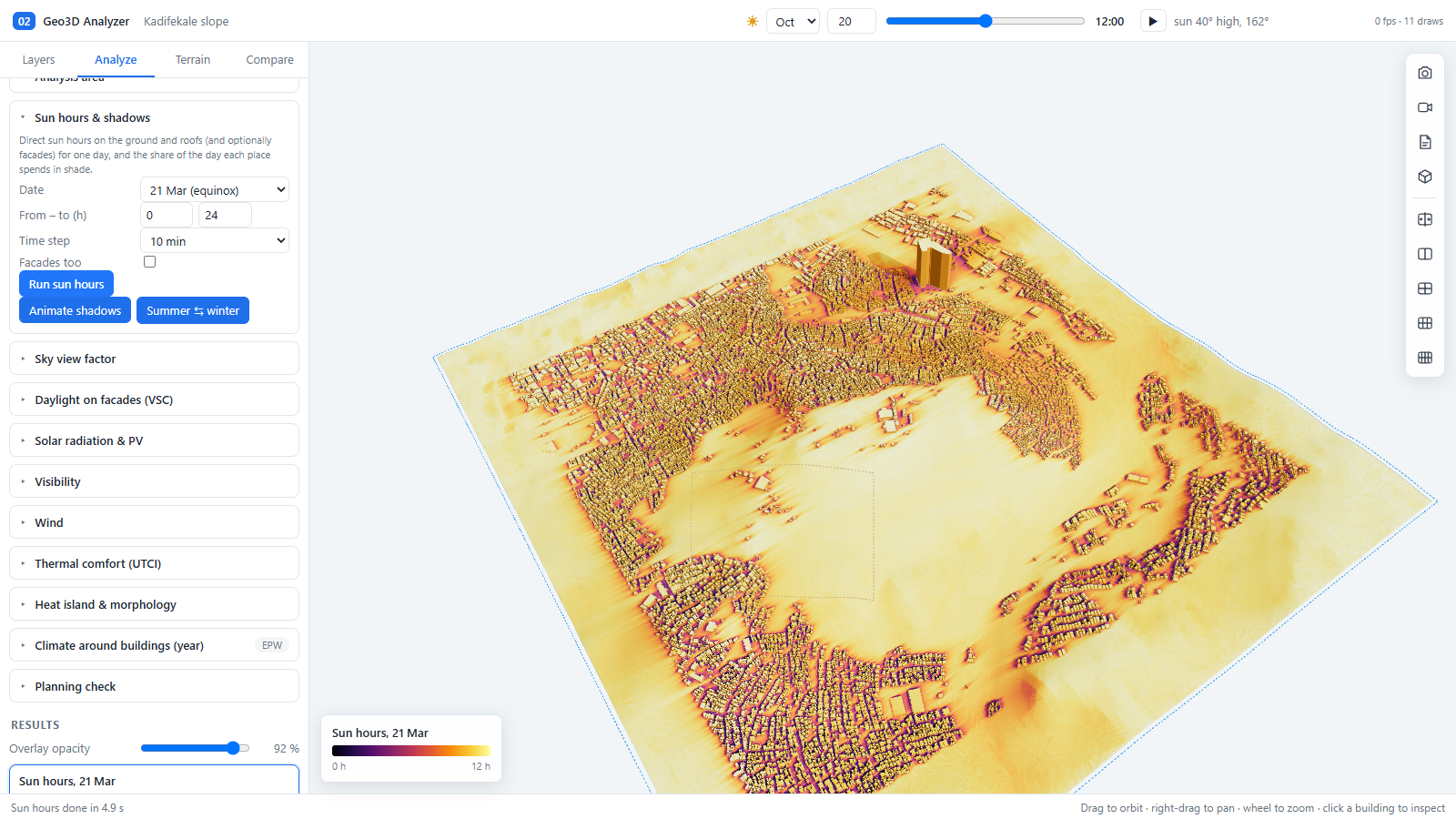
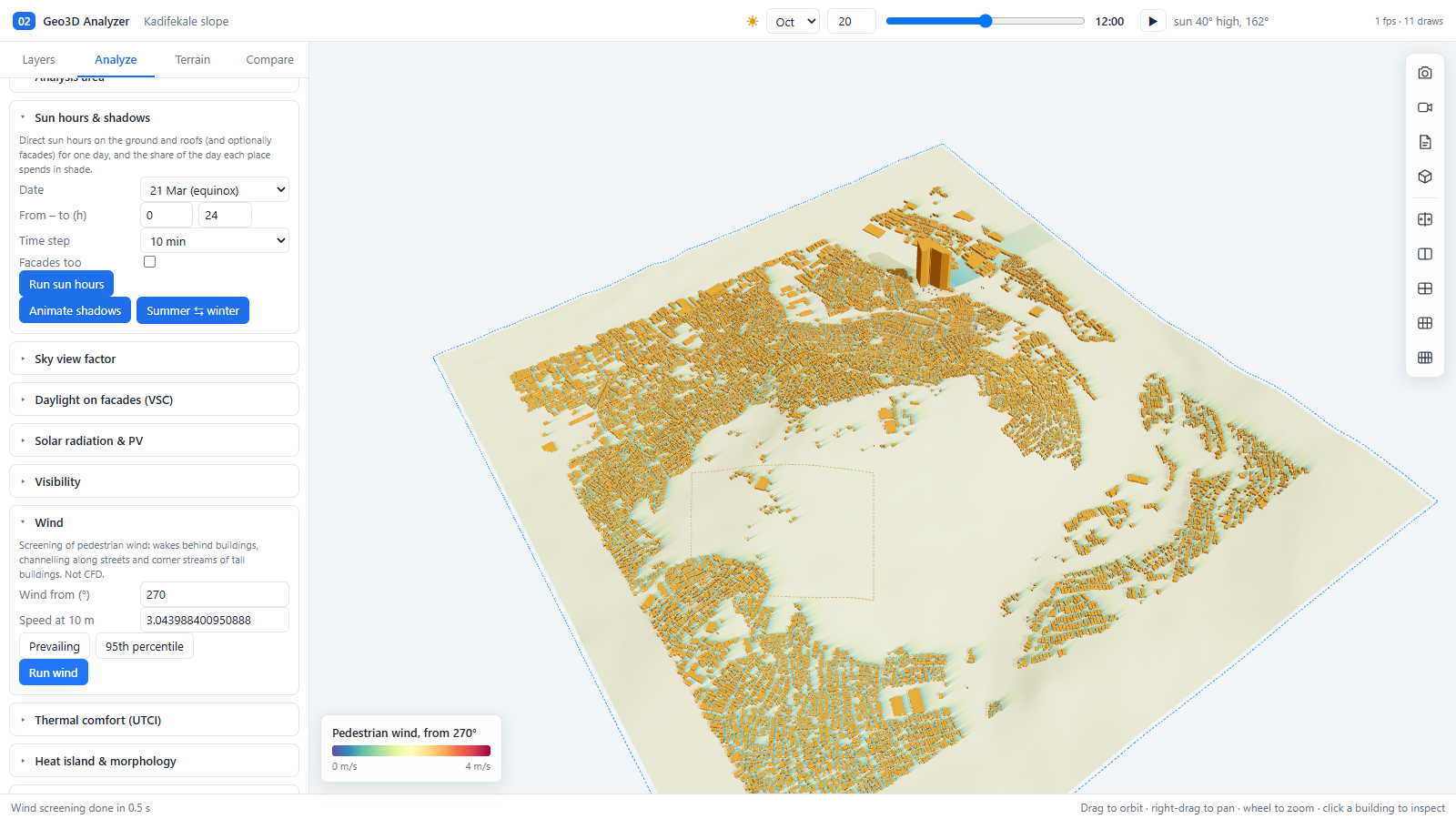
| kadi · Kadifekale | 87 × 93 DEM grid (EPSG:32635), 16,385 buildings and 14 trees from OpenStreetMap | A steep bowl-shaped terrain: sun, wind, sections, flooding and cut and fill at the scale of a hill |
1 · QGIS dock
Terrain, objects, climate, open in 3D.
2 · The viewer
Layout, tabs, navigation, layer card.
3 · Analyze tab
Eleven tools, from sun hours to planning check.
4 · Terrain tab
Display, eight terrain maps, section, flood, cut and fill.
5 · Compare tab
Scenarios and the height optimiser.
6 · Exports and QGIS
Image, PDF, HTML, GLB, DXF, round trip.
1 · Prepare the scene in the QGIS dock
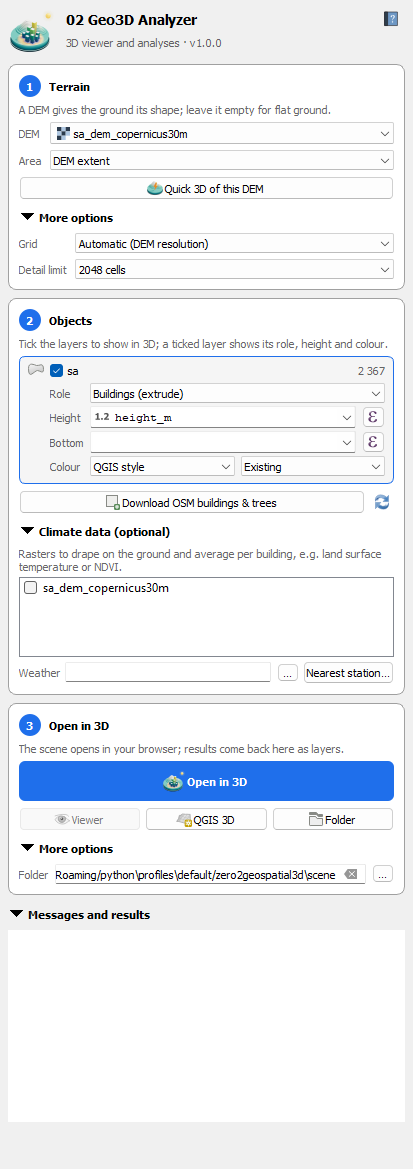
The dock has three step cards that run top to bottom. Open it from the plugin icon; it docks on the right.
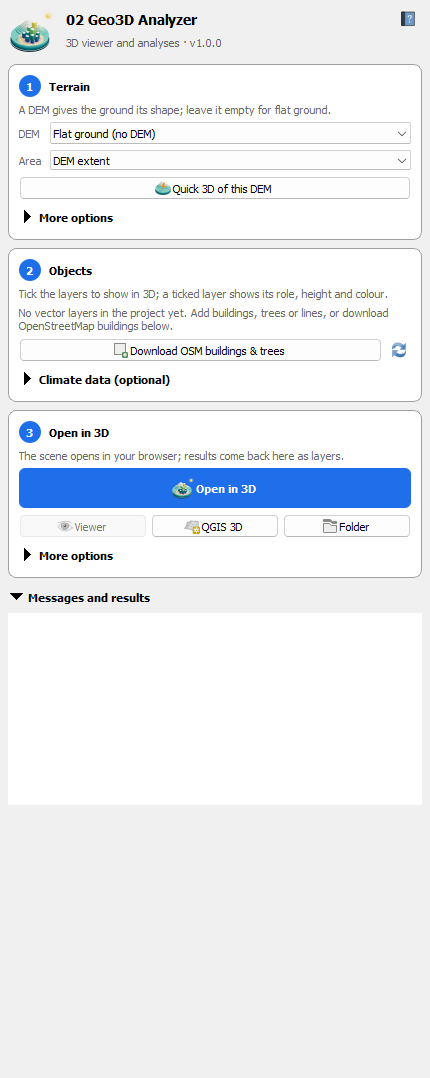
Step 1 · Terrain
- DEM: pick a raster layer. Use a projected CRS in metres.
- Area: the part of the DEM to use (whole layer, canvas or a polygon).
- Quick 3D of this DEM: opens the terrain alone, with no objects. Good for a first look.
- More options: Grid (cell size of the displayed terrain) and Detail limit. The scene grid is coarser (24 m here) than the 2 m cell the analyses use.
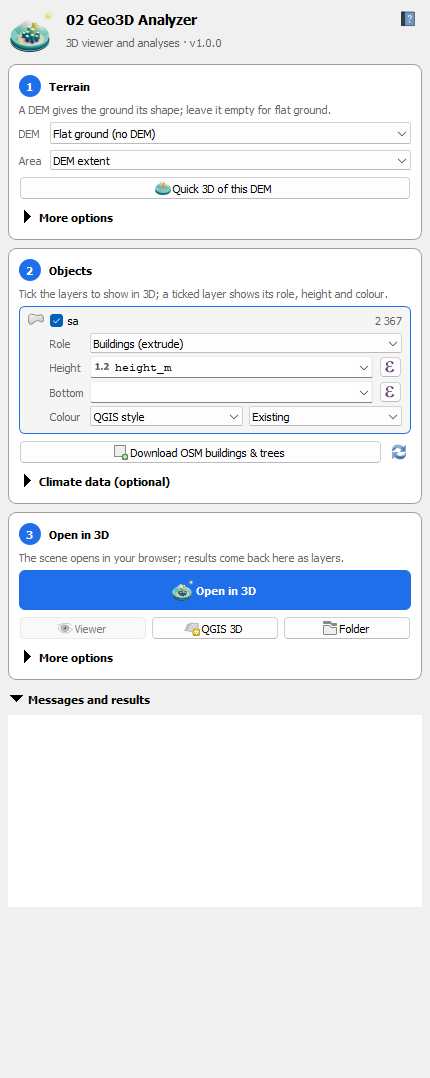
Step 2 · Objects
- Add each vector layer as a row. For each row choose a Role (buildings, trees and so on), a Height expression and a Bottom value.
- Colour: take the QGIS style or a single colour. Existing / Scenario A / Scenario B marks which state of the design a layer belongs to.
- Download OSM buildings and trees fills the area when you have no data.
- The Climate data fold takes extra rasters and a Weather EPW file; Nearest station… finds one for you.
- Height guess order: height fields first, then floors × 3 m. Anything else gets the default.
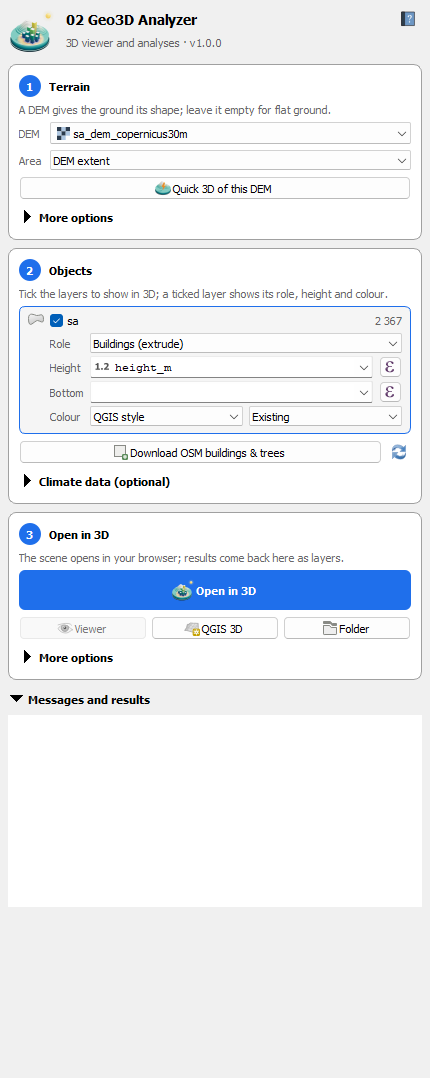
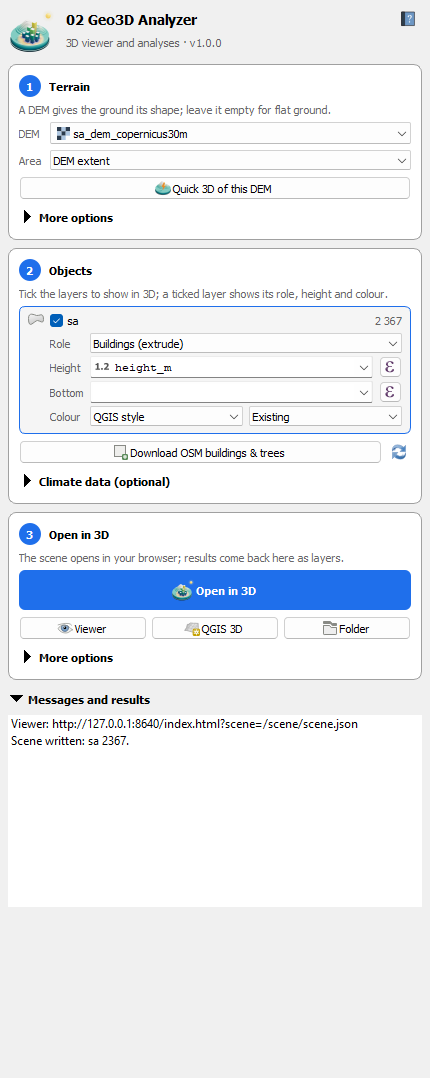
Step 3 · Open in 3D
- Viewer opens the browser viewer, QGIS 3D opens a native QGIS 3D view, Folder only writes the scene folder, and Cancel stops a running export.
- The message area ends with Scene written.
2 · The viewer
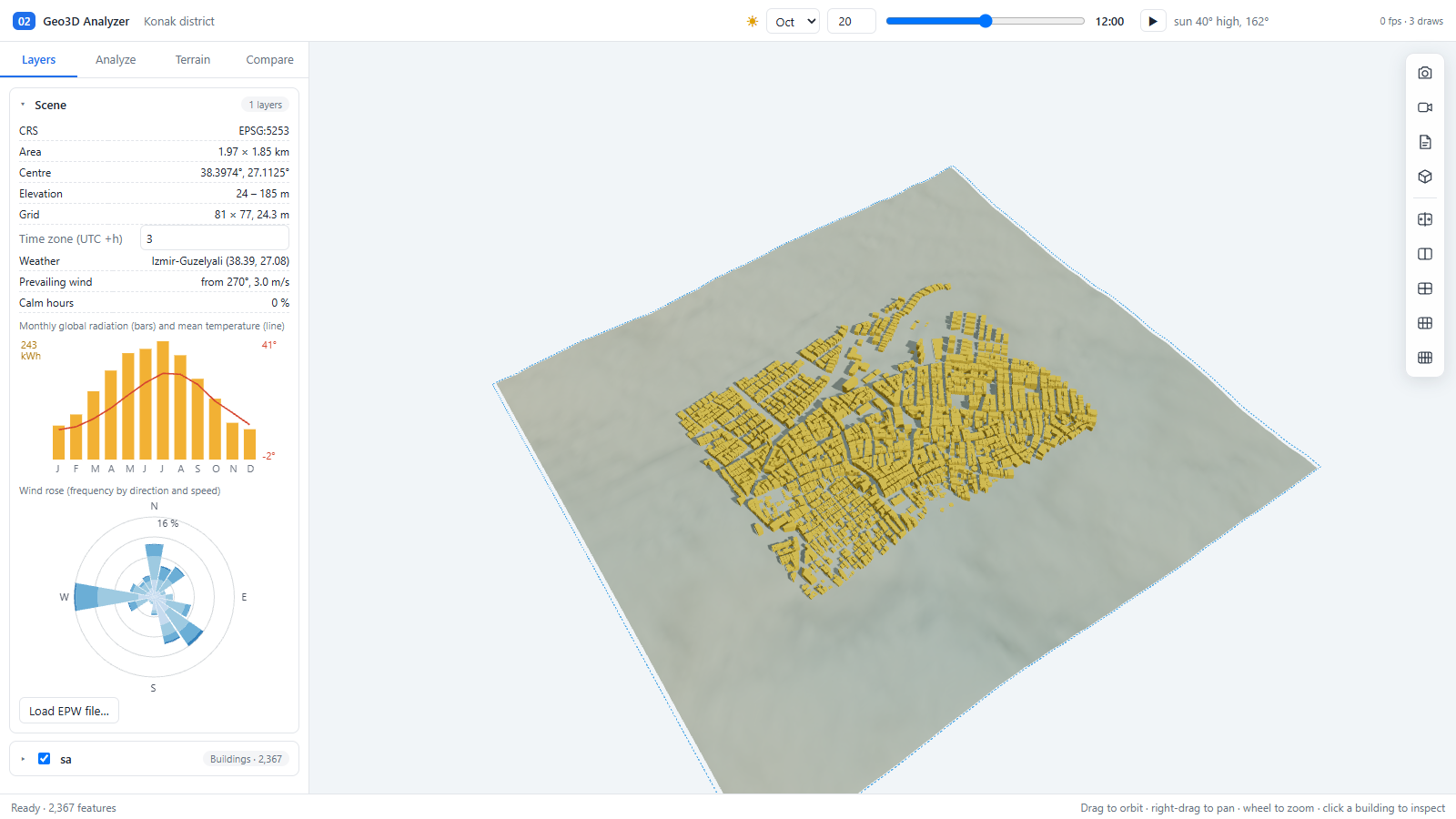
| Area | What it does |
|---|---|
| Top bar | Month, day, time slider and a play button for the sun position, plus a read-out such as sun 40° high, 162° and a frame counter. |
| Left panel tabs | Layers, Analyze, Terrain, Compare. Every card exists at all times; the tabs only show or hide them. |
| Results list | At the bottom of the panel. Each result has Hide, To QGIS, .asc, CSV and ×, and a shared Overlay opacity slider. |
| Toolbar (right) | Save an image, record a video, save a PDF sheet, 3D model or interactive page, swipe between two views, and 2 / 4 / 6 / 8 synced panels. |
| Status bar | The last message, and the navigation hint. |
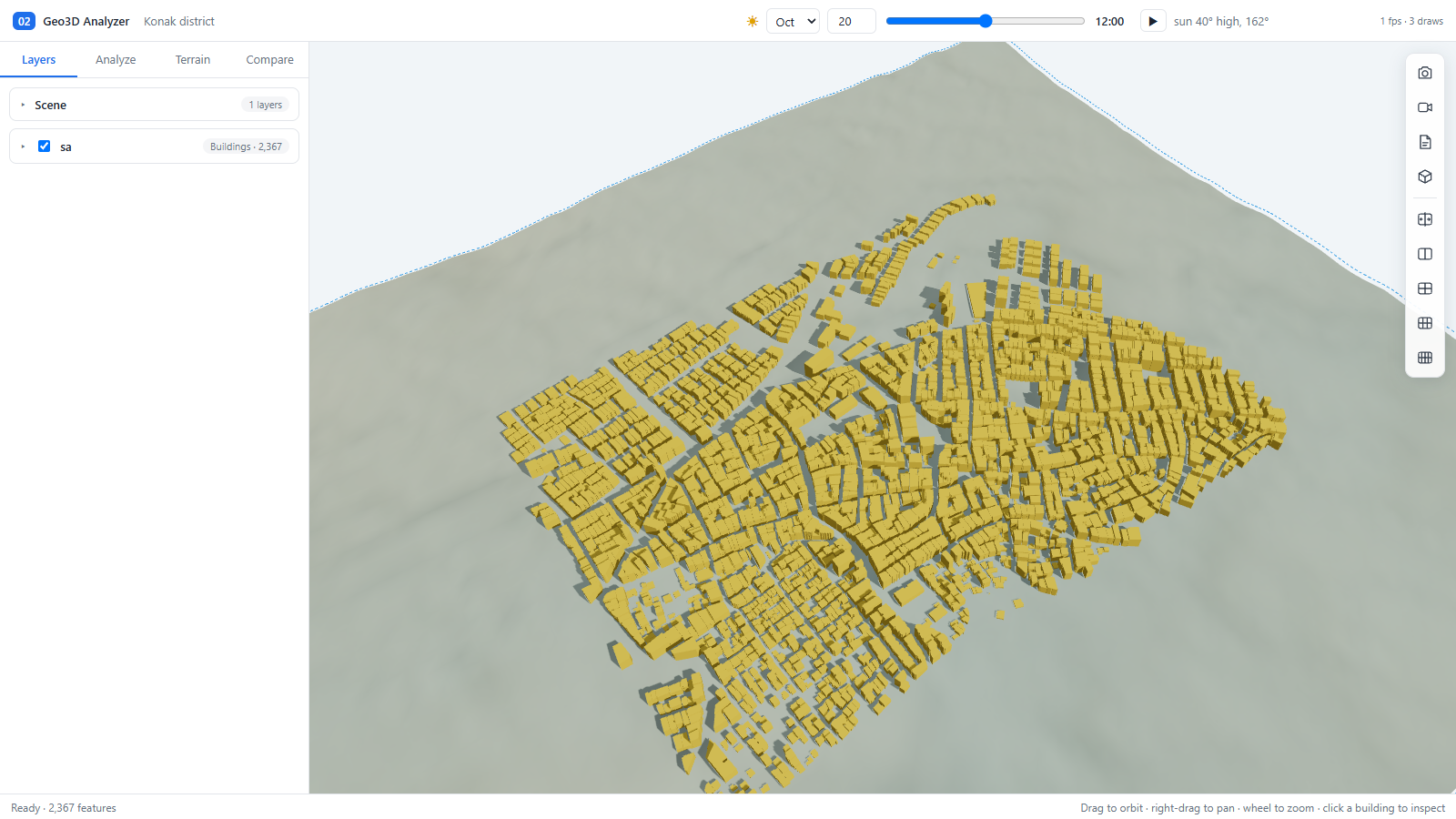
Navigation: drag to orbit, right-drag to pan, wheel to zoom, click a building to inspect it. In drawing tools, click points, then press Enter or double-click to finish; Backspace removes the last point and Esc cancels. Clicks must land on the terrain, not on the sky.
Layers tab
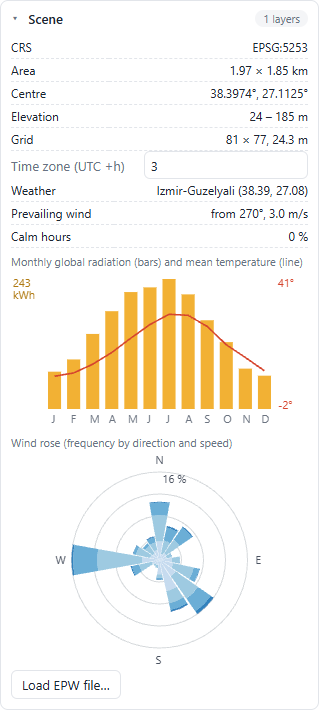
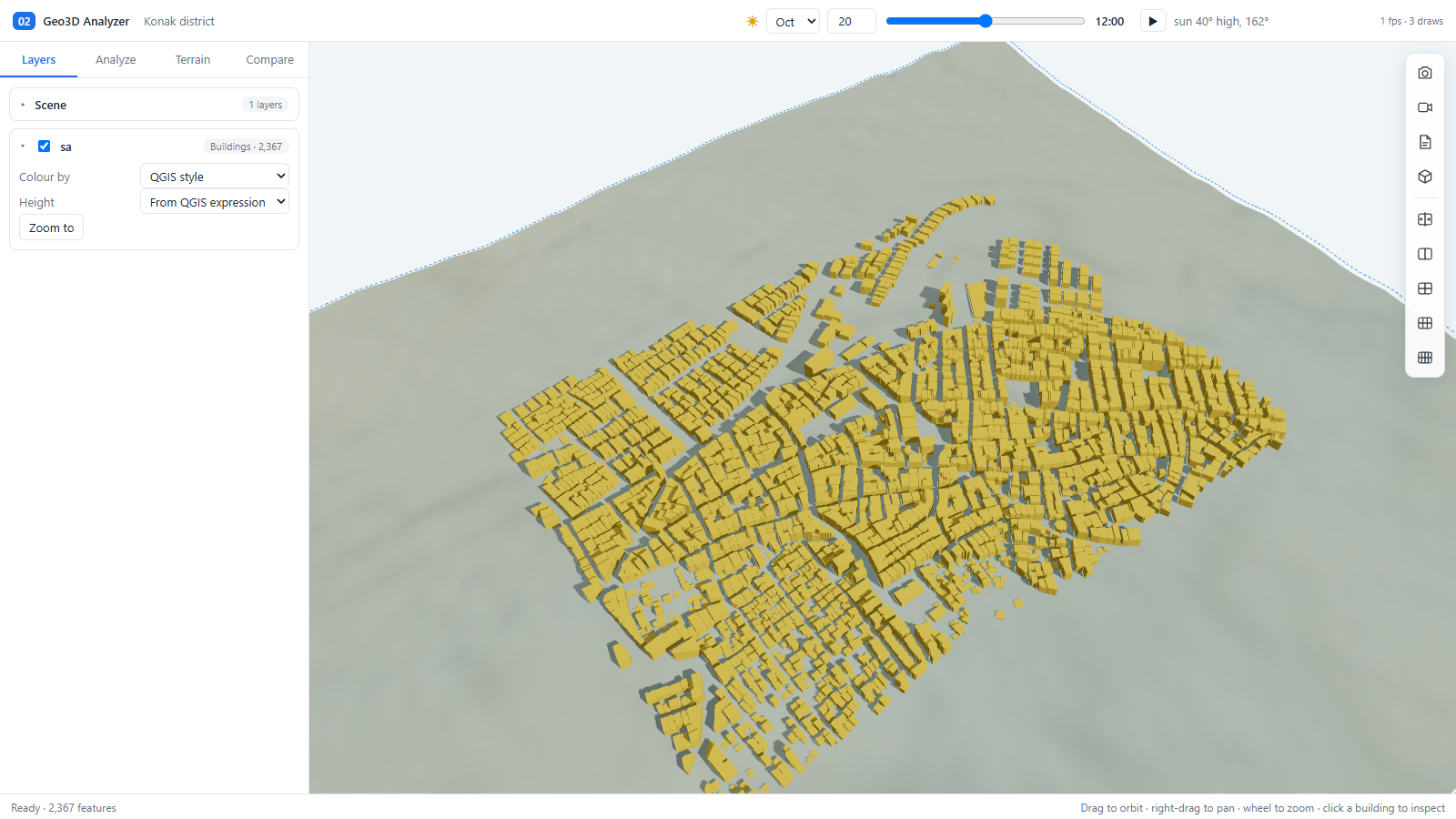
3 · Analyze tab (scene sa)
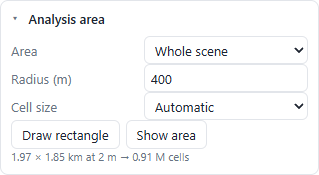
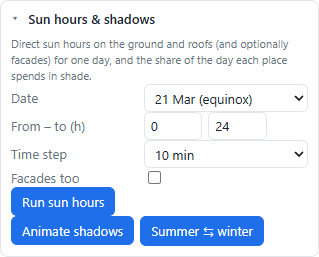
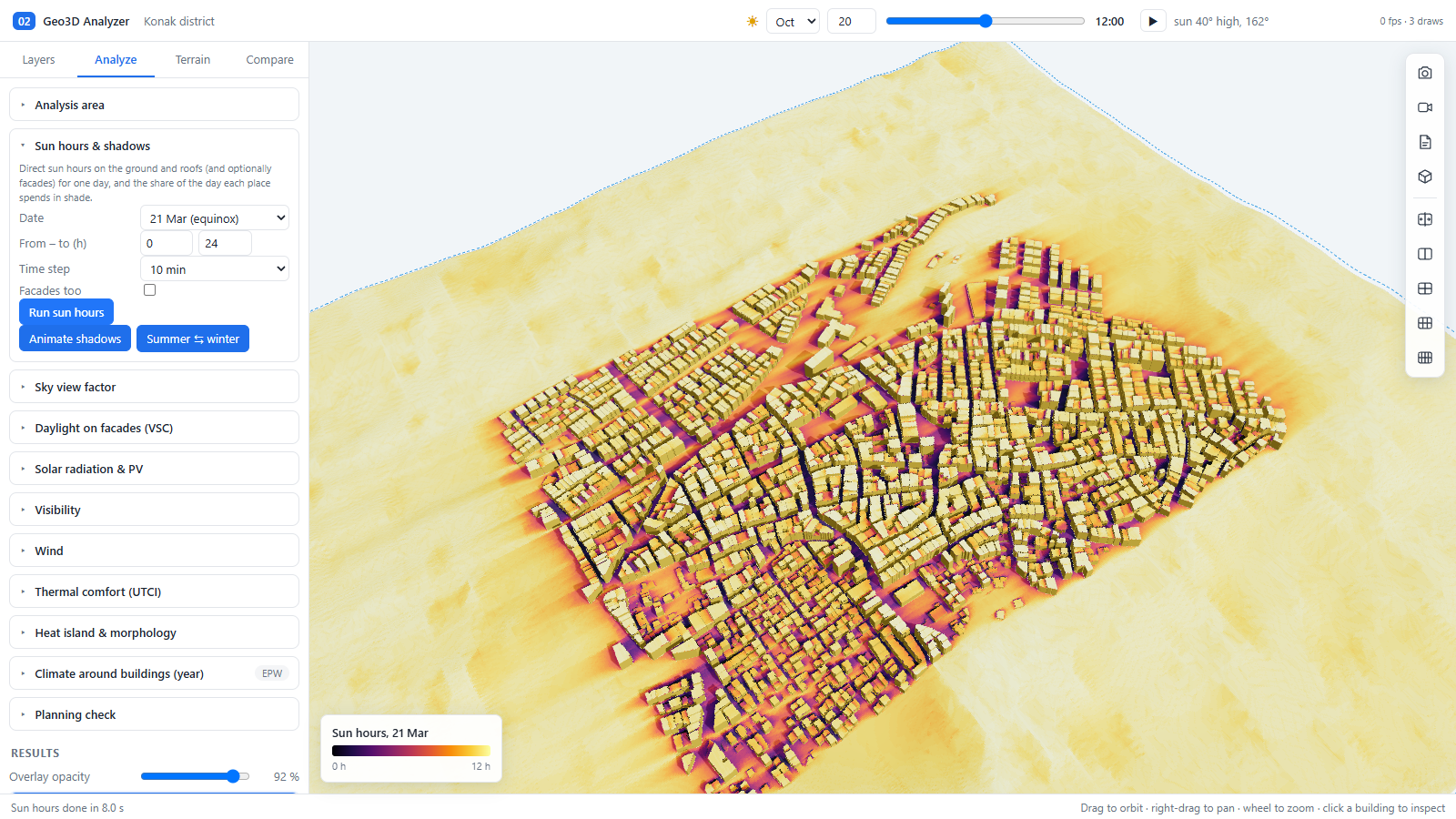
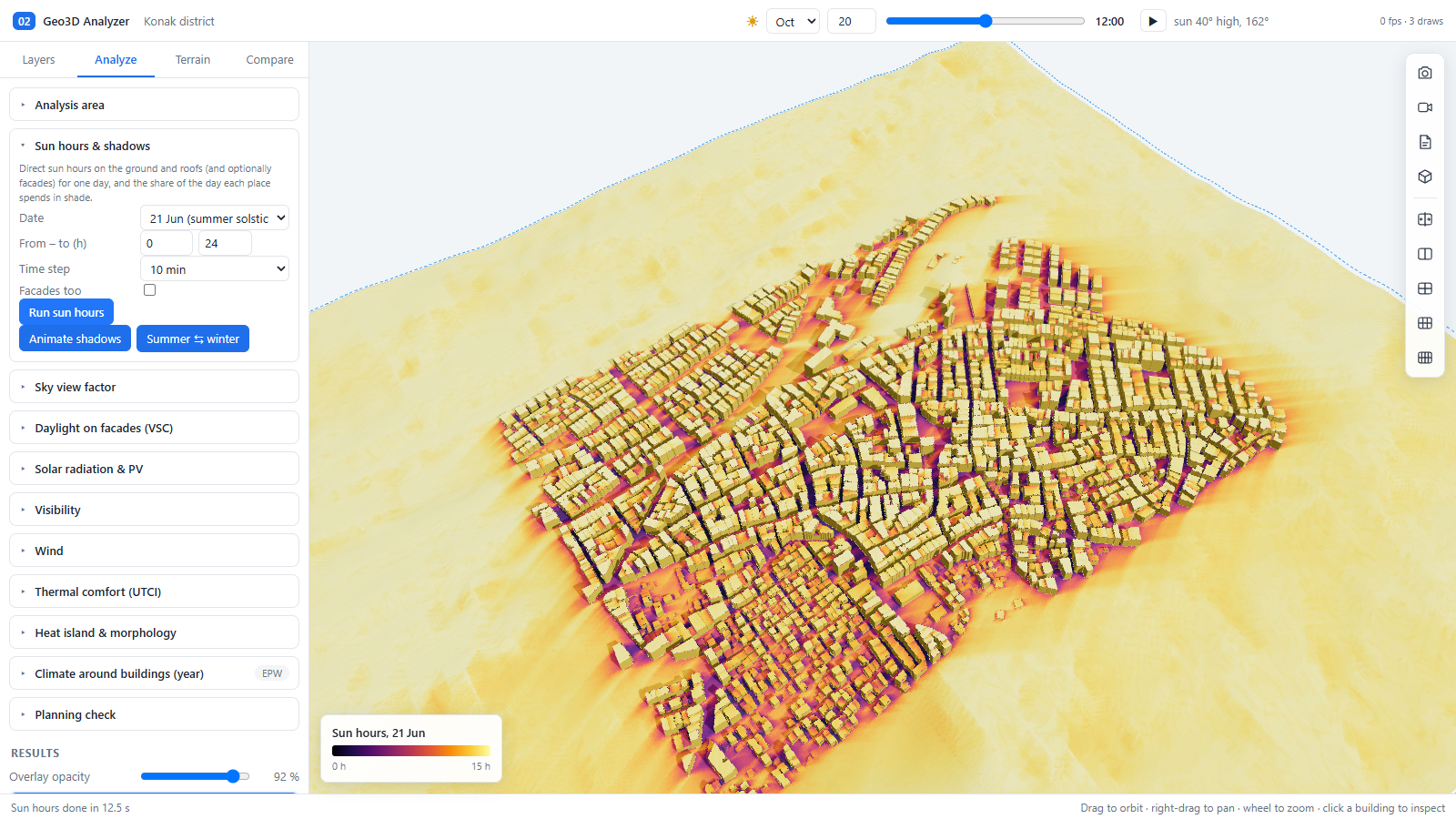
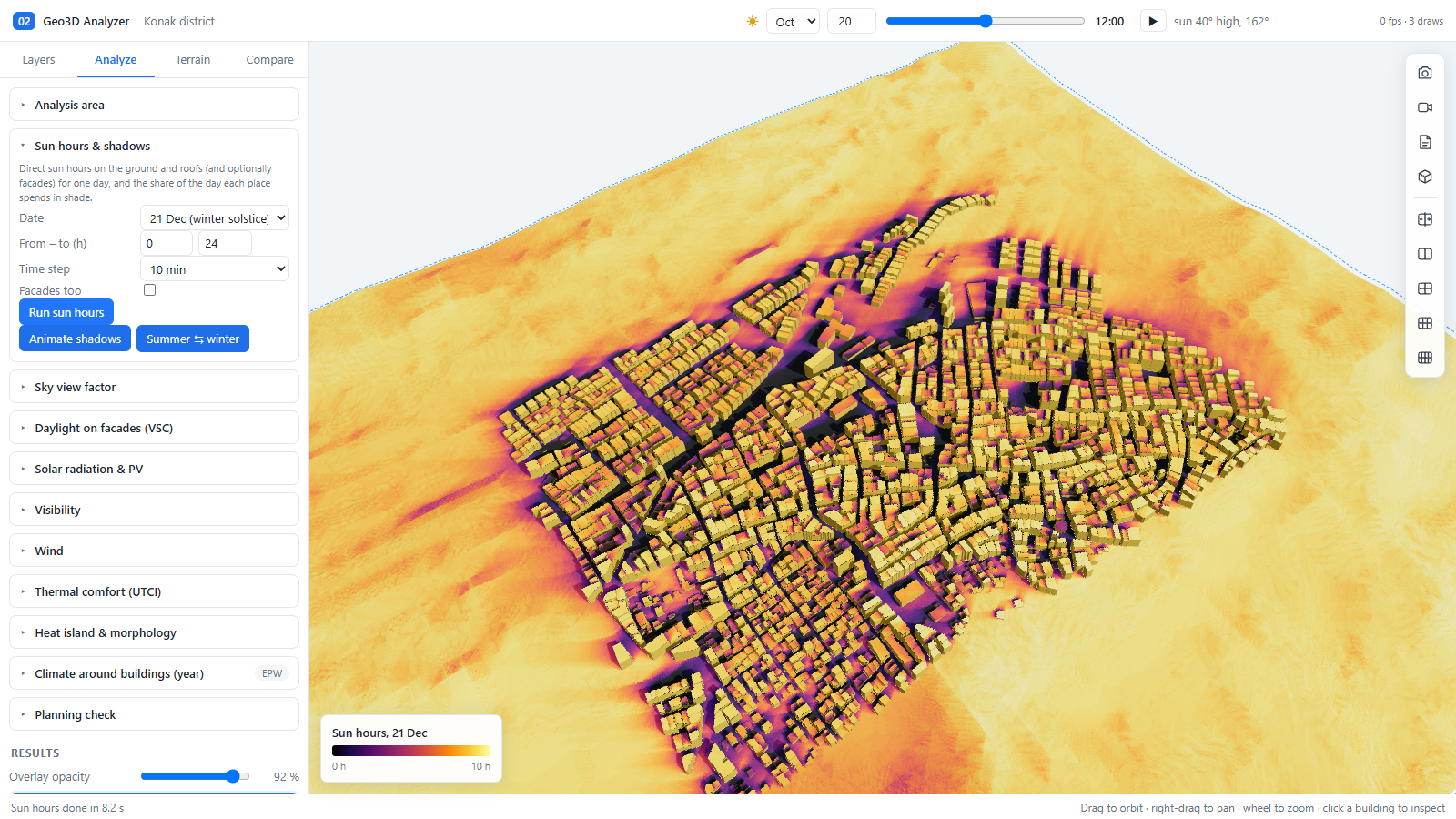
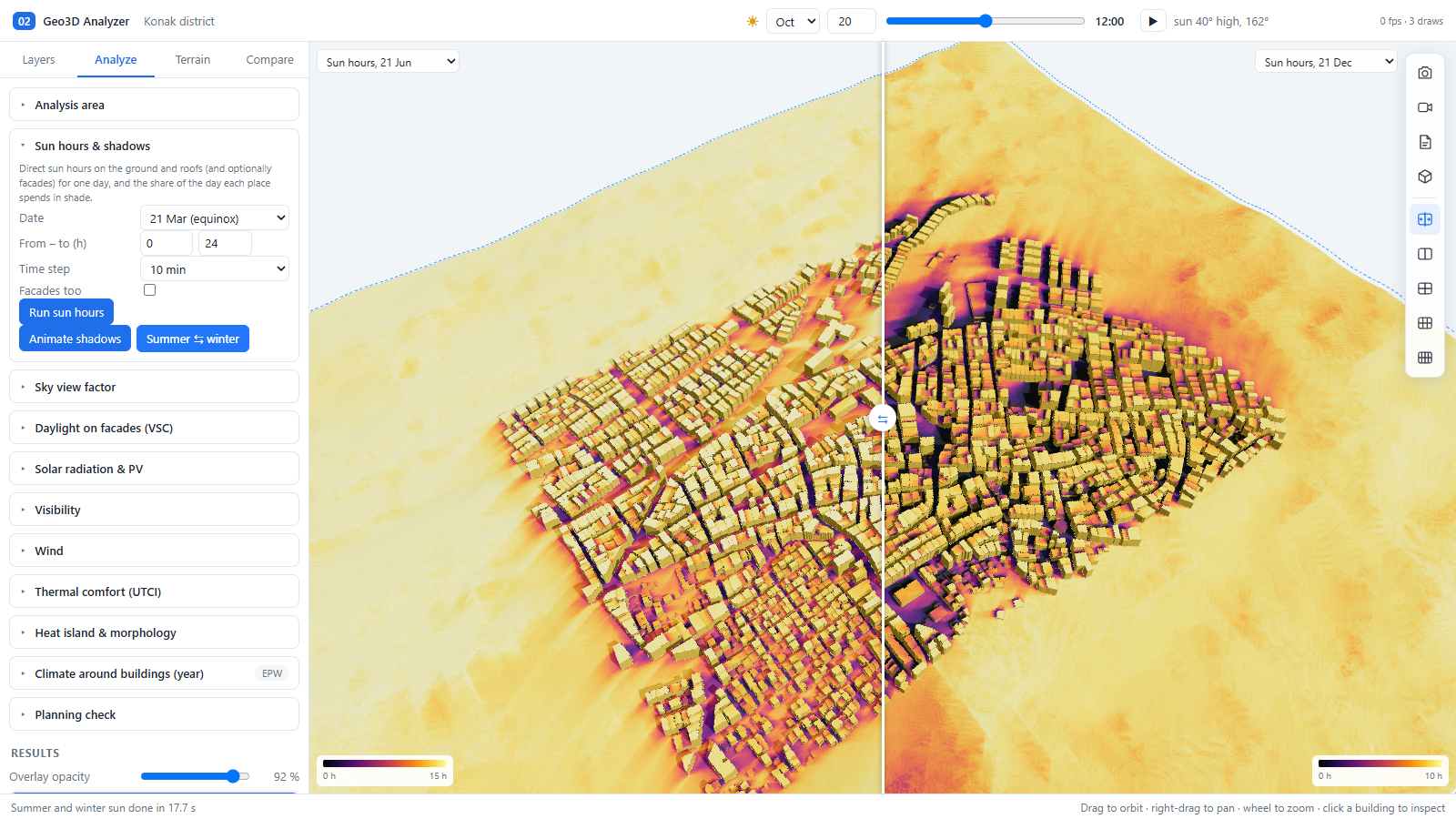
Each tool is a card: set the parameters, press the run button, and a result appears in the list with a legend, a statistics block and a draped map. All runs below used the default 2 m analysis cell.
3.1 Analysis area
3.2 Sun hours and shadows
3.3 Sky view factor
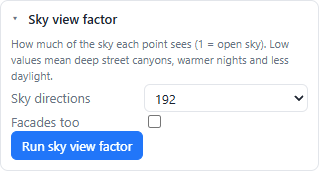
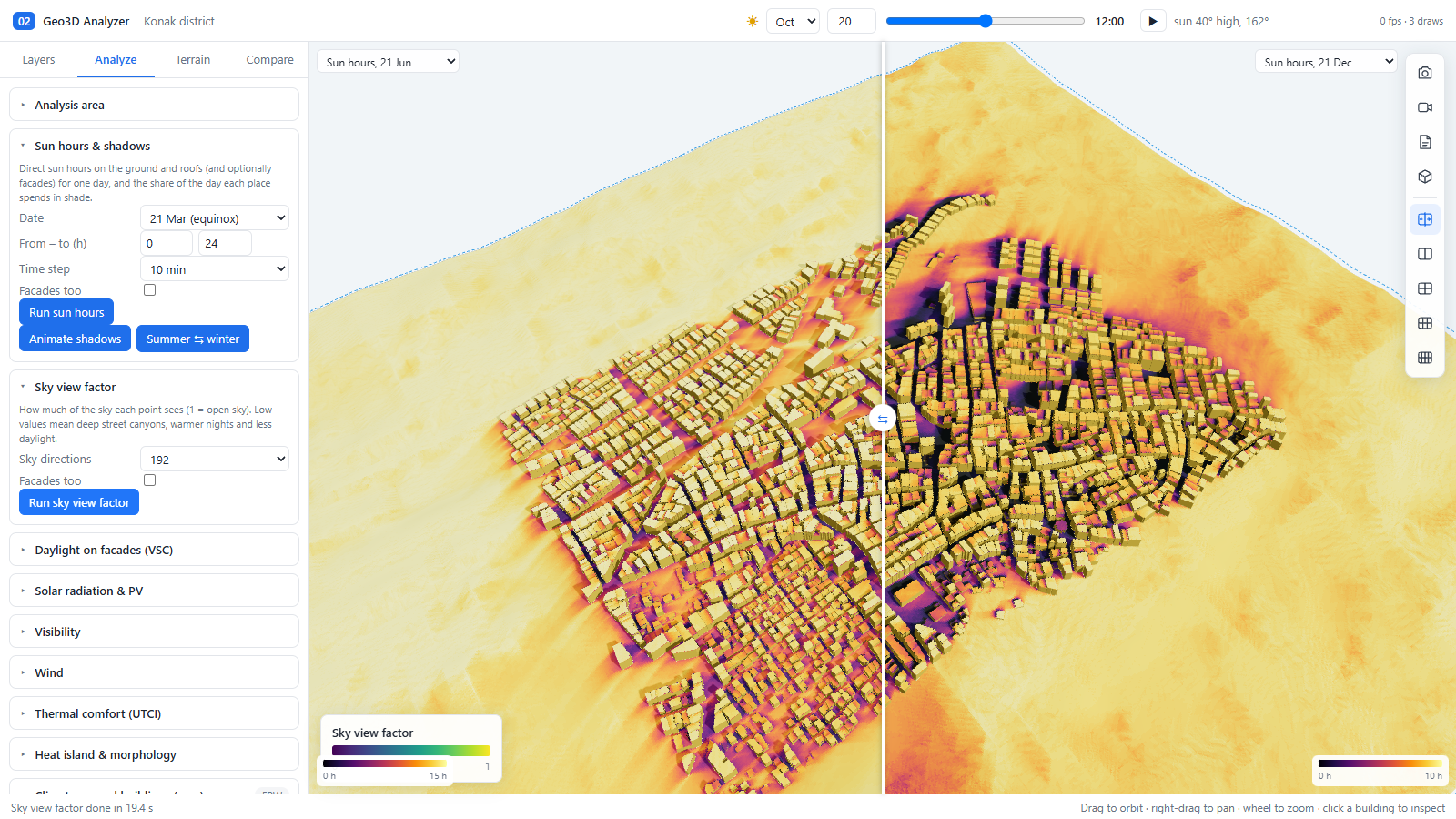
3.4 Daylight on facades (VSC)
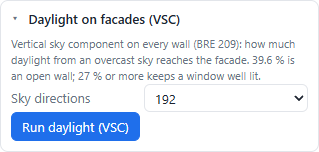
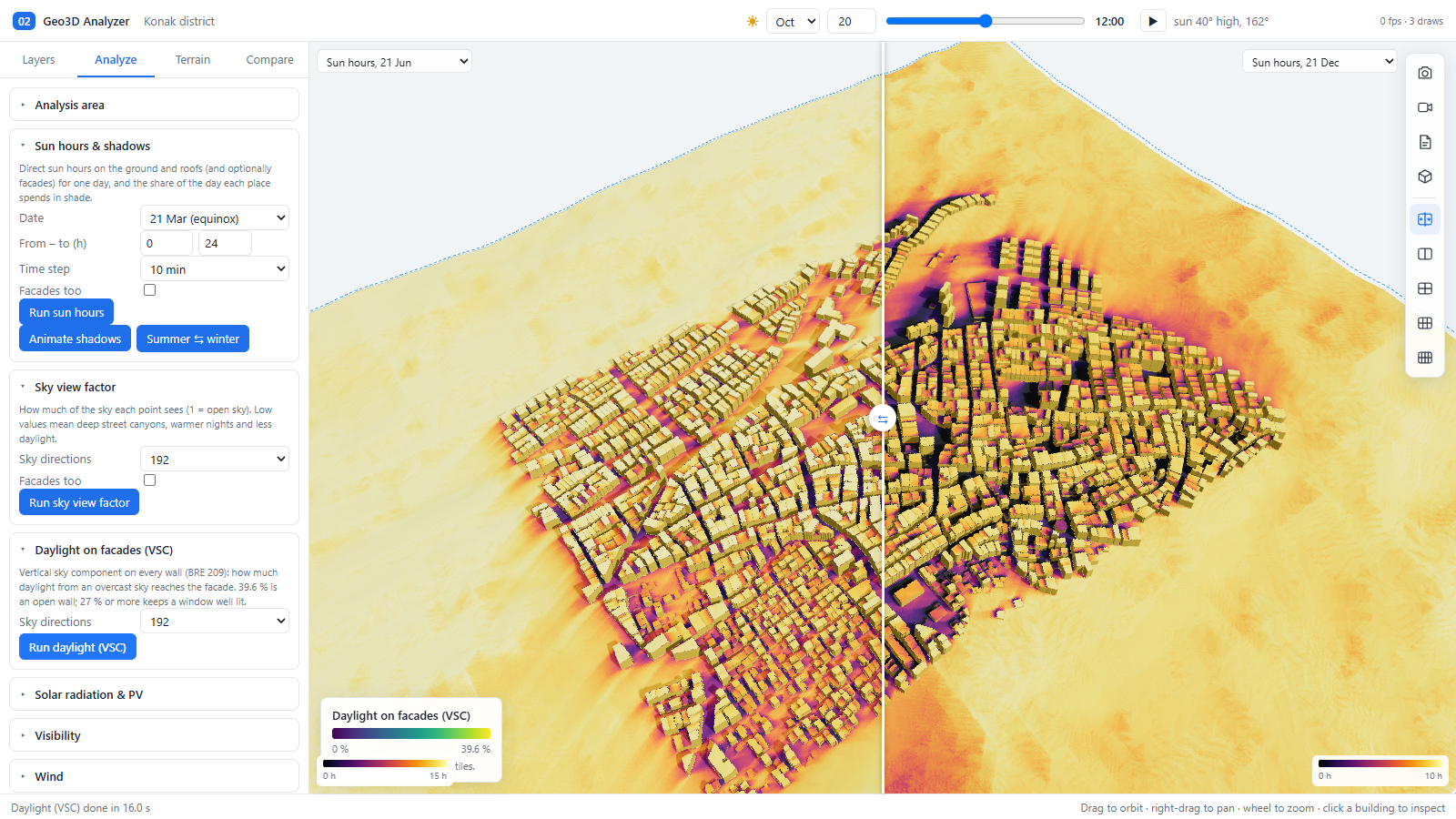
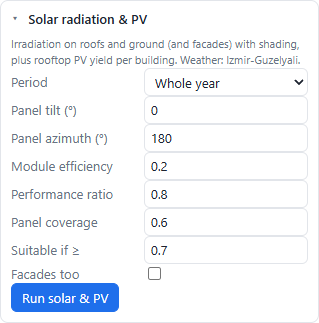
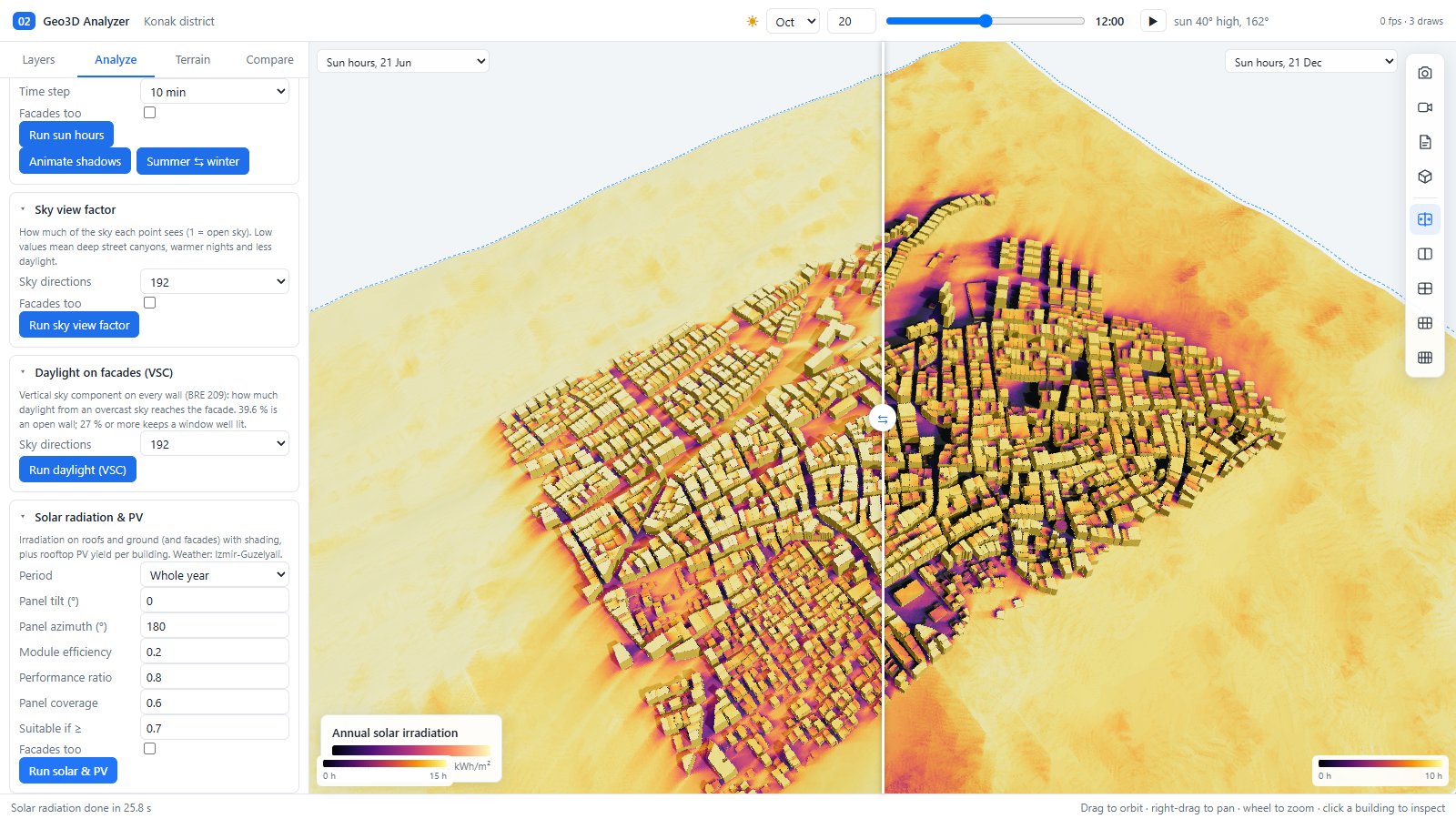
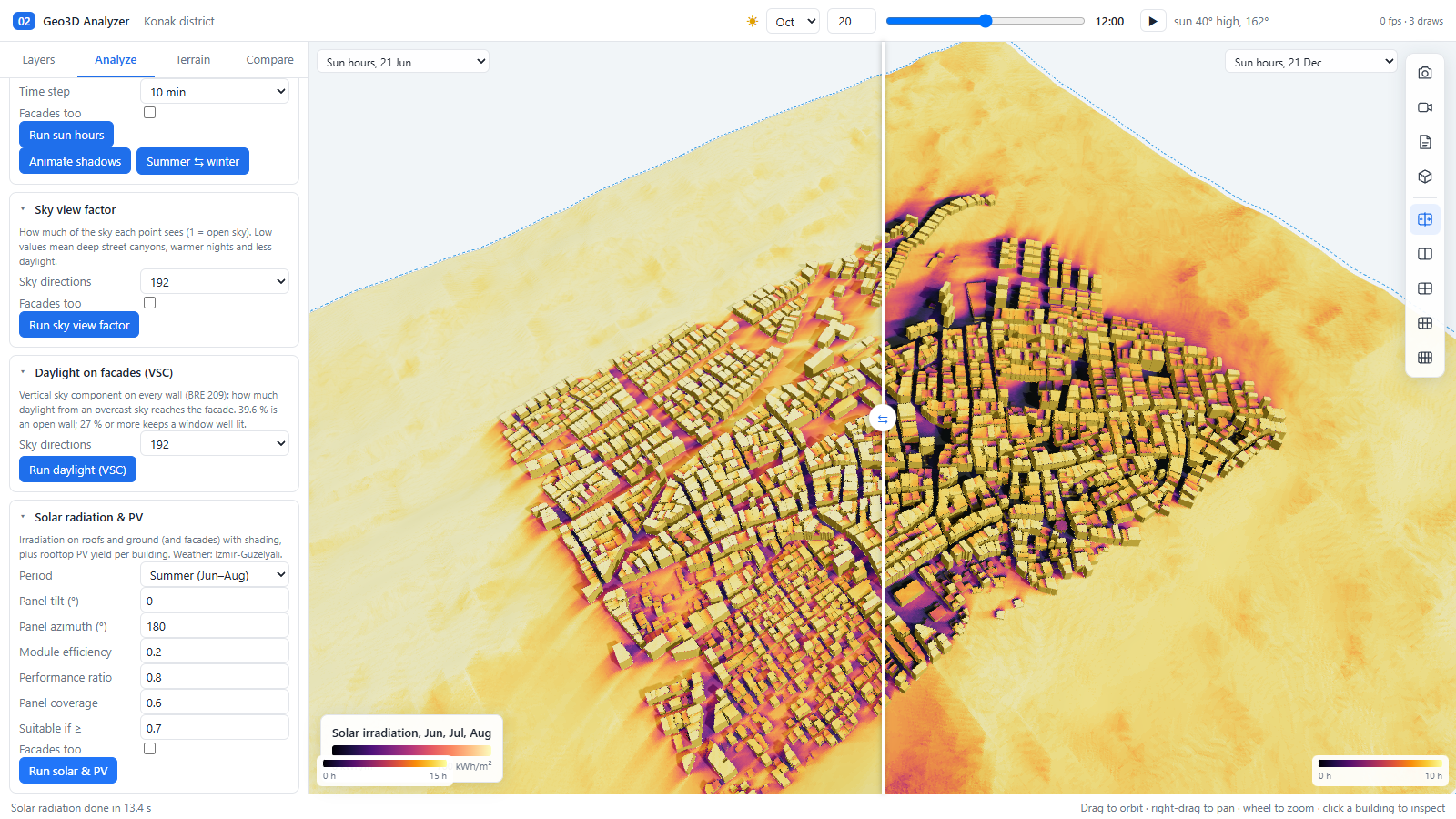
3.5 Solar radiation and PV
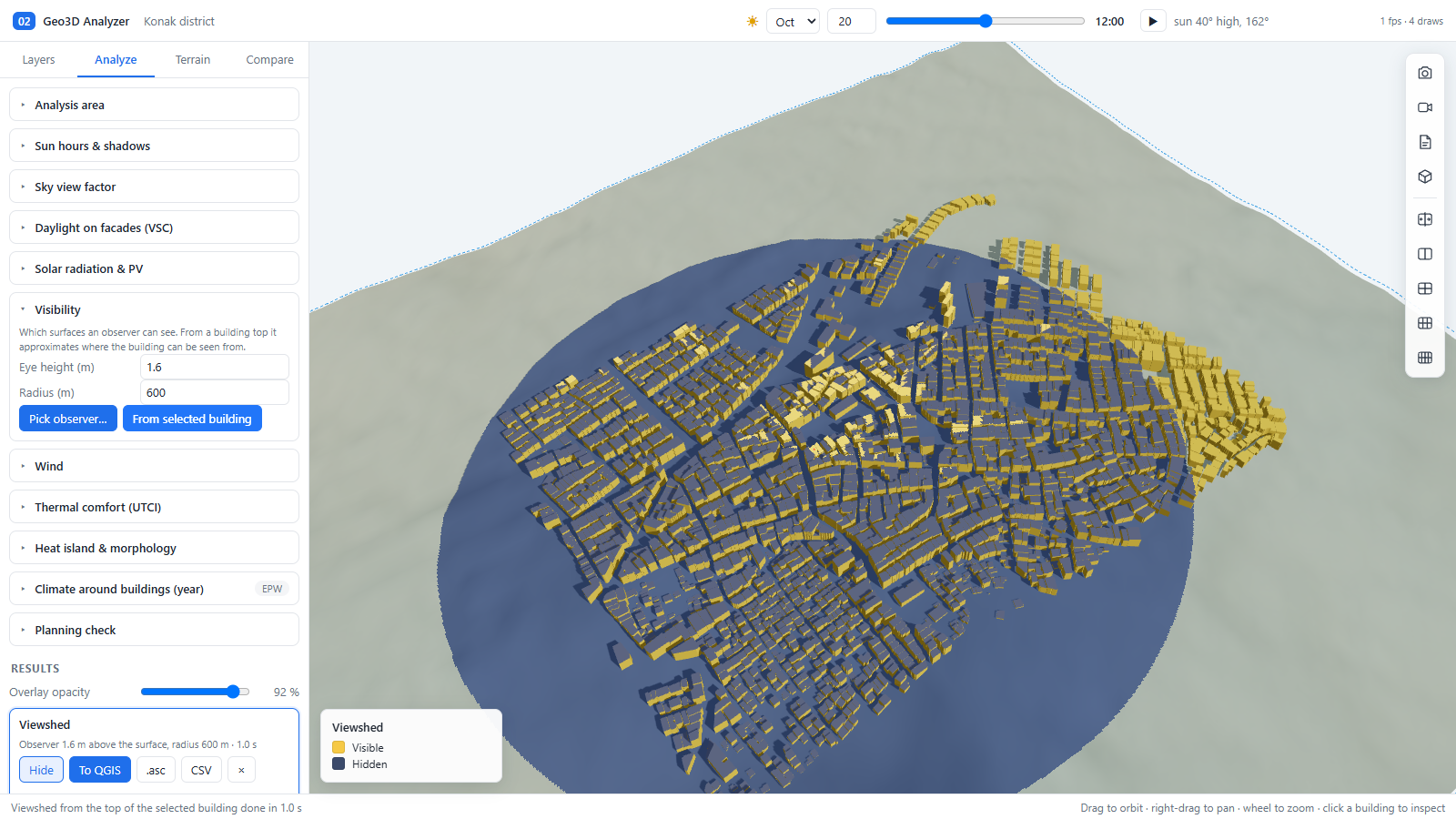
3.6 Visibility
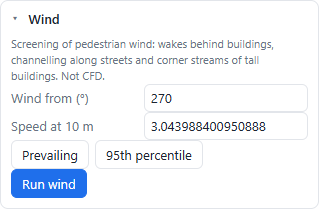
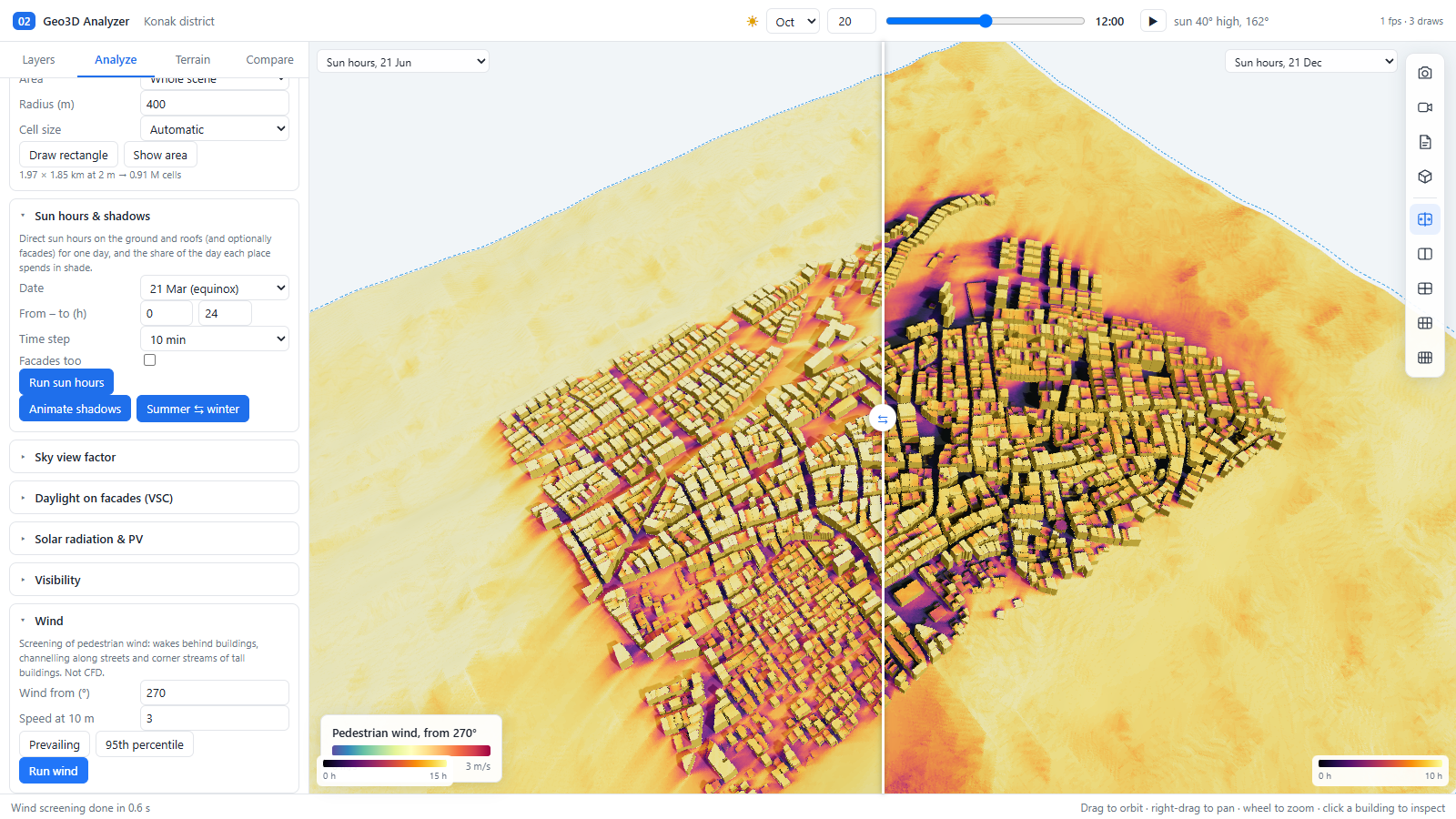
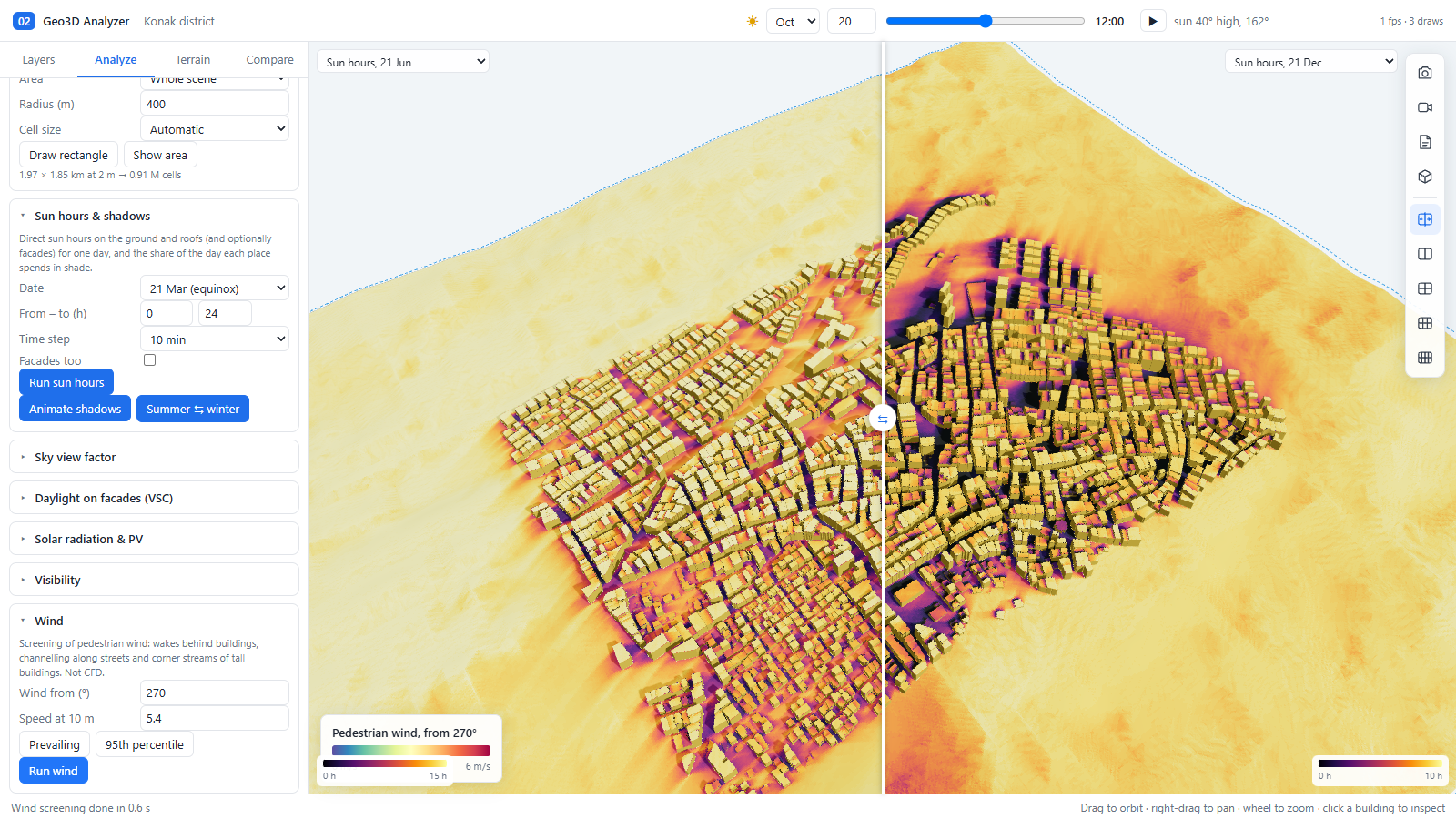
3.7 Wind
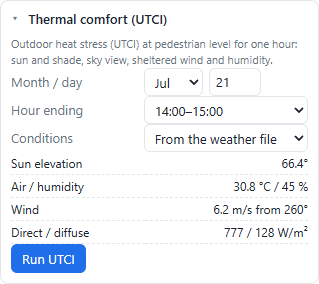
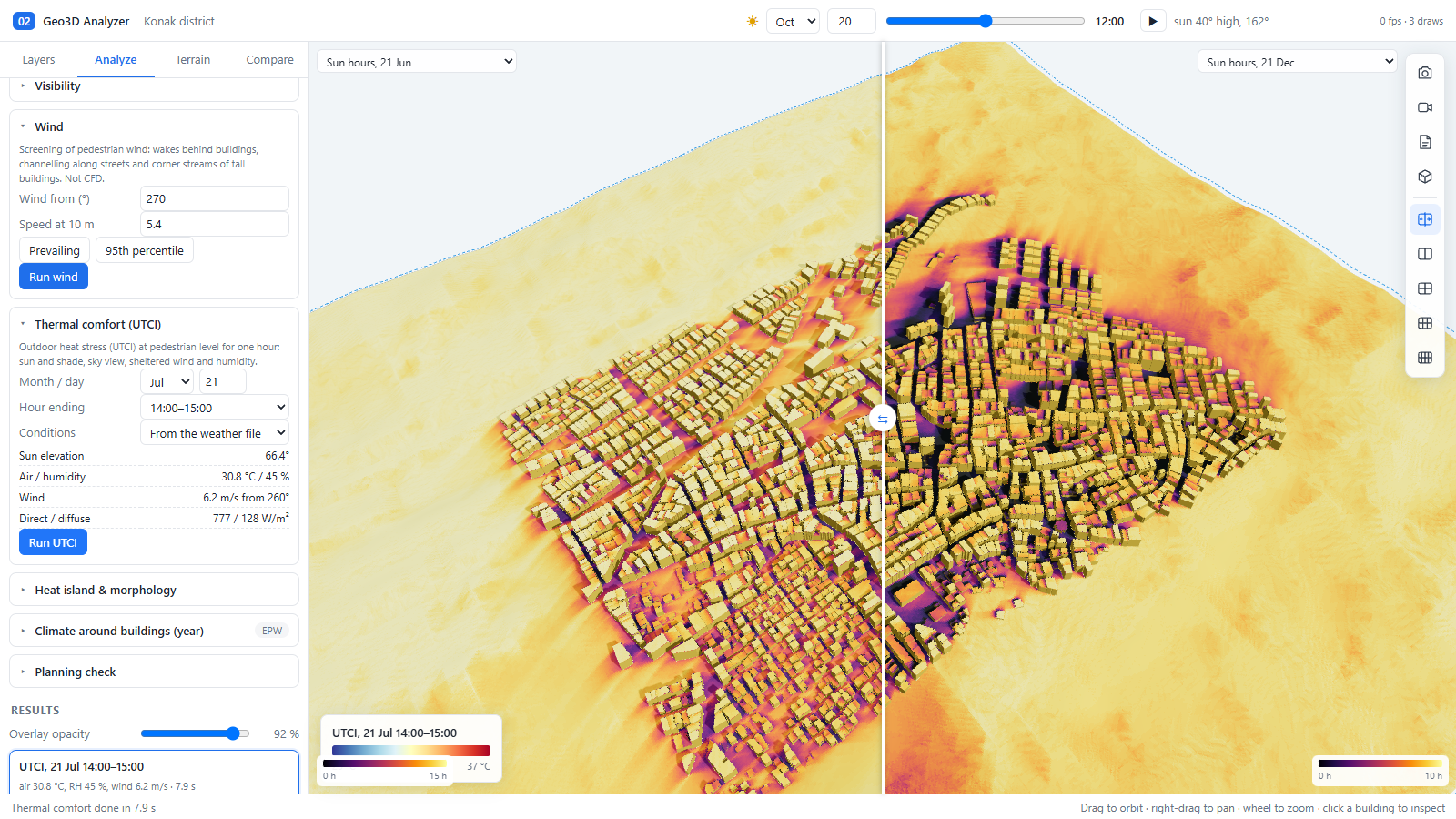
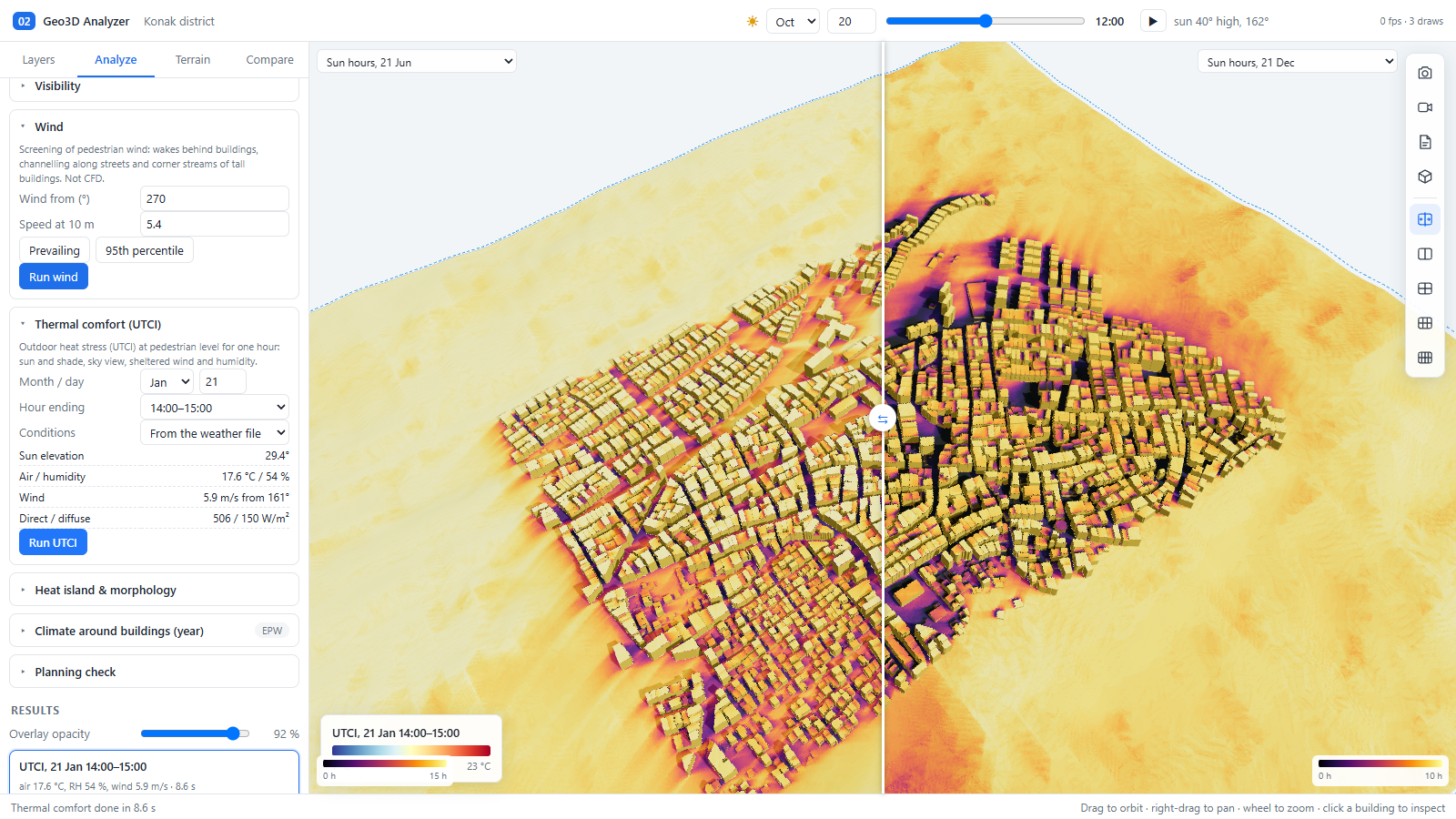
3.8 Thermal comfort (UTCI)
3.9 Heat island and morphology
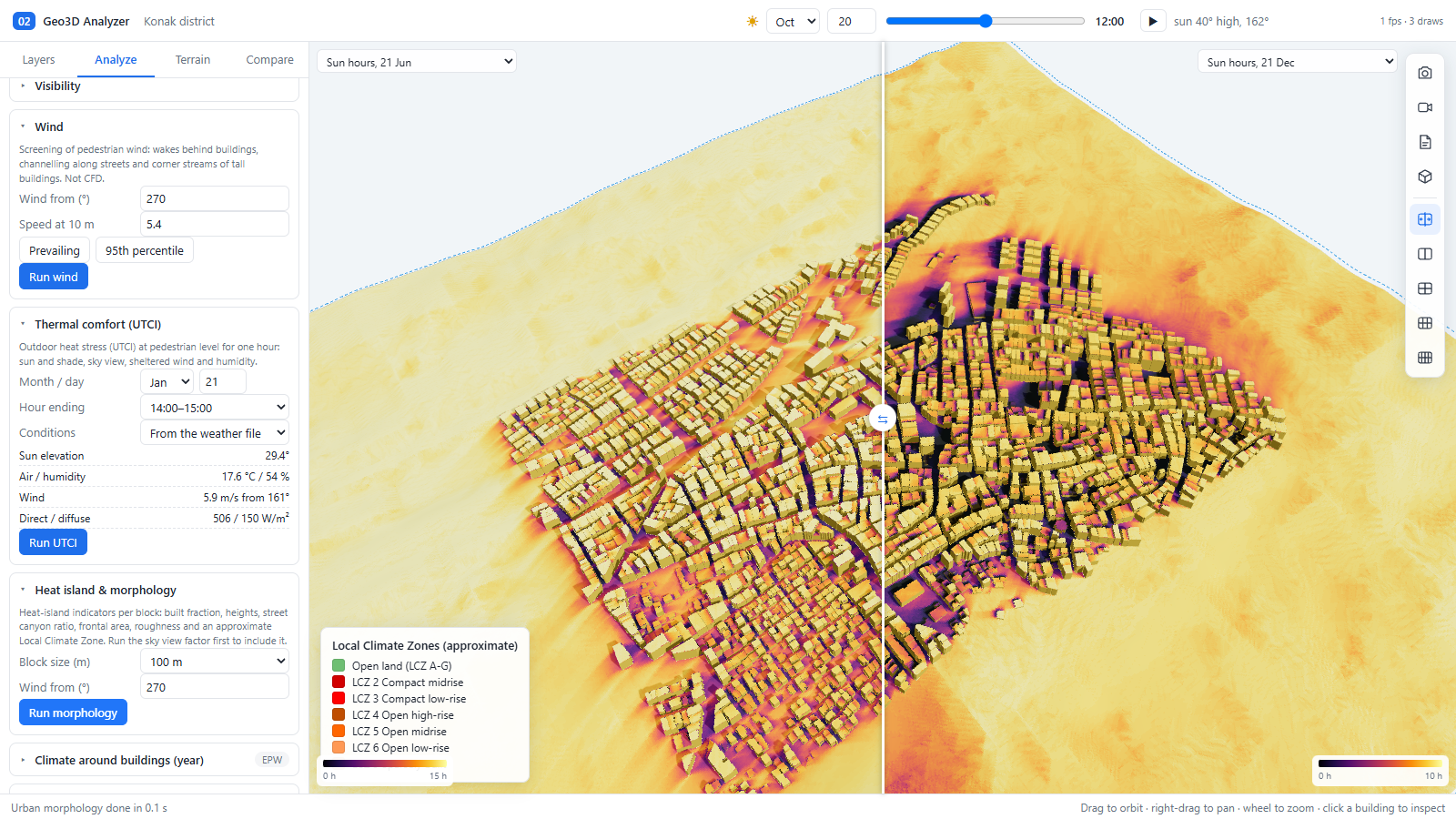
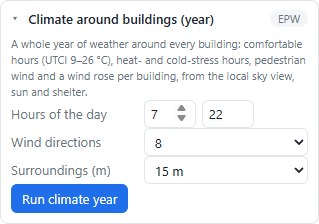
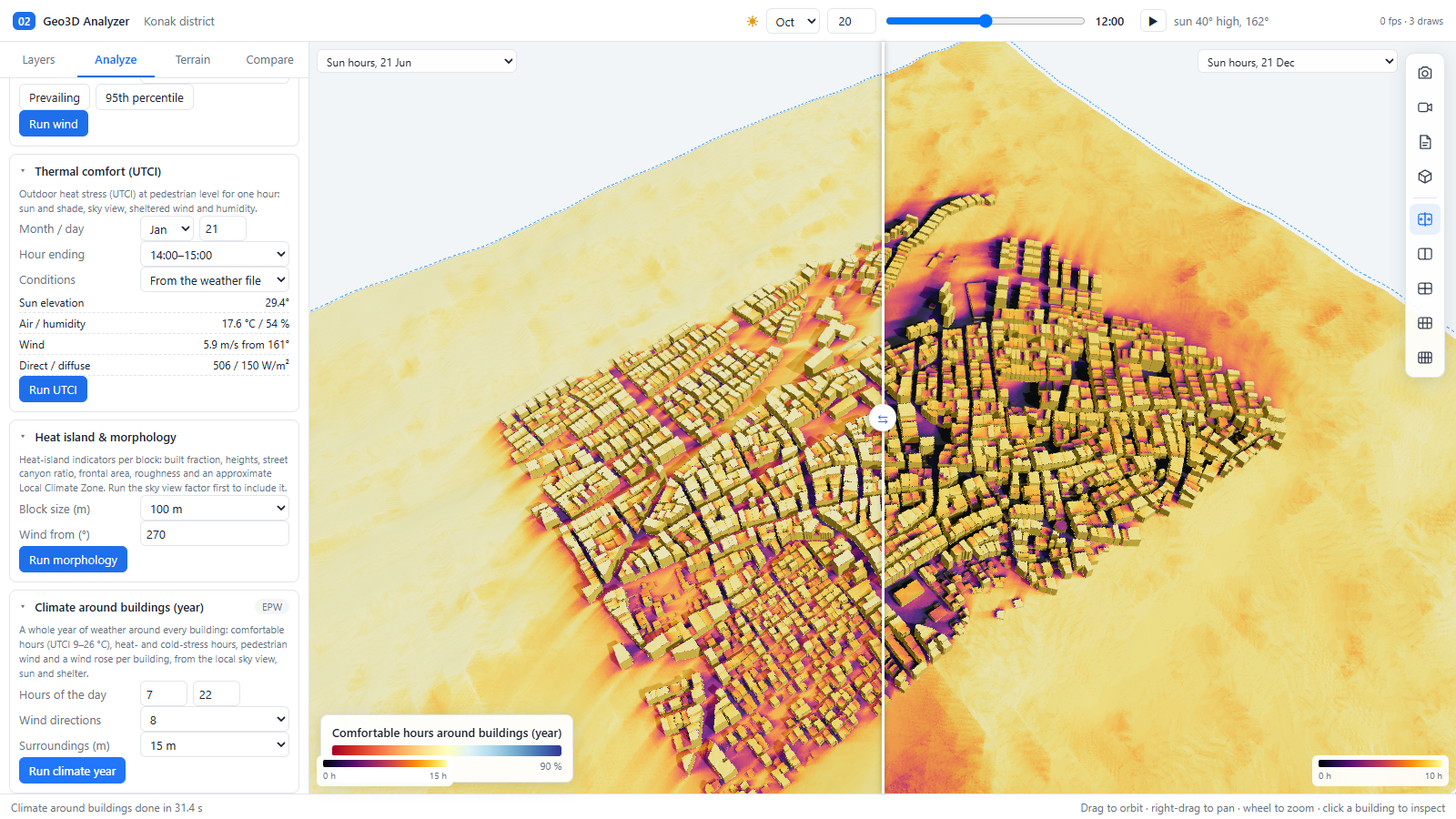
3.10 Climate around buildings (year)
3.11 Planning check
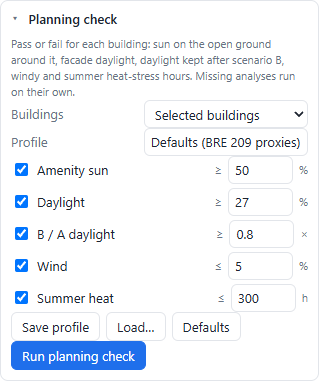
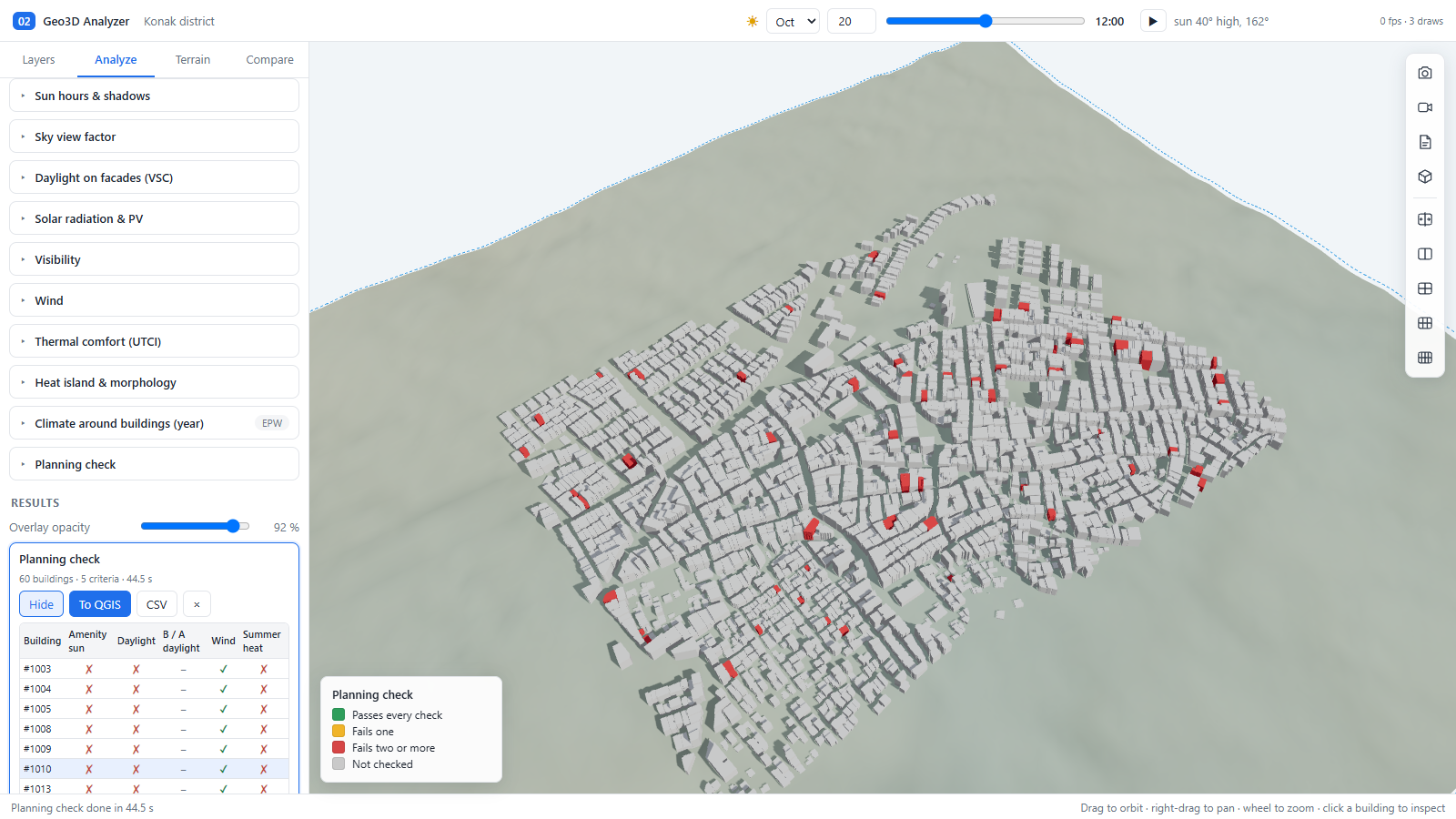
The result table lists the worst buildings first and exports to CSV and PDF. The result fields are check_failed, check_amenity_sun, check_facade_vsc, check_neighbour_daylight, check_wind and check_heat.
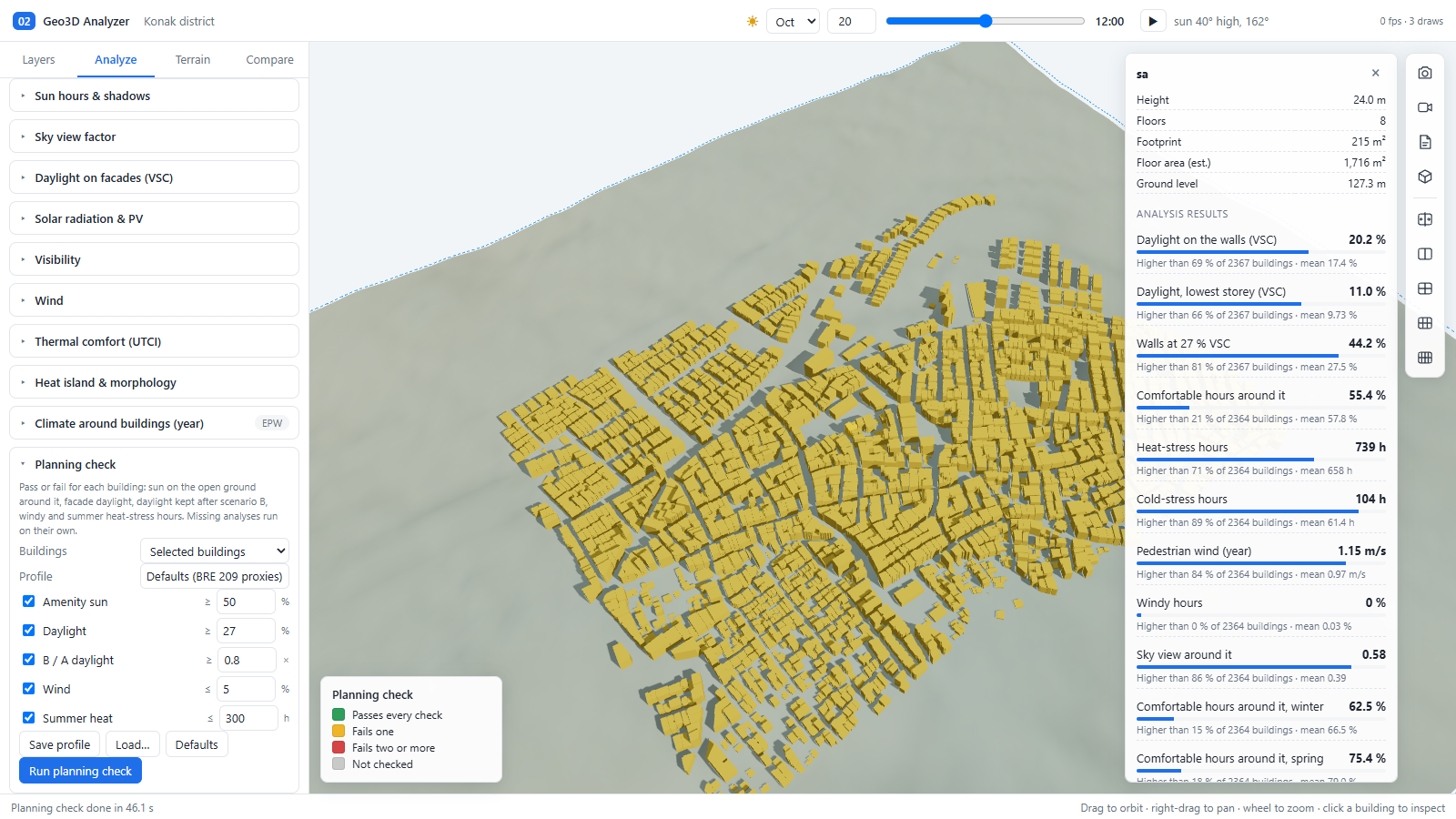
3.12 Building inspector
4 · Terrain tab
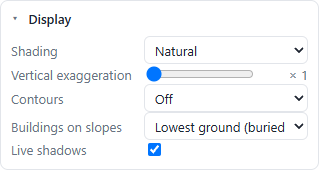
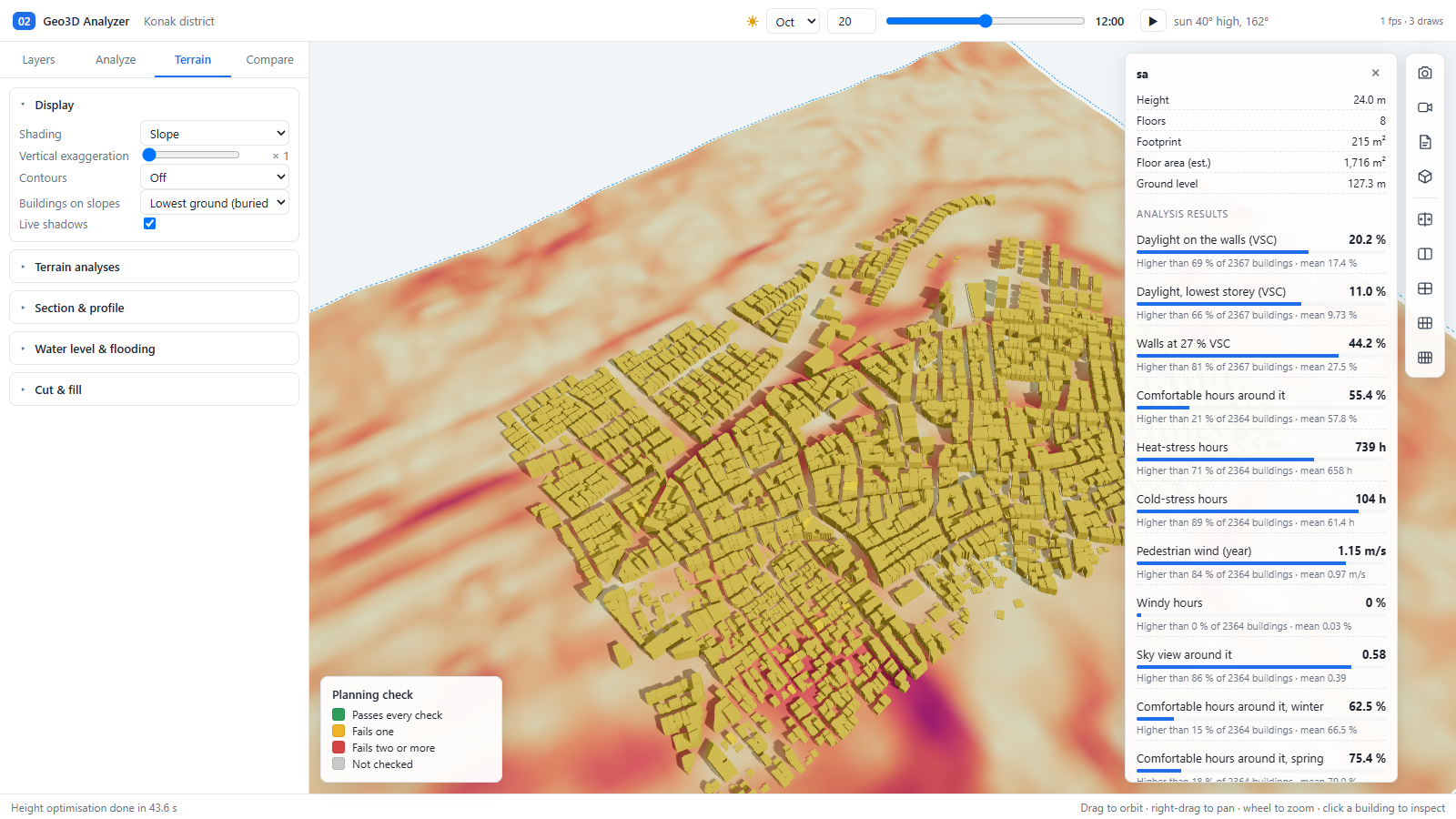
4.1 Display
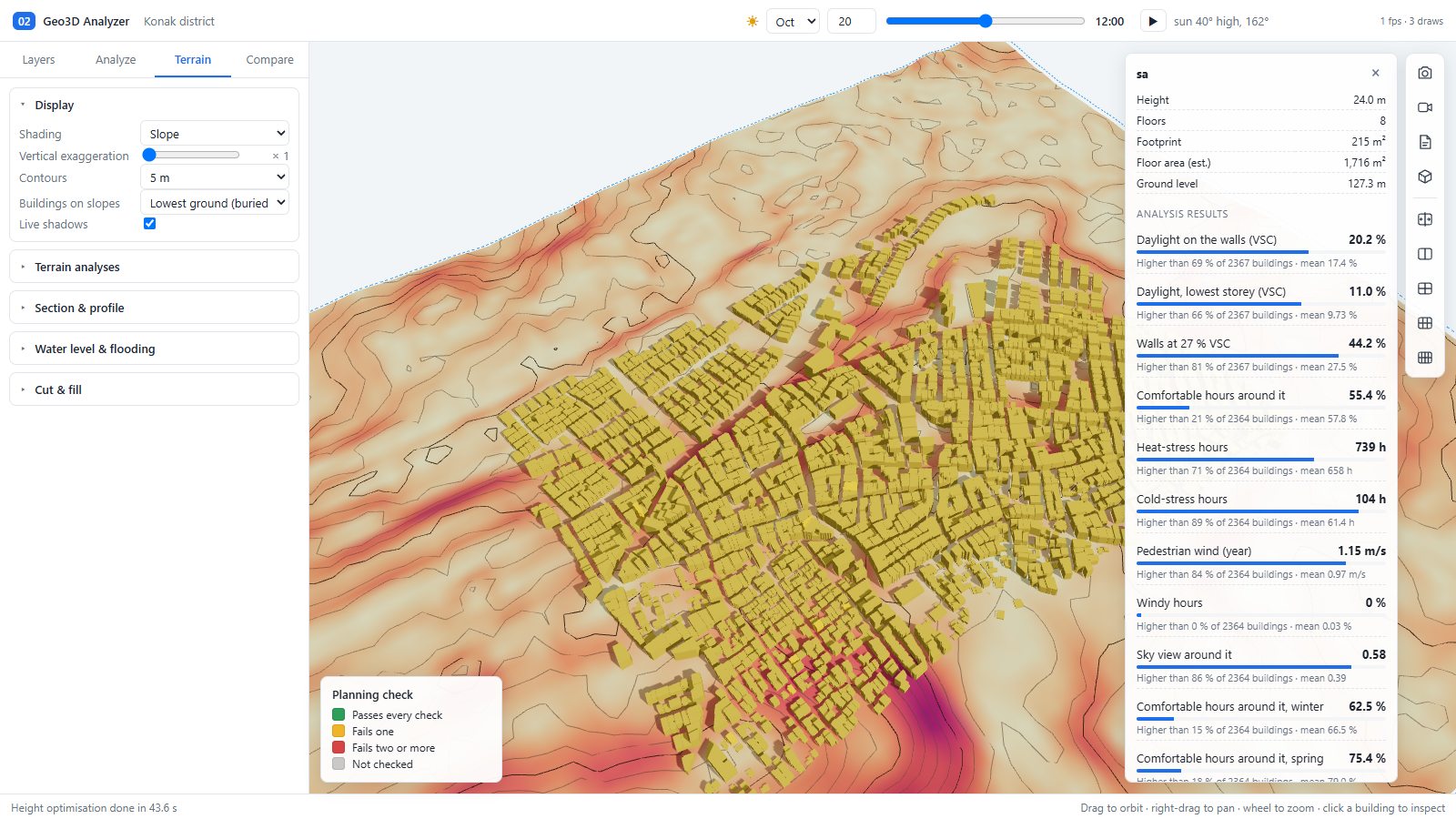
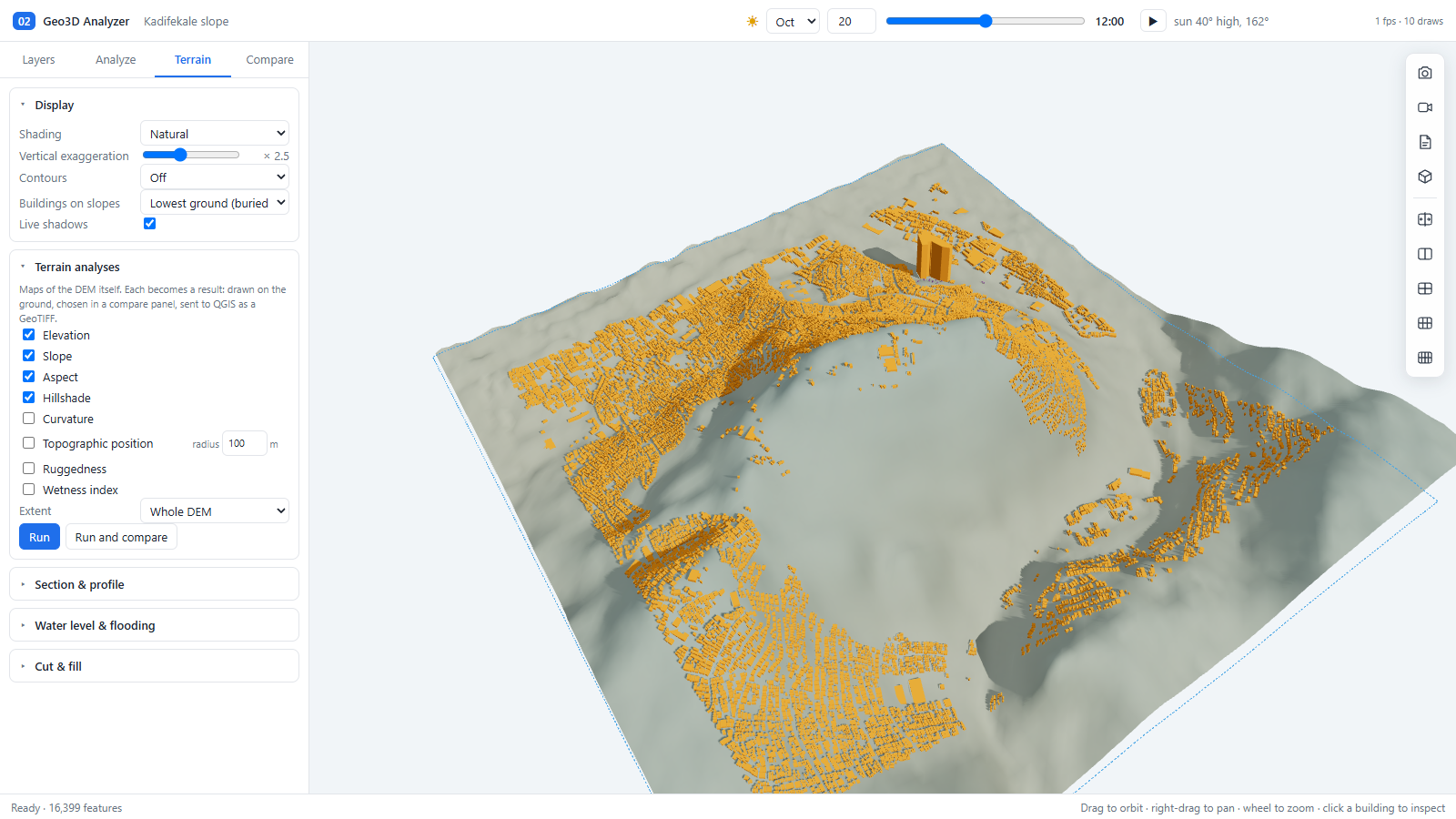
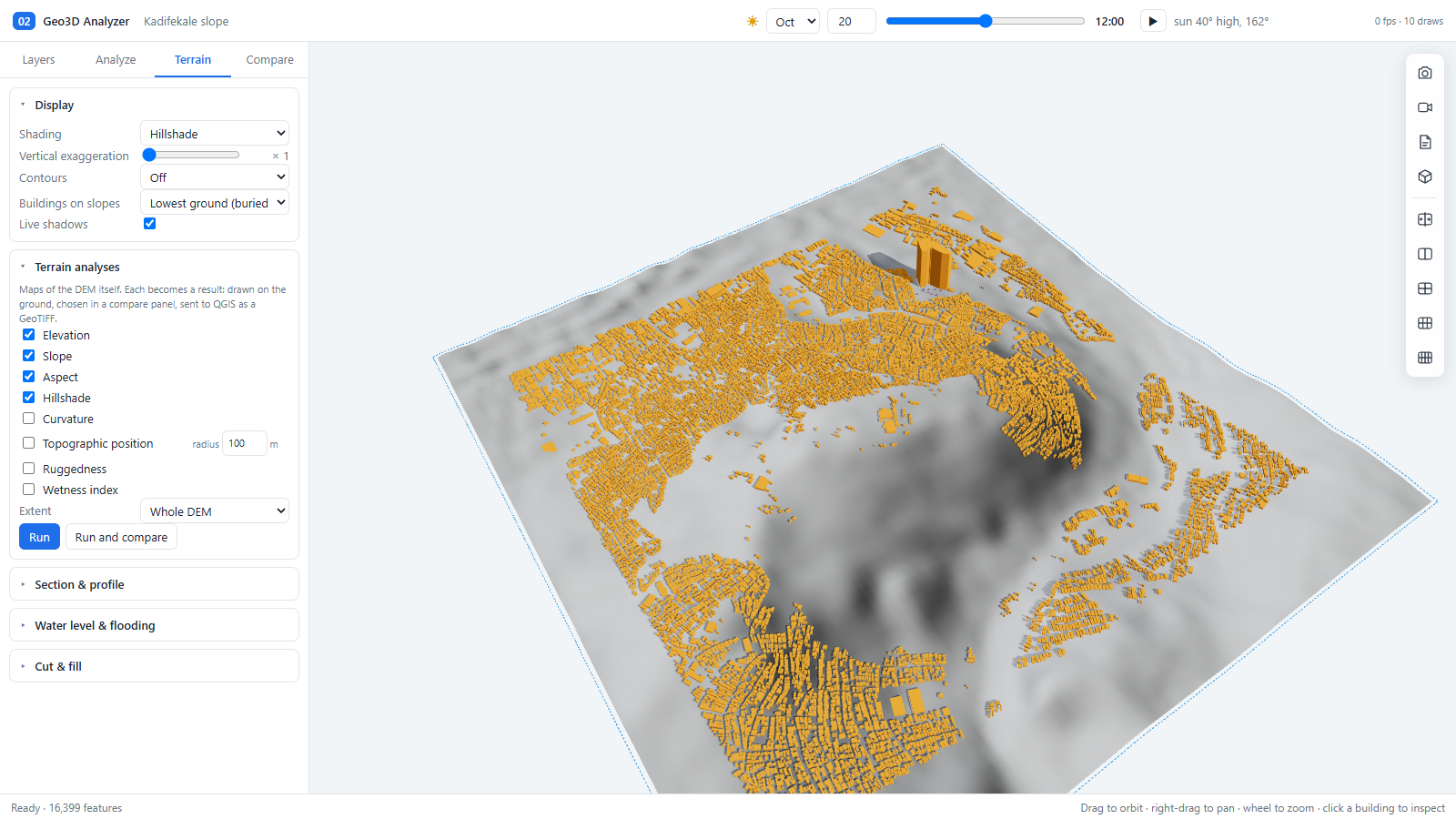
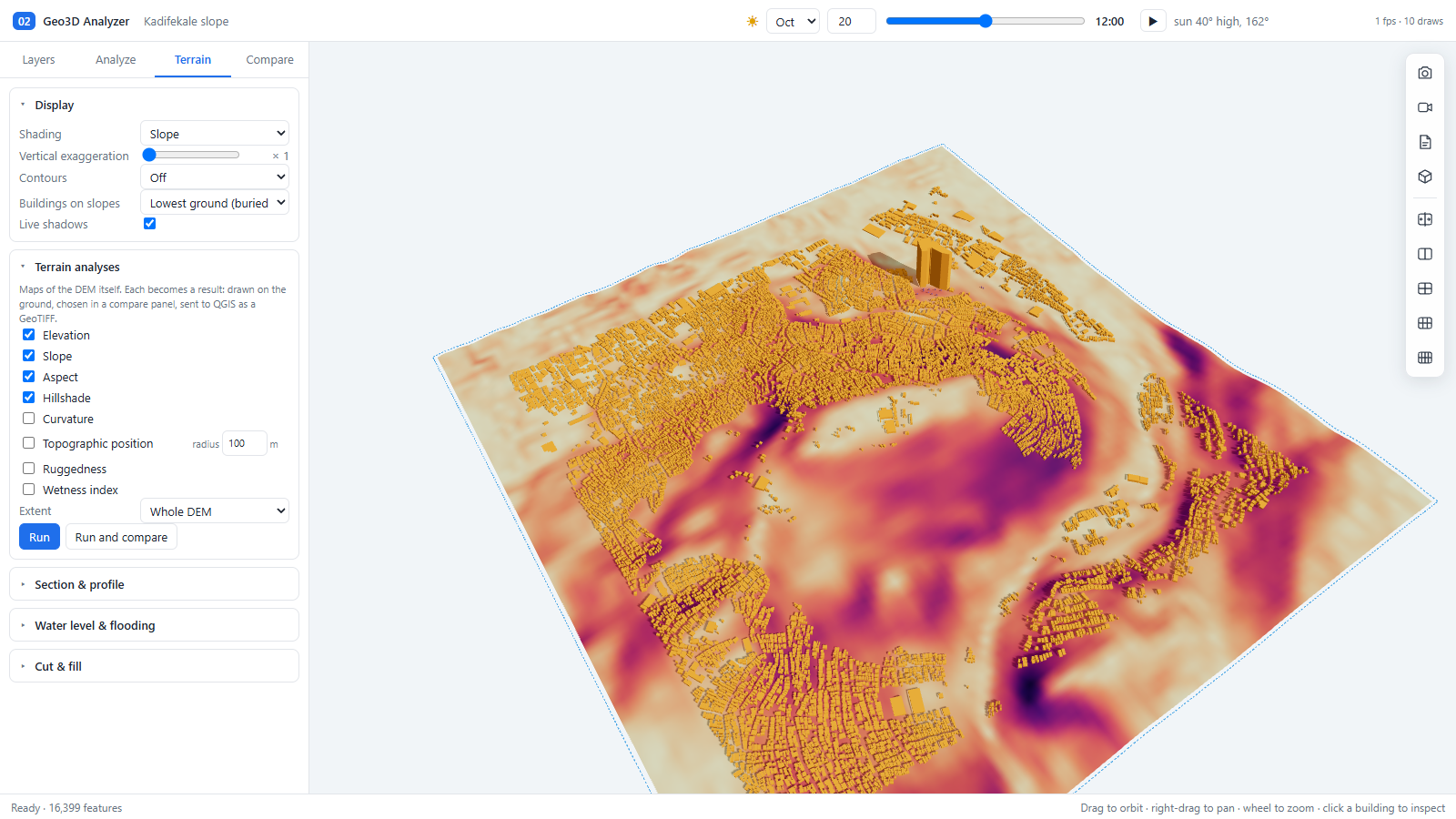
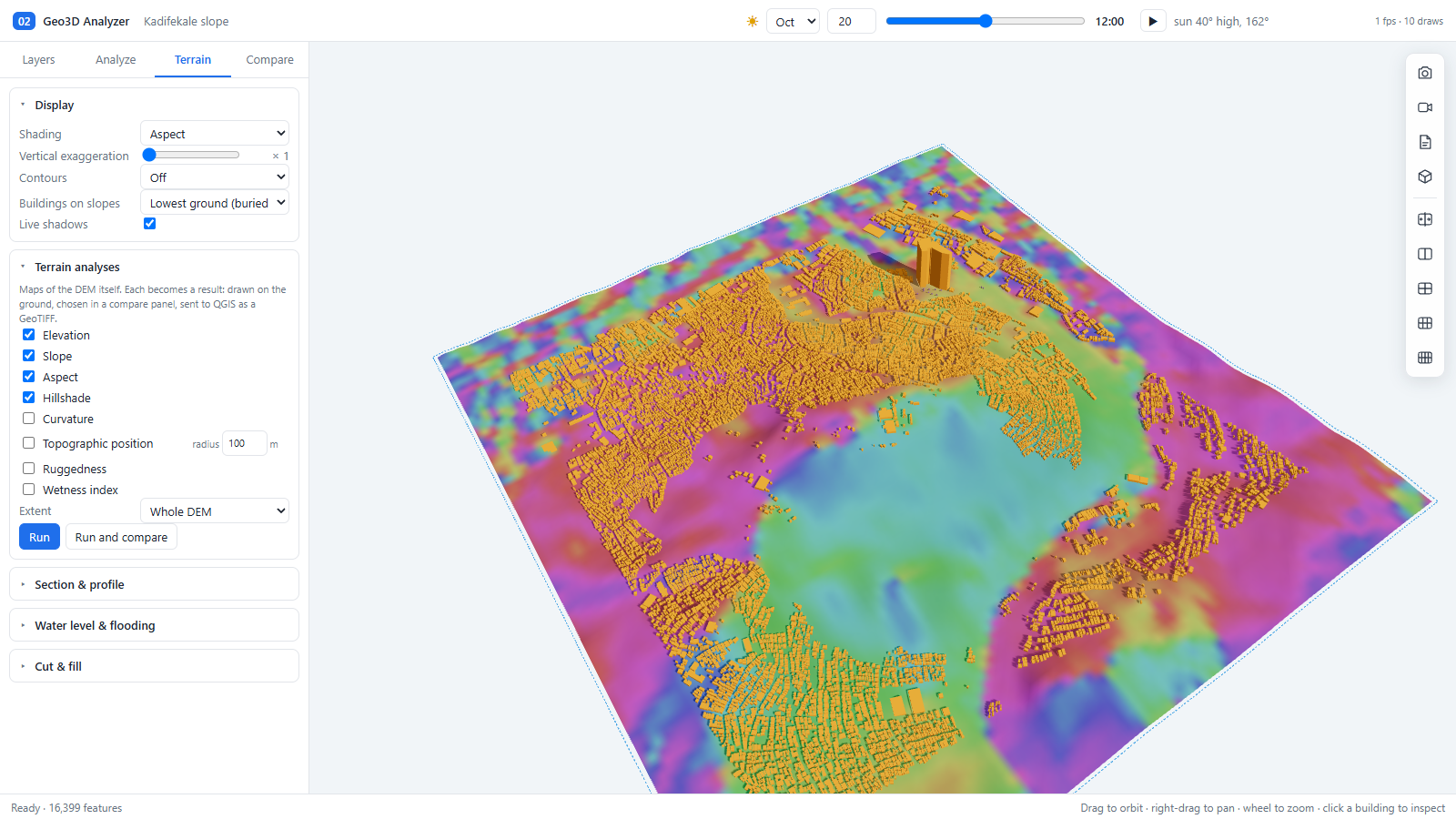
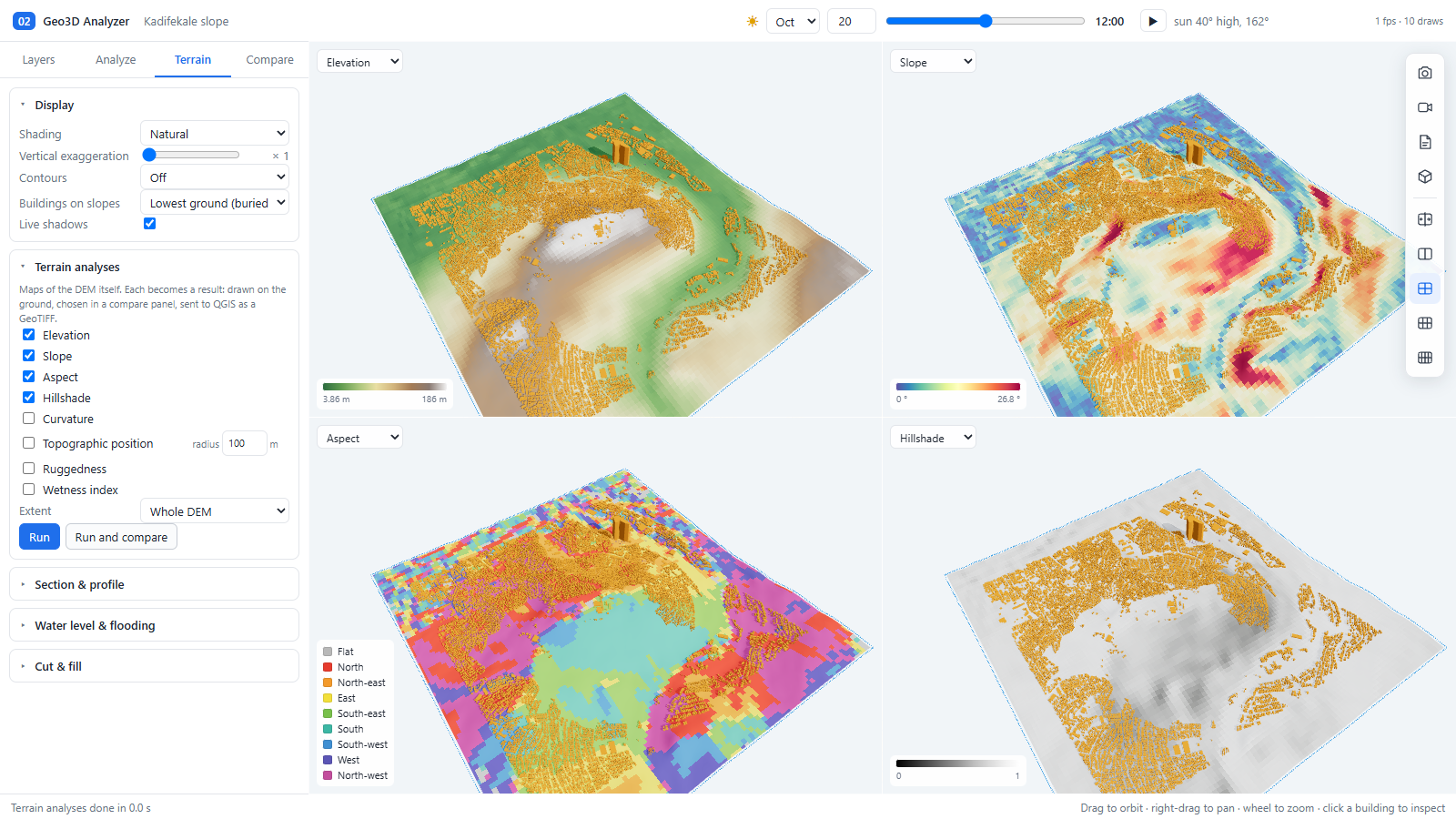
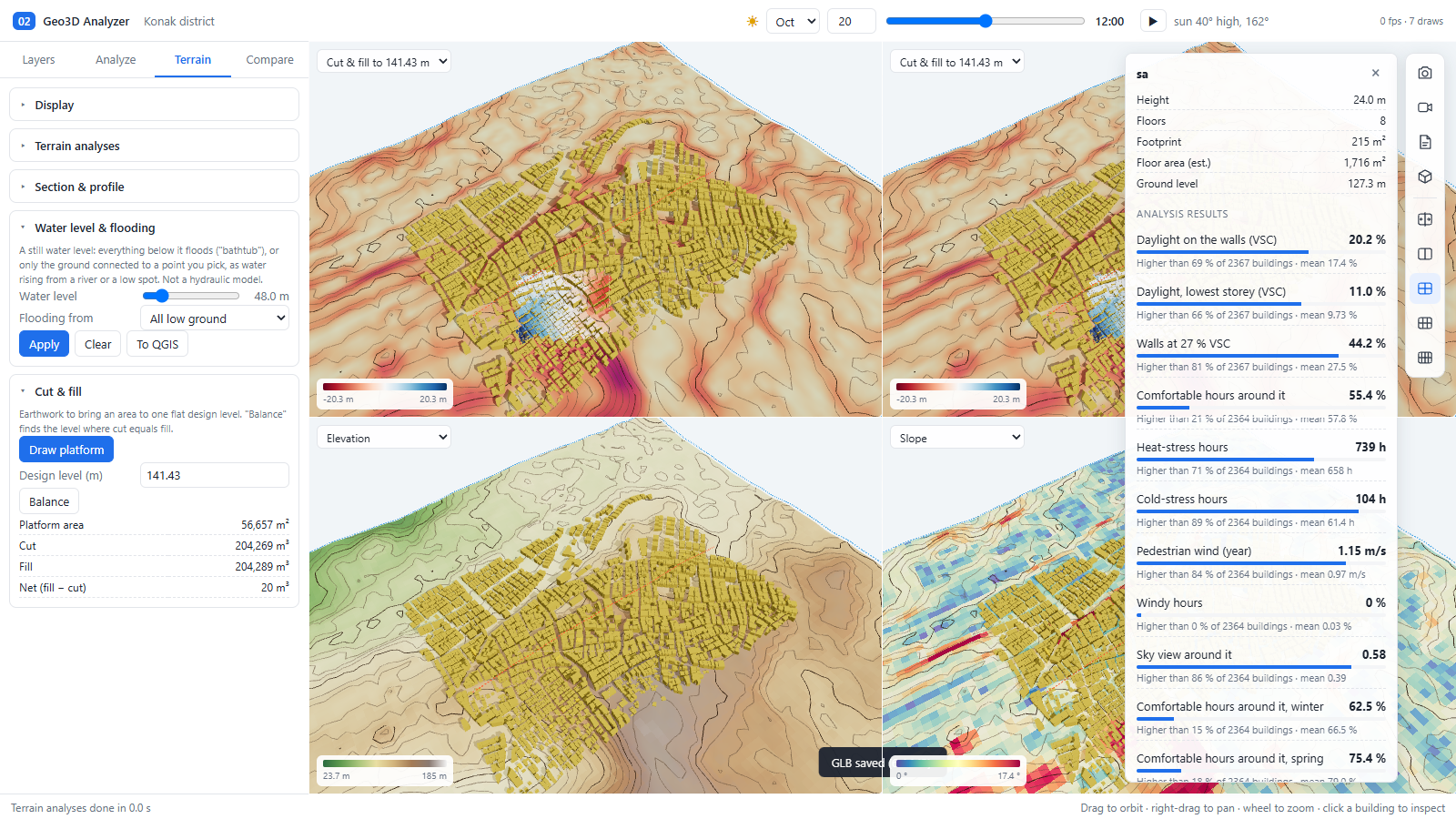
4.2 Terrain analyses
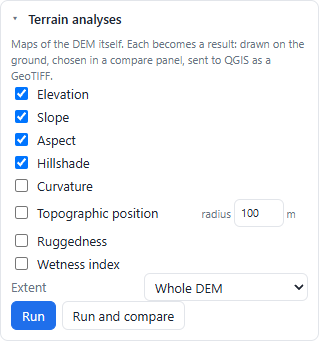
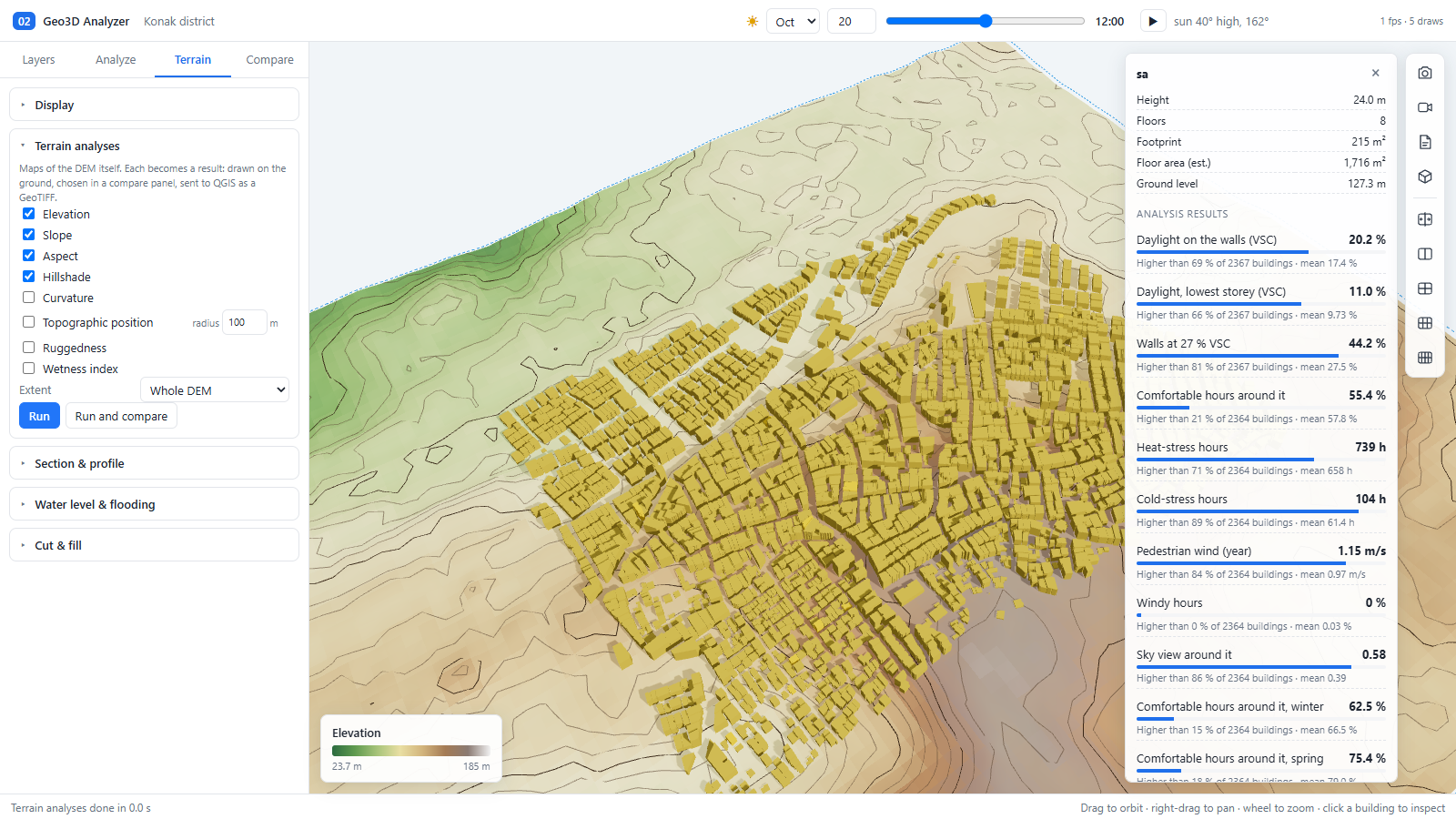
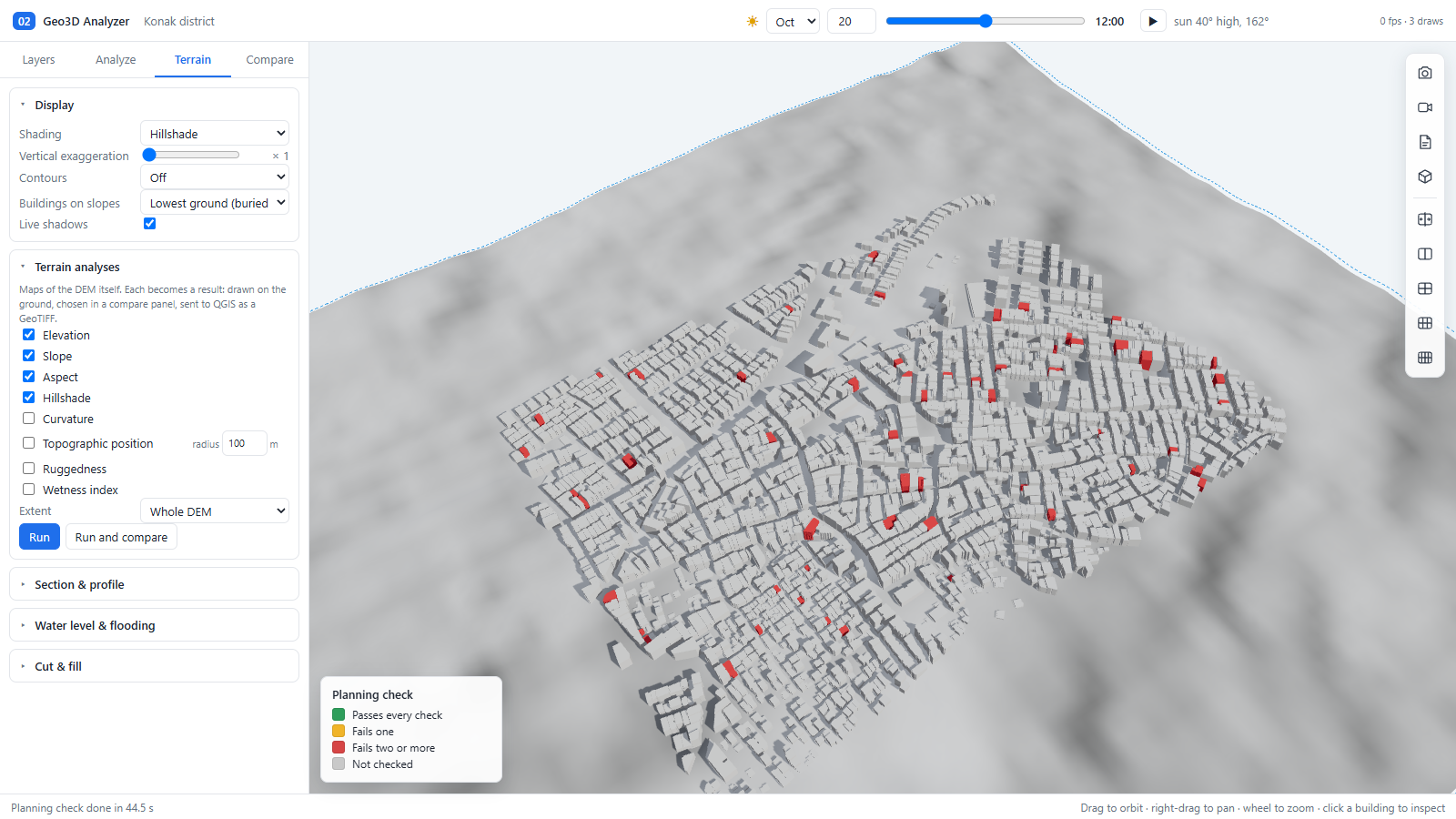
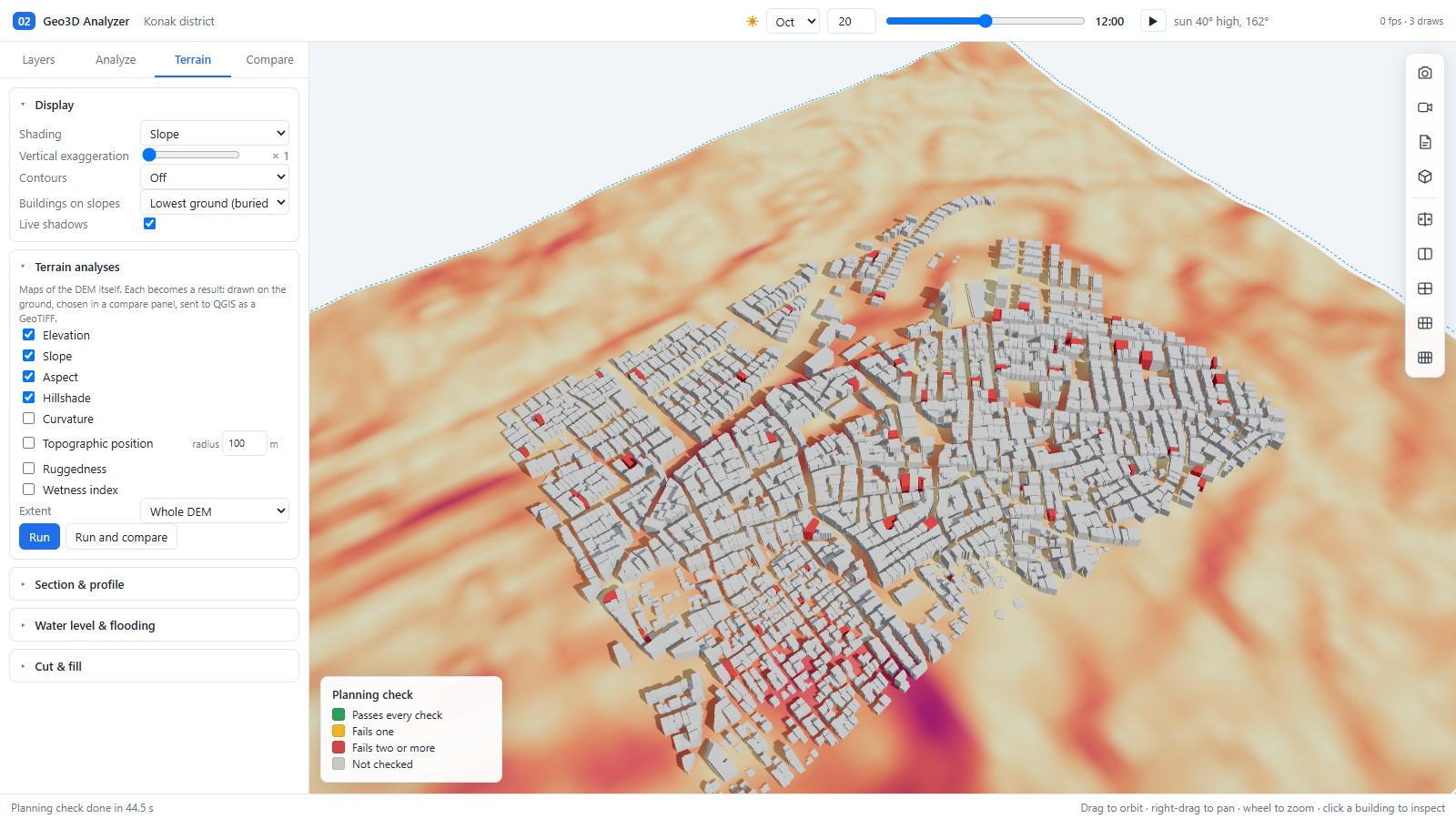
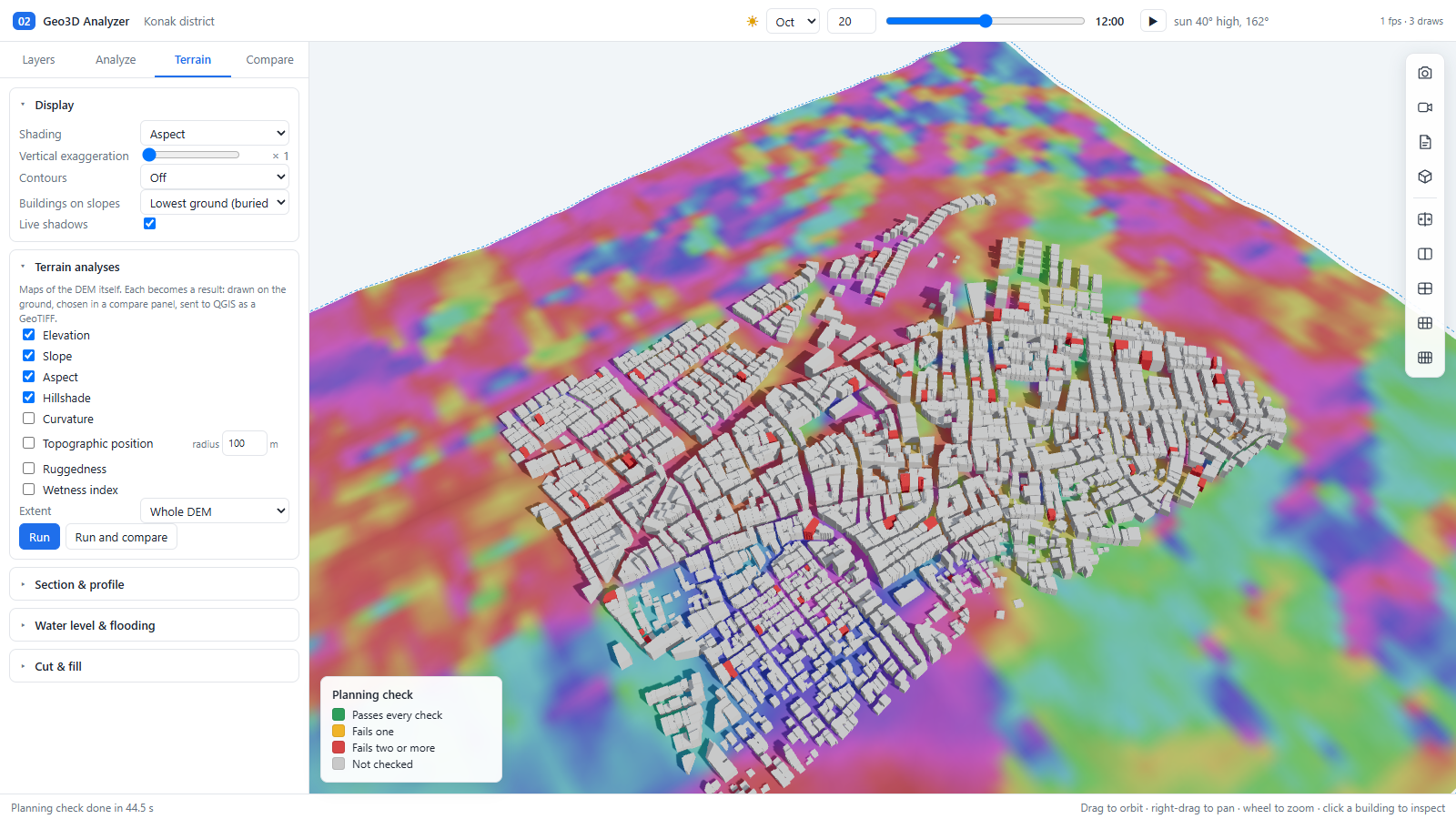
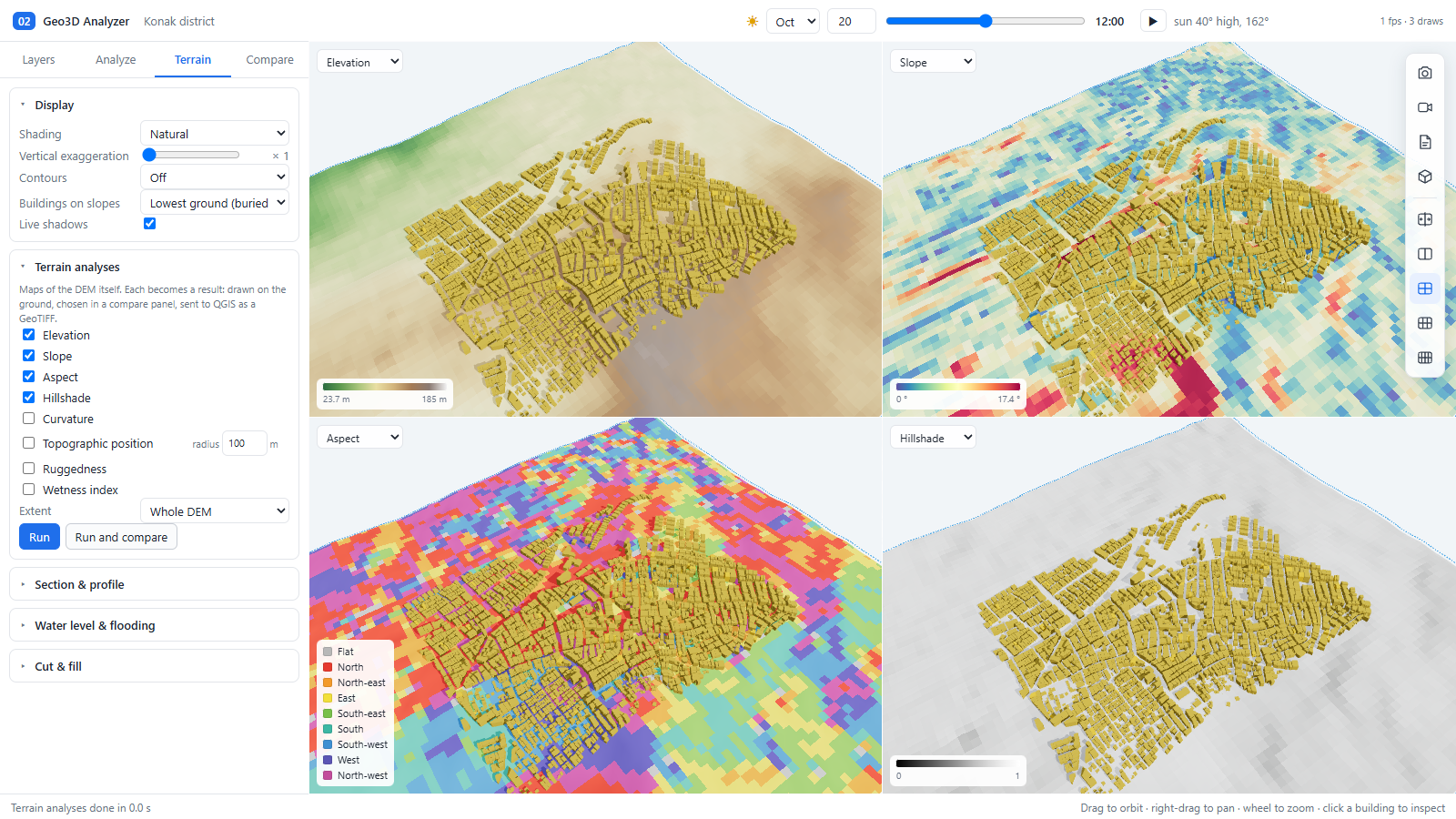
The same tools on Kadifekale (elevation 3.86–186 m):
4.3 Section and profile
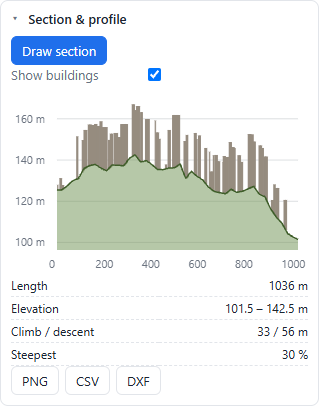
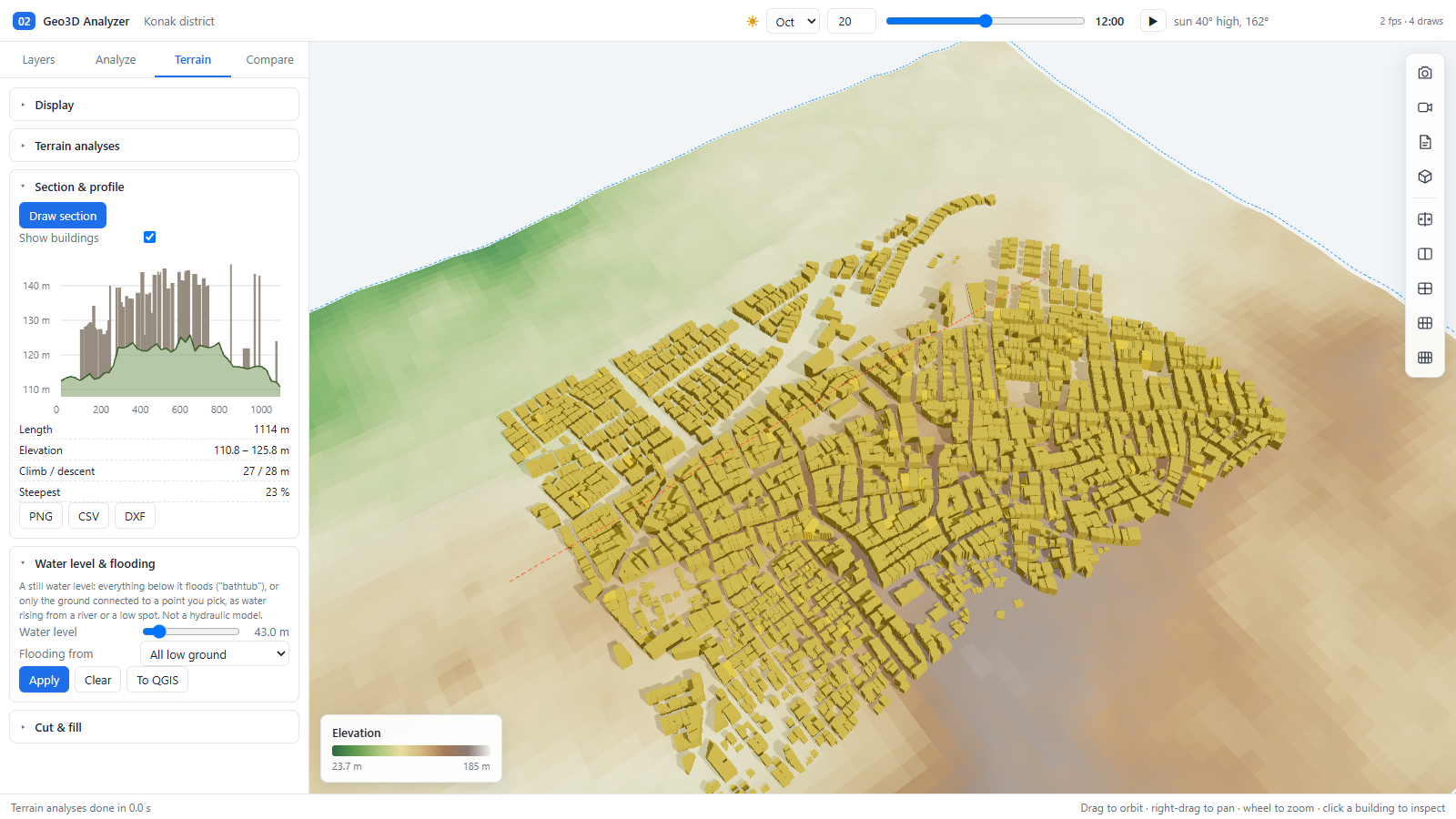
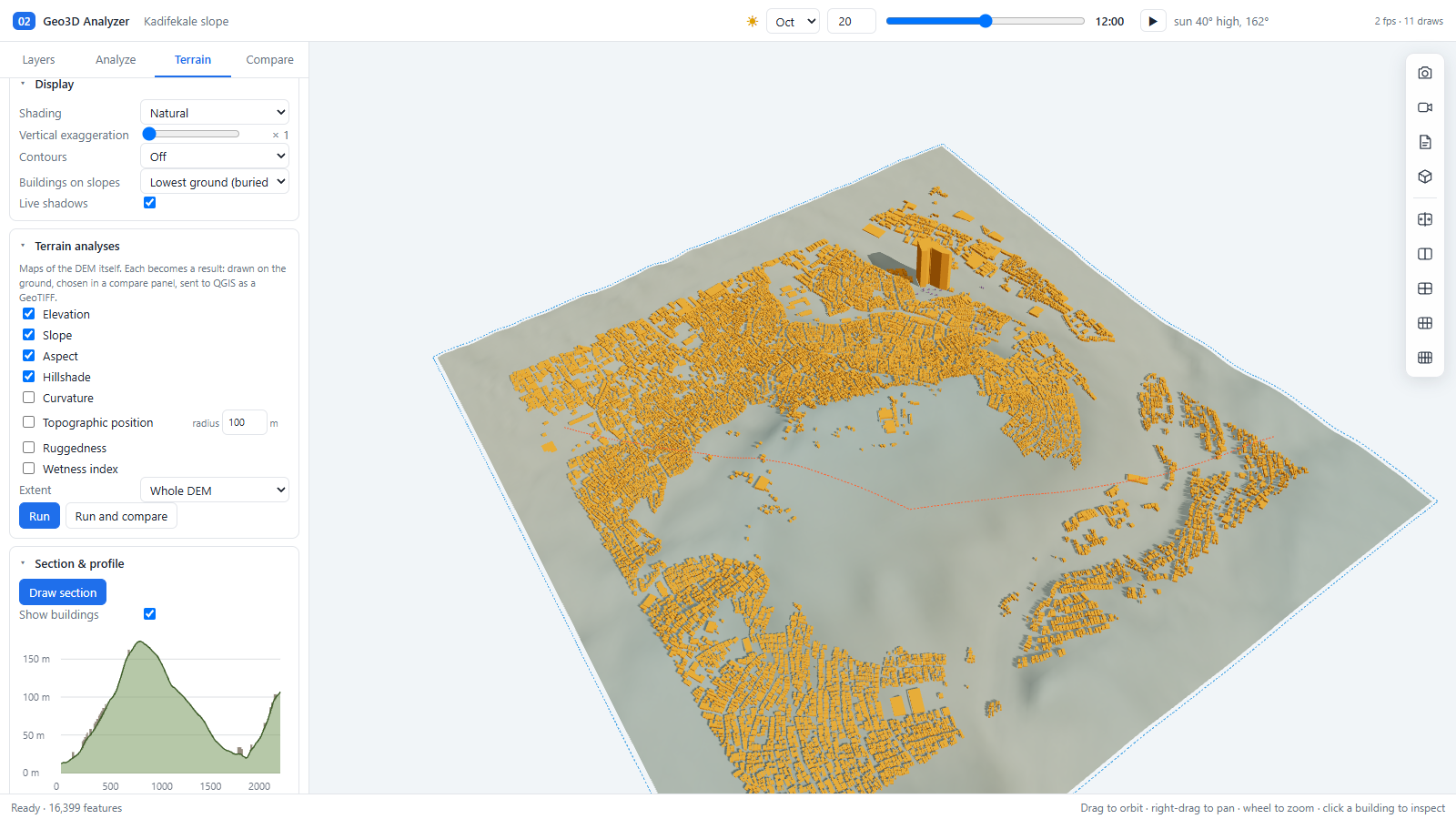
4.4 Water level and flooding
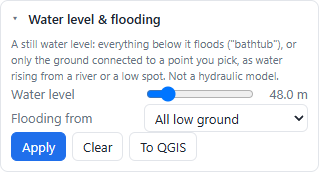
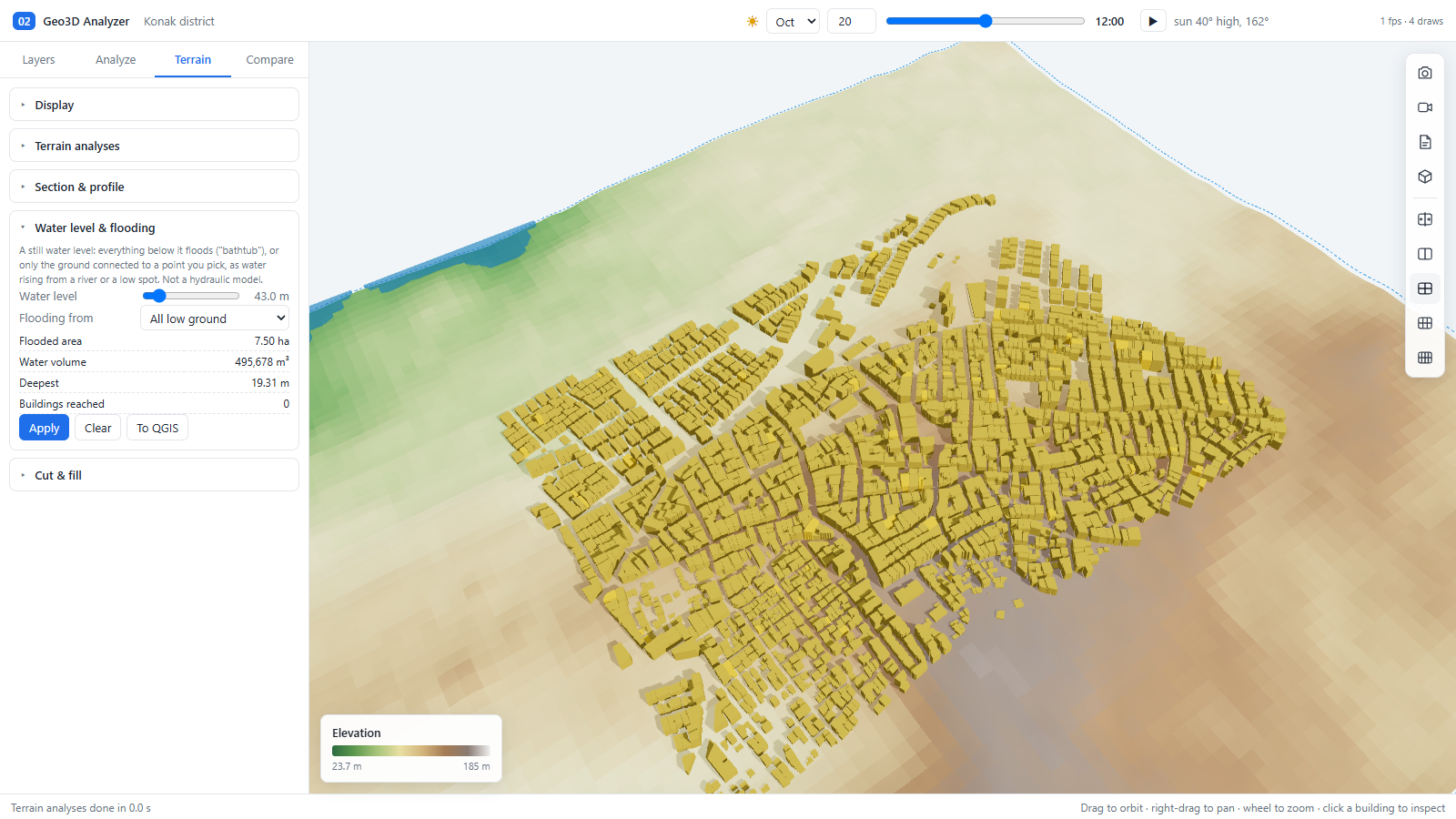
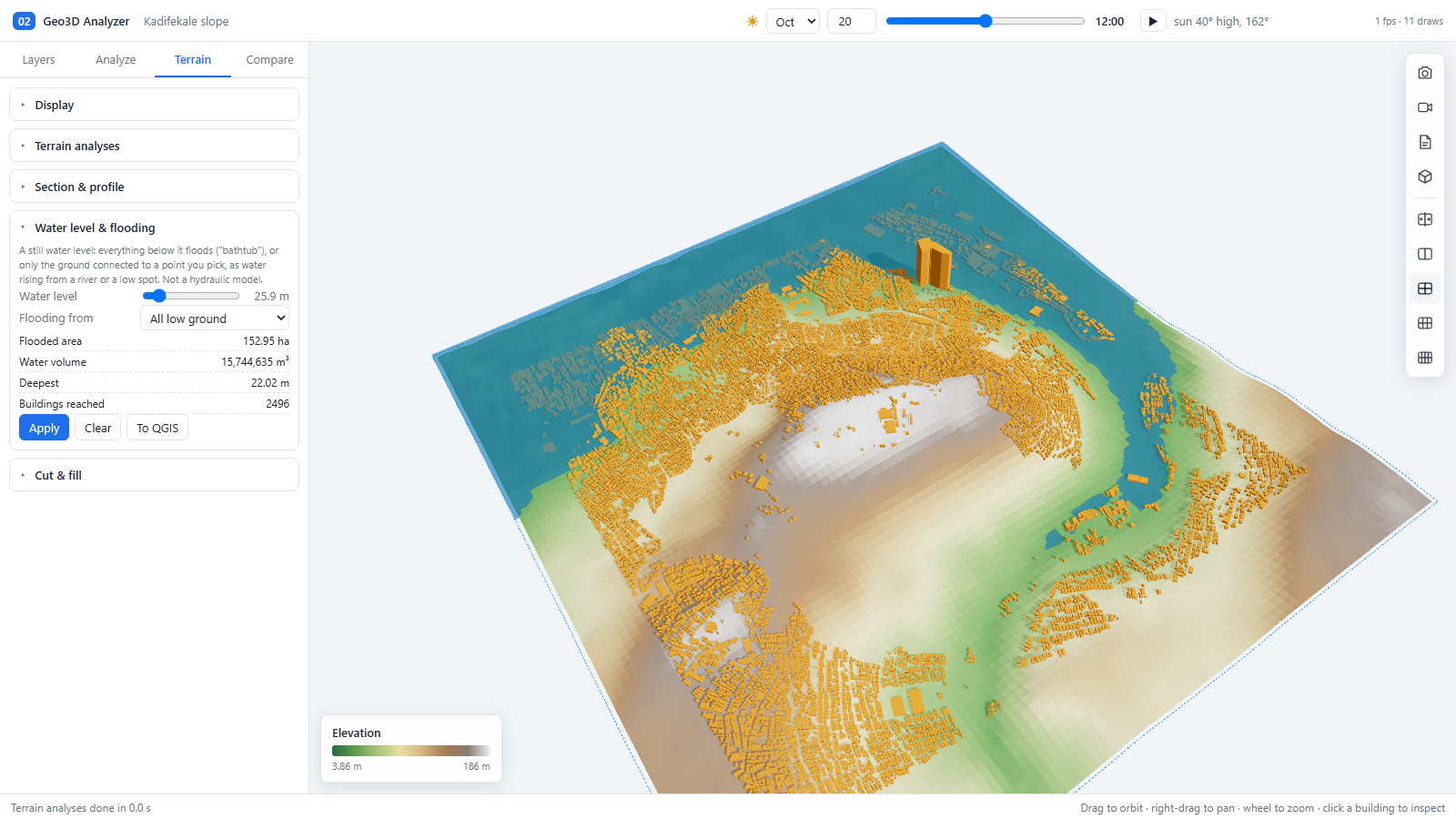
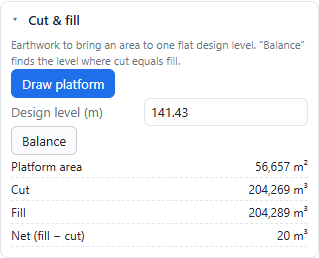
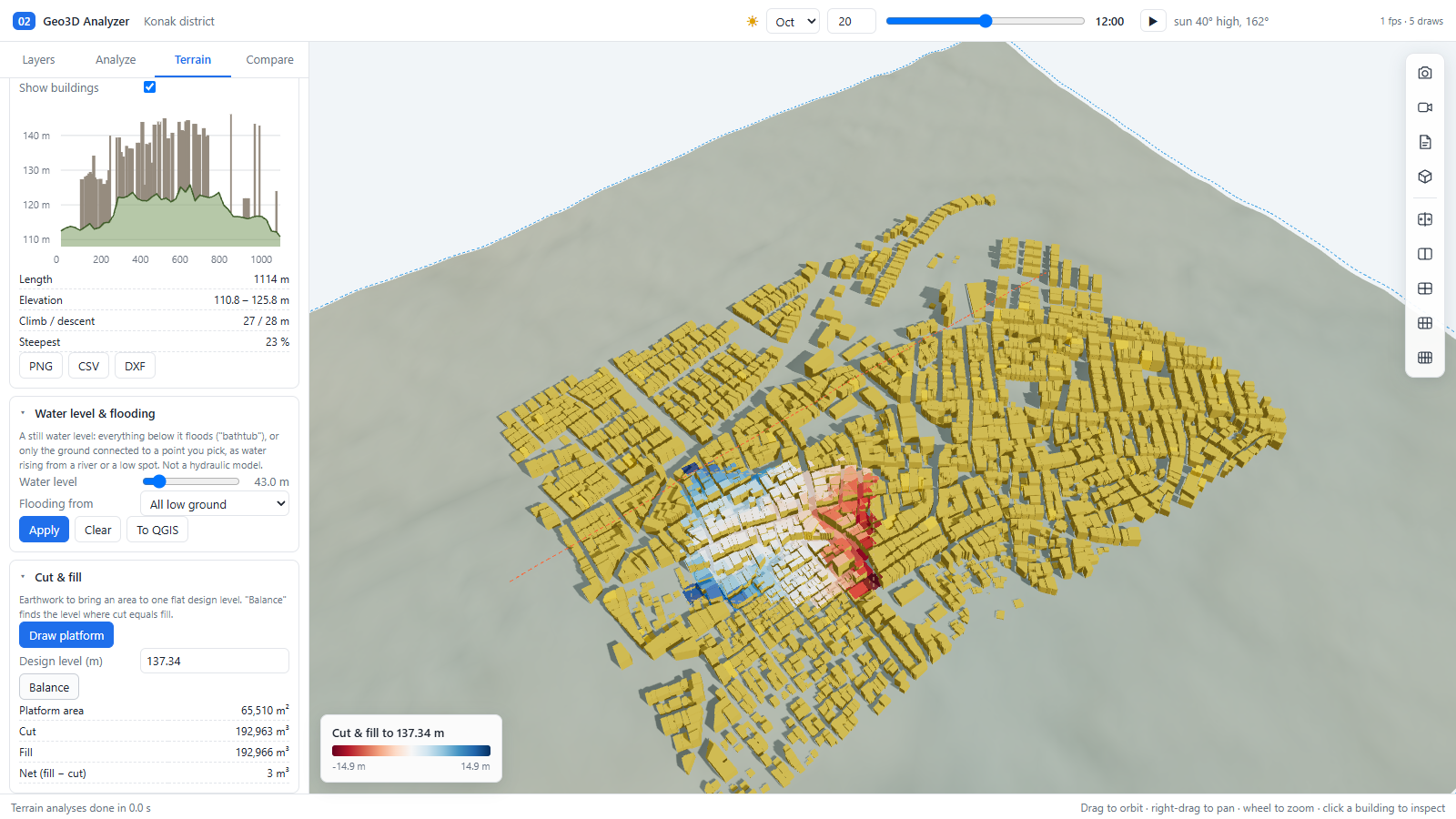
flood_depth_m field when sent to QGIS.4.5 Cut and fill
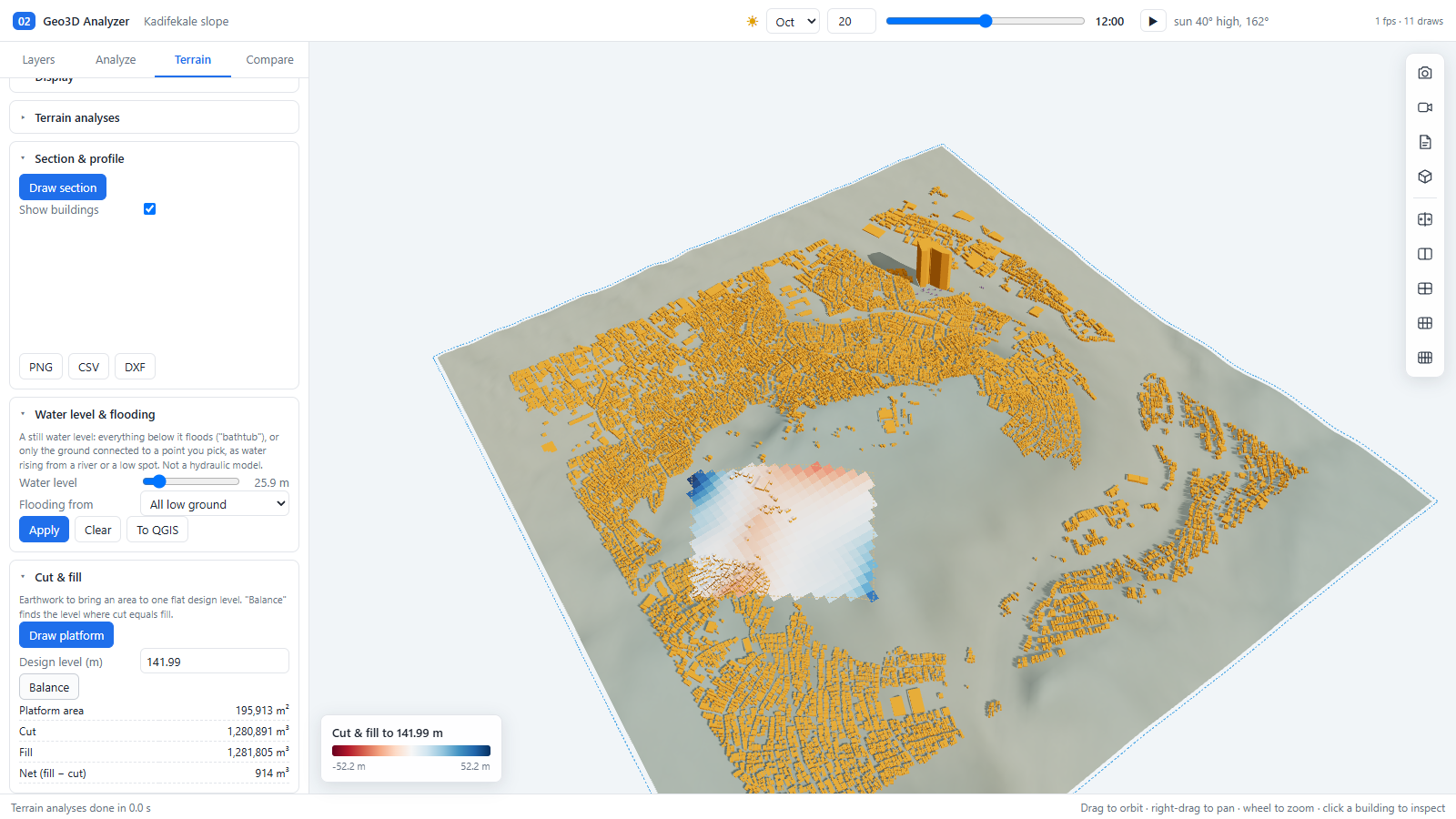
Kadifekale: the scene and sun and wind on a hill
5 · Compare tab
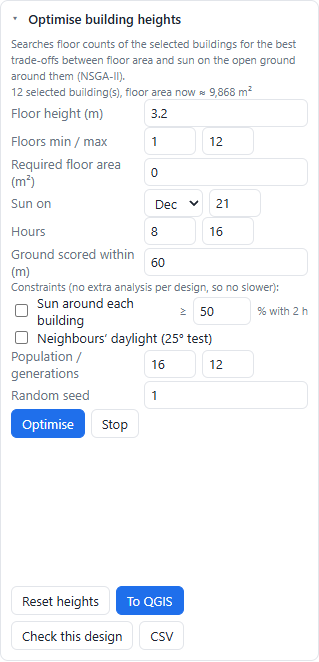
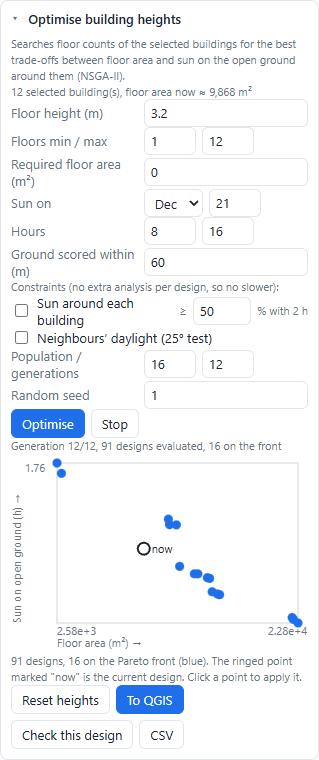
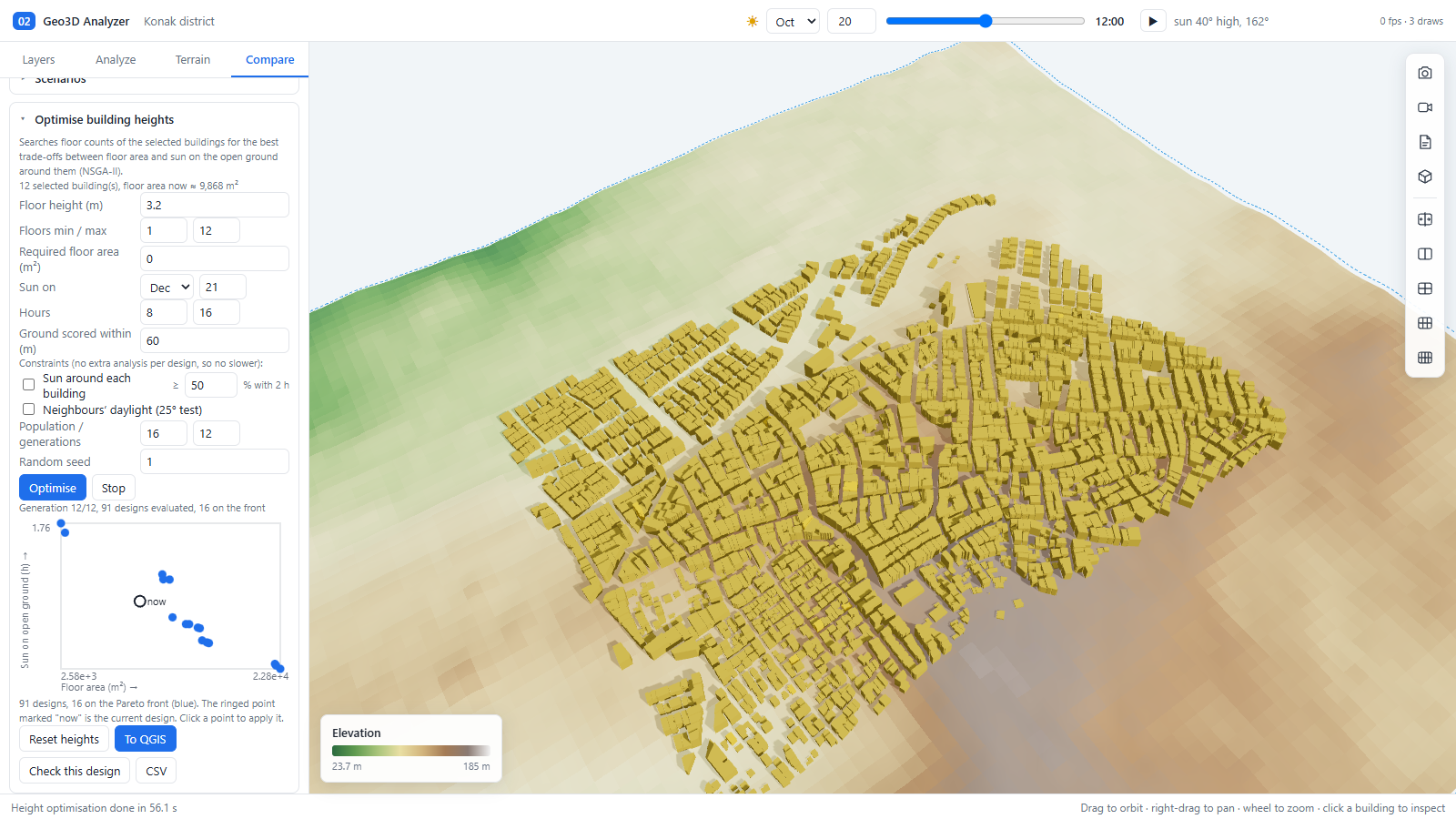
Optimise building heights
6 · Exports and the round trip to QGIS
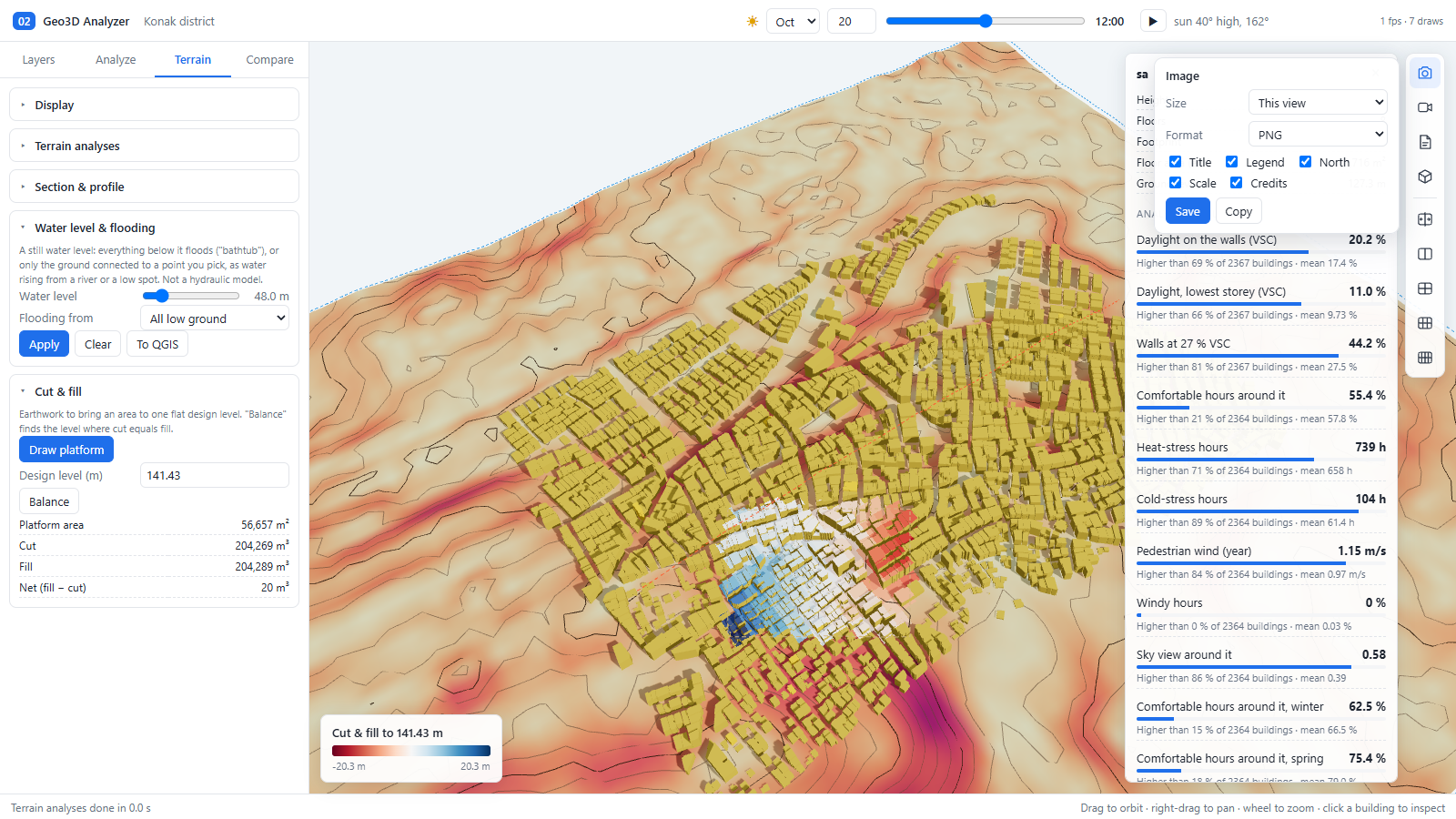
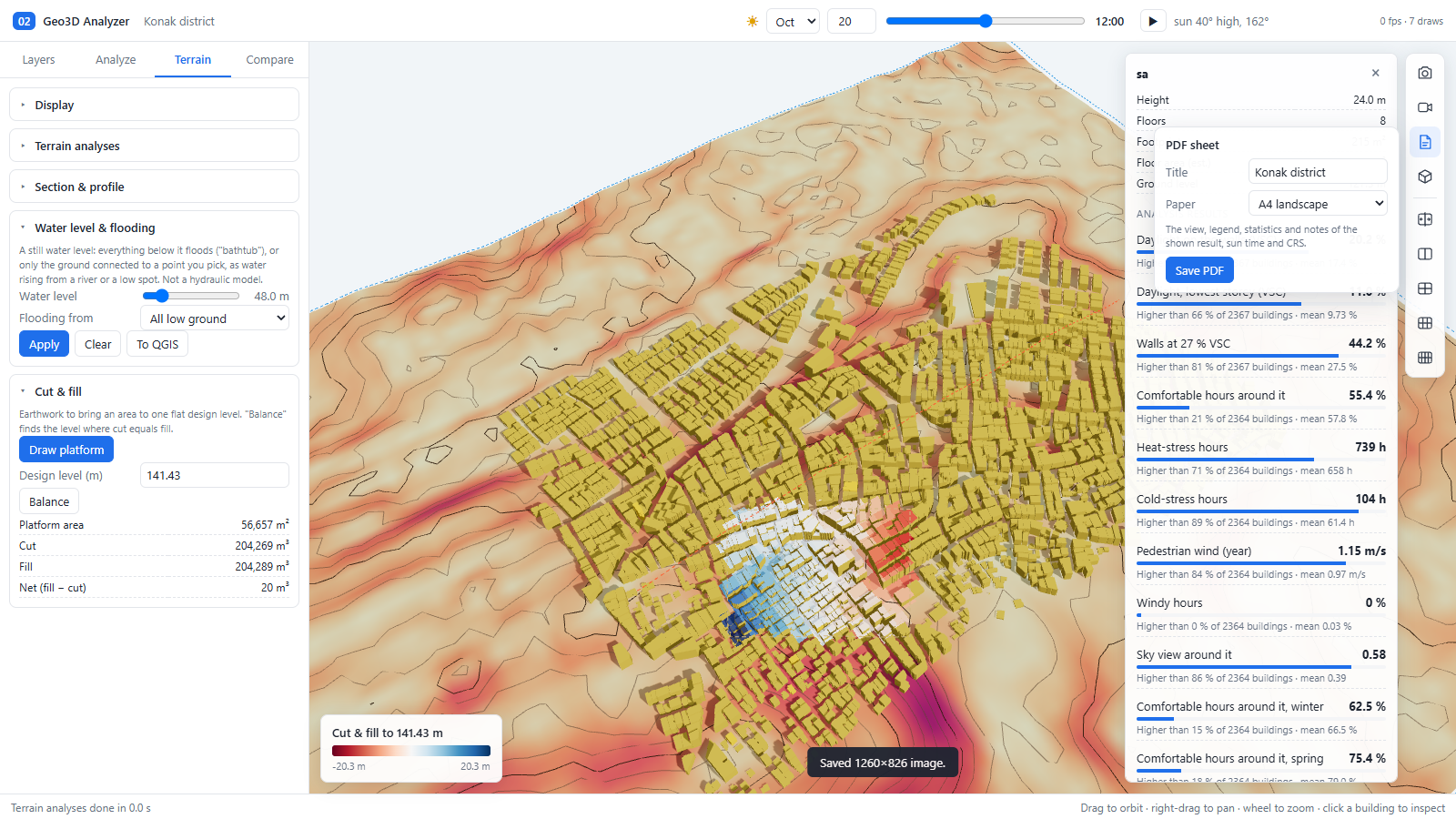
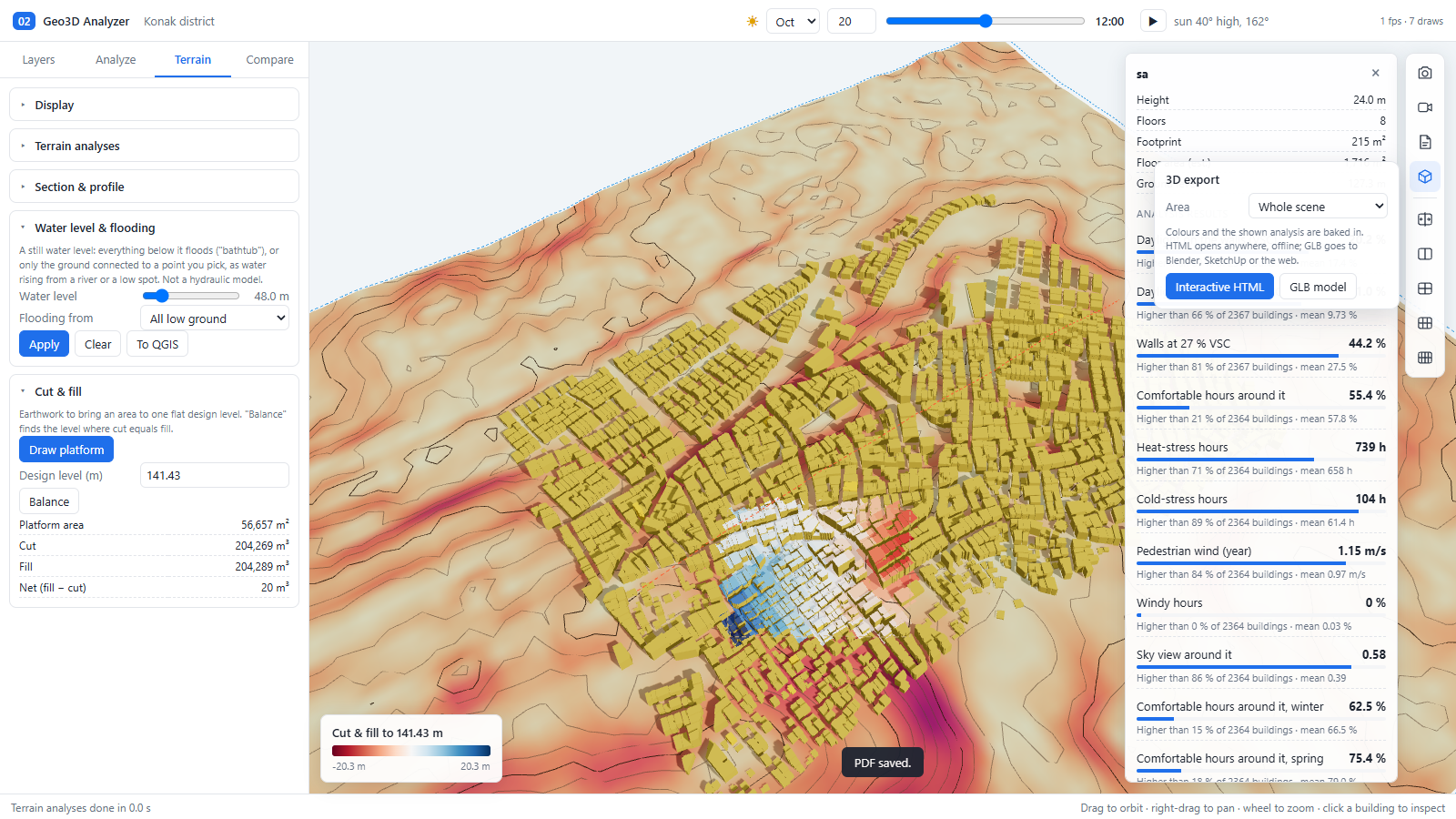
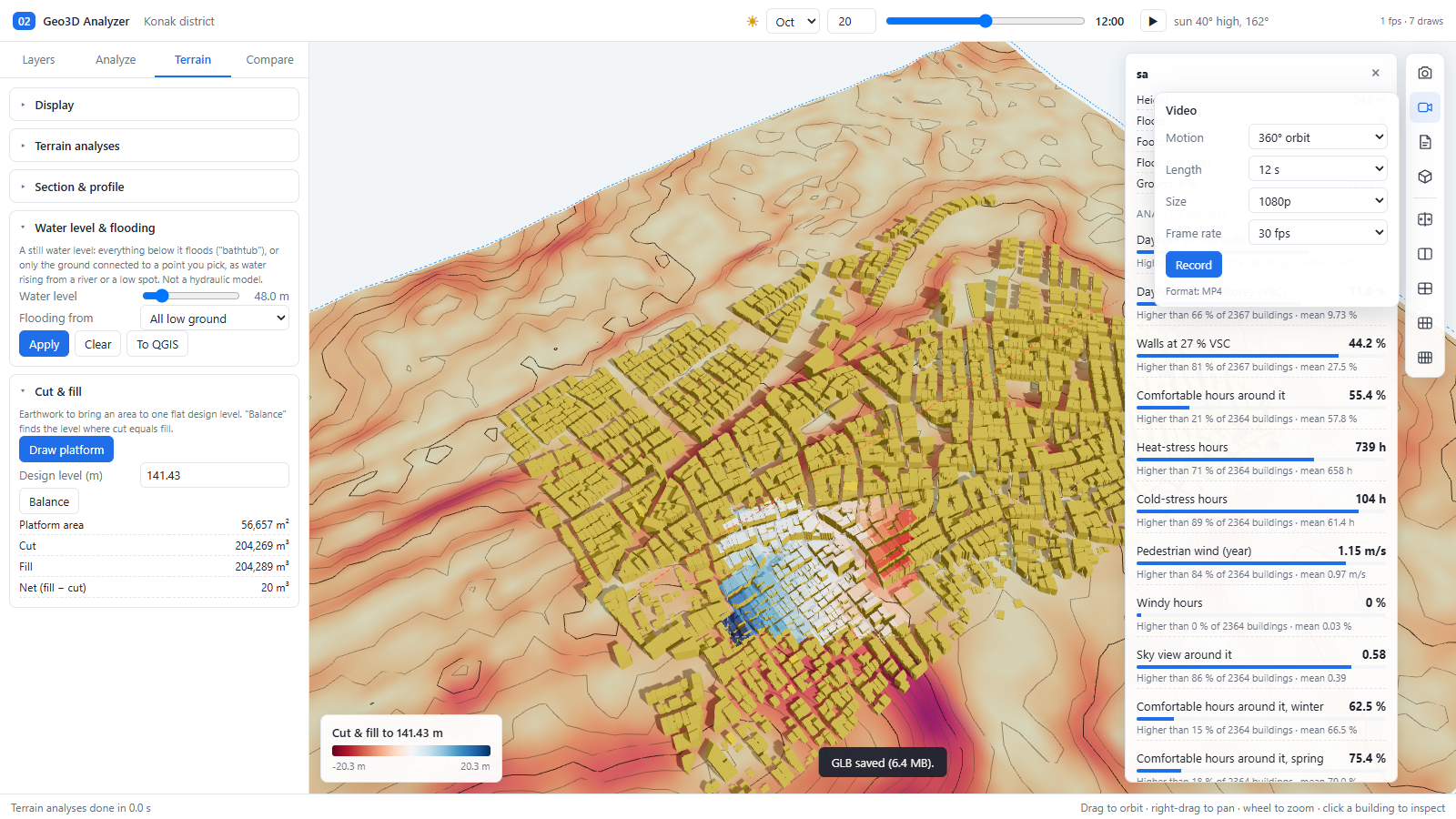
The section tool also writes a profile CSV (34 KB) and a DXF (49 KB).
To QGIS
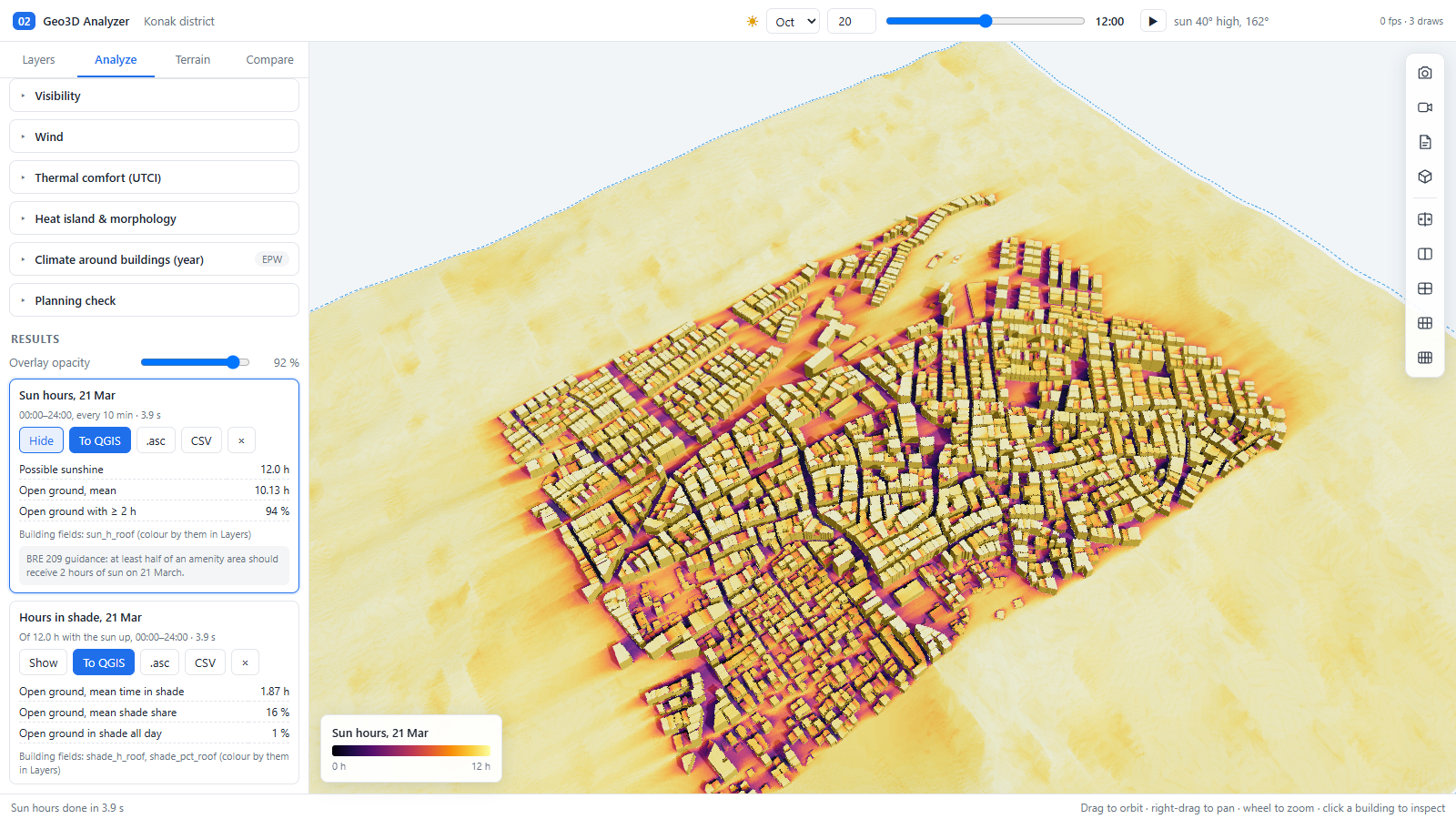
The viewer sends results back through the loopback bridge. In this run:
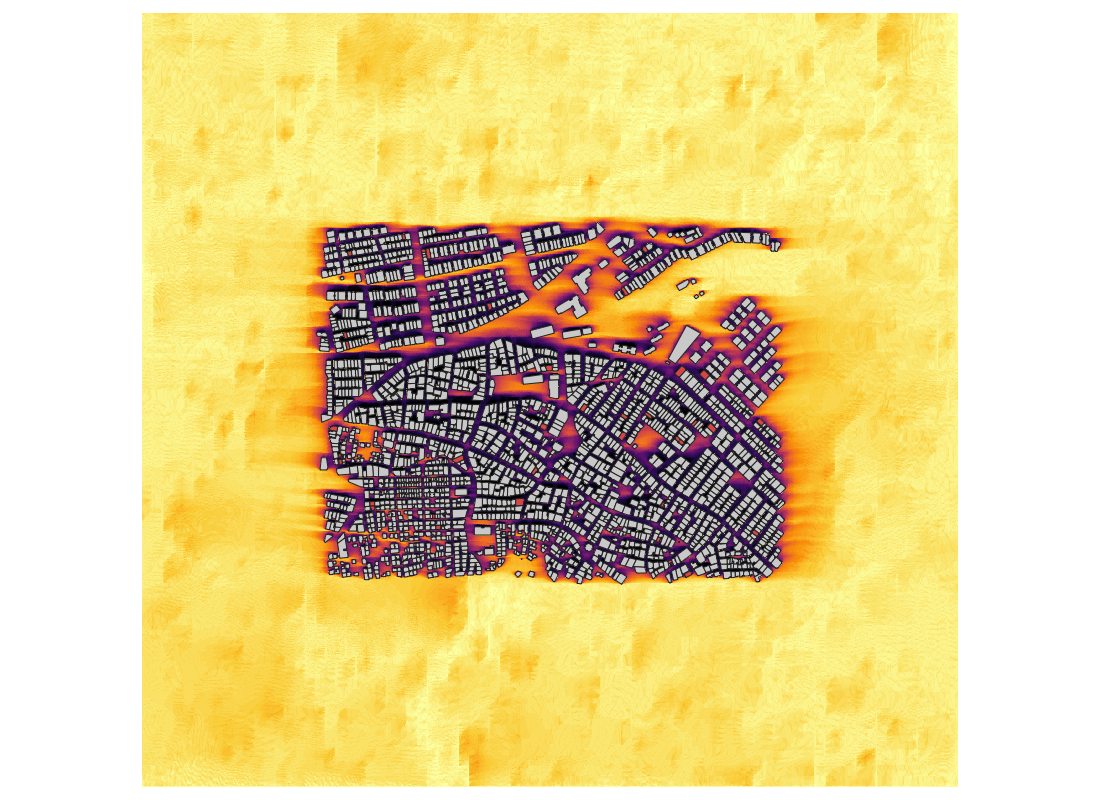
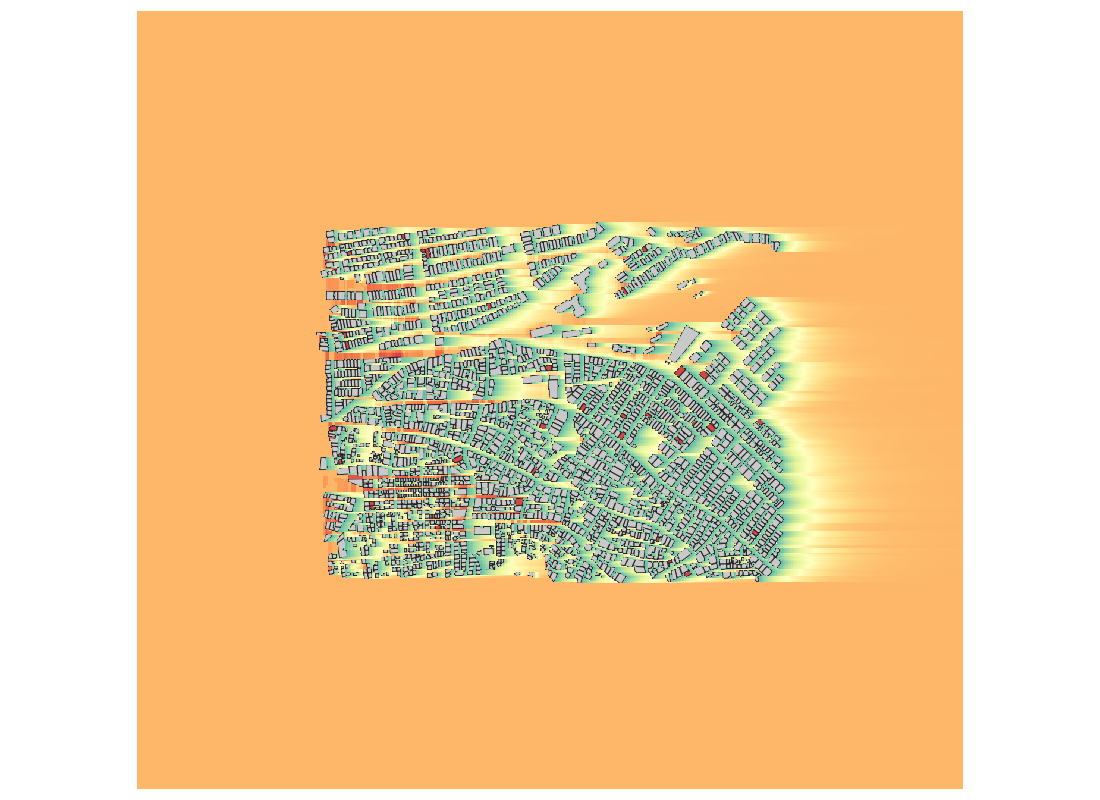
- Sun hours, 21 March became a GeoTIFF (984 × 927 cells at 2 m) and 2,363 buildings received the
sun_h_rooffield. - Pedestrian wind became a GeoTIFF (563 × 530 at 3.5 m).
- Flood depth became a GeoTIFF (81 × 77 at 24.29 m); no building was reached, so no
flood_depth_mvalue was written. - The planning check wrote the six
check_*fields to the 40 buildings it covered.
Not covered in this run
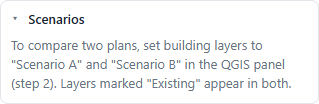
These controls exist but were not run on the guide data, so no numbers are given for them: the Scenarios comparison (needs scenario A and B layers), Pick observer… (a click-picked viewshed), flooding from a picked point, manual UTCI conditions, Facades too in sun hours, video recording, Load EPW file… from the viewer (the file was supplied in the dock), and the 8 and 16 wind direction options. The matching reference chapters below describe them.
Two runtimes, one scene
02 Geo3D Analyzer separates orchestration from computation. Python inside QGIS knows about layers, fields, expressions, coordinate systems and the user's project. The browser knows about geometry, light and the GPU. A small loopback HTTP bridge connects the two, so heavy per-pixel analysis never blocks the QGIS interface and results arrive as ordinary project layers.
Python · QGIS process
- Three-step dock: terrain, objects, open in 3D.
- Reads DEM tiles and extrudes features from any layer, field or expression.
- Carries layer colours, height rules, bottom heights and filters into the scene.
- Downloads OSM buildings and trees for the scene area.
- Receives results, writes GeoTIFFs and a results GeoPackage, applies 3D styling.
- Shares the QGIS selection with the viewer in both directions.
Browser · Three.js + WebGL 2
- Renders terrain, extrusions, trees, poles and result overlays.
- GPU raycasting for sun visibility, sky sampling and shadow casting.
- Analysis runners for sun, SVF, radiation, PV, wind, comfort and morphology.
- Terrain sections, flooding and cut/fill on the elevation grid.
- NSGA-II optimisation and scenario difference maps.
- Exports images, PDF sheets, interactive HTML, GLB and video.
Why a local bridge instead of QGIS-only computation
Sun visibility, sky sampling and shadow maps are naturally parallel per cell. Running them in Python would either serialise millions of ray tests or require a compiled extension. The browser already ships a mature WebGL 2 implementation on every platform, so the plugin uses fragment and compute-style passes for the expensive part and keeps QGIS responsible for data and persistence.
QGIS never blocks
The server runs on its own thread and queues results. QGIS objects are touched only on the QGIS thread, never from the HTTP handler.
Loopback only
The server binds to 127.0.0.1. The scene is served from a temporary folder on the same machine; no cloud service is involved.
No stale terrain
Scene responses are sent with Cache-Control: no-store, so a new export can never be shadowed by a cached scene at the same URL.
Scene model
The exported scene packages the project CRS, a local origin, terrain tiles with level of detail, one mesh group per QGIS layer, per-feature attributes used for colouring and reporting, and the analysis metadata (latitude, longitude, time zone, weather station). Grids travel as typed arrays; results return as indexed grids plus per-building field arrays, which is what makes a one-click round trip possible.
Large DEMs. Terrain is tiled and rendered with level of detail. Grids up to 4096 × 4096 cells remain interactive because distant tiles are decimated while the analysis still runs on the full resolution grid.
DEM → layer selection → 3D session
The dock is deliberately short. Everything that can be inferred from the project is inferred; everything that changes the meaning of a result stays visible and editable.
Terrain
Pick a DEM raster, or leave it empty for flat ground. Set the scene area and, if needed, vertical exaggeration. Quick 3D opens a DEM alone in one click.
Objects & heights
Tick the layers to show. For each layer choose the role (building, wall, tree, pole, ground), the height source and the colour rule. Download OSM buildings and trees when the project has none.
Open in 3D
The scene opens in the default browser. Run an analysis card, inspect the result, then press To QGIS to add rasters and fields to the project.
Height rules
A height can come from the QGIS expression stored on the layer, from a numeric field multiplied by a factor, or from a uniform value. A separate bottom height supports raised parts, bridges, balconies and OSM min_height. Buildings can be stood on the lowest, average or highest ground under their footprint, which matters on slopes.
-- storeys to metres, with a floor-to-floor height of 3.2 m
"floors" * 3.2

-- explicit height, falling back to storeys, then to 9 m
coalesce("height", "building:levels" * 3.0, 9)

-- roof above the lowest ground under the footprint
bottom = "min_height"
Colour comes from QGIS. Single colour, graduated classes (natural breaks, quantile, equal interval) and categories are read from the layer style, so the 3D scene and the 2D map agree before any analysis is run. Results can then recolour the same geometry without touching the source data.
Install once, no external Python packages
02 Geo3D Analyzer ships its own viewer assets and analysis code. It requires QGIS 3.28 or newer (QGIS 4 included) and a browser with WebGL 2 — the default in current Chrome, Edge, Firefox and Safari.
QGIS Plugin Hub
Open Plugins → Manage and Install Plugins…, search for “02 Geo3D Analyzer” and press Install. Updates arrive through the same dialog.
Install from ZIP
Download the release ZIP, then use Plugins → Install from ZIP. The archive root is the package directory, as the Hub requires.
First-run checklist
- The toolbar icon and the 02 Geo3D Analyzer entry appear under Plugins.
- The project is in a projected CRS in metres, so heights and distances share a unit.
- A DEM is loaded if the site is not flat.
- The browser opens the local address; a firewall prompt for loopback traffic is not expected.
Not a CFD solver and not a formal daylight certificate. Wind, thermal comfort and the BRE 209 checks are screening proxies built for design comparison. Confirm borderline cases with a formal assessment or a validated simulation.
The sun as a deterministic vector
Every solar result starts from the same place: the position of the sun for a given latitude, longitude, date and time. The plugin follows the NOAA solar geometry equations, which are accurate to well under a degree for planning purposes and are cheap enough to evaluate for every hour of a year.
Here \(N\) is the day of the year, \(h\) the local clock hour, \(\lambda\) longitude (east positive), \(t_z\) the time-zone offset in hours, \(\varphi\) latitude, \(z\) the solar zenith angle and \(A\) the azimuth measured from north. The resulting unit vector is expressed in the scene's local east–north–up frame and used directly by the raycaster.
Sunrise, sunset and day length
Sunrise and sunset follow from the hour angle at the horizon, with a standard refraction correction. The viewer reports day length and uses it to bound the hourly sampling window, so a winter analysis does not waste rays on a sun that is already below the horizon.
Time zone matters. The scene stores the longitude and time-zone offset used for the calculation. A scene exported for a site in a different time zone will still compute correct solar positions, but the labels on the sun clock will refer to that site's local time.
Direct sun, measured where people stand
The sun-hours analysis answers a deceptively simple question: for how much of the chosen day is a point directly lit by the sun? For every sample time the plugin computes the solar vector, then tests the point against the scene geometry with a GPU raycast. A point is lit when no triangle intersects the ray toward the sun.
\(\mathcal{G}\) is the set of scene triangles, \(\mathbf{s}_k\) the sun vector at sample \(k\), \(\Delta t\) the sampling interval in hours and \(H_{day}\) the length of the day. The default sampling is hourly; the step can be shortened for a more precise result.
Three surfaces, three questions
Open-space comfort
Sun hours on the terrain and on flat ground surfaces. This is the layer used for amenity-area checks, playground studies and the optimisation objective.
Solar potential
Roof cells are classified by normal direction. They feed the irradiation and PV analysis and reveal which roofs are shaded by taller neighbours.
Daylight and passive gains
Wall cells record direct sun and, in the daylight analysis, the vertical sky component. Facade results are averaged per building and per storey.
Shadow share and the BRE 209 proxy
Shadow share is the complement of sun hours over the analysis window. The planning check uses the BRE 209 amenity-area rule as a screening proxy: at least half of an open amenity area within 15 m of a building should receive two hours of sun on 21 March. The result row reports the share that passes, the mean, and the worst cell, and the same values are available as per-building fields.
BRE 209 is guidance, not a certificate. The plugin evaluates the 21 March two-hour rule and the 25° daylight test on the geometry it can see. A formal assessment also considers room use, window orientation, internal reflections and the assessor's judgement.
How much sky a surface can see
The sky view factor (SVF) is the fraction of the hemisphere that is visible from a point, weighted by the cosine of the incidence angle. It is the single most useful geometric indicator of urban enclosure: 1.0 means an unobstructed horizontal surface, 0.5 is a point on an open wall, and a deep street canyon falls well below 0.5.
In discrete form the plugin shoots rays over the upper hemisphere and accumulates the cosine-weighted share that escapes the scene:
Sampling uses 64 to 256 directions per cell depending on the requested quality. The directions are distributed over the hemisphere, and rays are tested against the same triangle set as the shadow analysis. Ground cells and wall cells use different hemisphere orientations, which is why a wall reads about 0.5 in an open field.
Street canyons and nocturnal cooling
SVF controls how much long-wave radiation a surface can lose to the cold sky. A low SVF means the surface mostly sees other surfaces at air temperature, so it cools more slowly at night. That is the physical link between the compact canyon and the urban heat island. The morphology analysis reports SVF together with the aspect ratio \(H/W\), plan area fraction \(\lambda_p\) and frontal area index \(\lambda_f\), which is the combination needed to interpret the result.
SVF ≈ 0.8–1.0
Open squares, low-density suburbs, rooftops. Strong nocturnal cooling, high solar exposure, little wind shelter at pedestrian level.
SVF ≈ 0.2–0.4
Deep canyons and enclosed courtyards. Reduced heat loss, persistent shade in winter, stronger shelter but also weaker dispersion of pollutants.
From sun position to annual yield
Sun hours count time; irradiation counts energy. The radiation analysis integrates the plane-of-array irradiance over the year (or a season) for every ground, roof and facade cell, using either a measured EnergyPlus weather file or a clear-sky model.
\(DNI\) is direct normal irradiance, \(\theta\) the angle between the surface normal and the sun, \(\beta\) the surface tilt, \(\rho\) the ground albedo and \(GHI\) global horizontal irradiance. The diffuse term \(G_d\) is the part that separates a crude model from a credible one.
Perez anisotropic sky
Perez et al. (1990) separates diffuse irradiance into circumsolar, horizon-brightening and isotropic components. It is the recommended model for tilted surfaces and is used whenever the weather file provides the required inputs.
Hay–Davies
An anisotropic model with a circumsolar term and an isotropic remainder. It needs fewer inputs and is used when the Perez parameters are unavailable, or for a clear-sky run without an EPW file.
From irradiance to PV yield
Roof tilt and azimuth are read from the extruded geometry: the roof normal gives both, and flat roofs are treated as horizontal arrays. Facade cells are handled with the same integration but a vertical normal. Annual yield is reported in \(\text{kWh/m}^2/\text{year}\), then multiplied by a system efficiency and a performance ratio to estimate usable electricity.
\(\eta_{sys}\) is the module-plus-inverter efficiency and \(PR\) the performance ratio that accounts for temperature, soiling, wiring and mismatch. Both are editable, so a study can use a conservative or an optimistic assumption without changing the geometry.
Rooftop suitability
Not every roof cell is usable. The suitability filter removes cells below a minimum annual irradiation, cells on steep or north-facing pitches, and cells within a margin of the roof edge or of obstructions. The result is a per-building usable area and a potential installed capacity, which is the number a pre-feasibility study actually needs.
Weather data. Use Nearest station… to download the closest TMYx station in one click, or load an EnergyPlus EPW file directly. Without a weather file the analysis falls back to clear-sky irradiance, which is useful for comparing designs but not for absolute yield claims.
A screening model, not a wind tunnel
Pedestrian wind is the result of approaching flow, building wakes, channelling between blocks and corner acceleration around tall buildings. A full CFD study is out of scope for a design tool, so the plugin uses a fast morphological model calibrated to the same quantities CFD would report: a pedestrian-level wind ratio and a speed in metres per second per sector.
Roughness and displacement
The urban canopy is described by the plan area fraction \(\lambda_p\) and the frontal area index \(\lambda_f\). Macdonald et al. (1998) provide the displacement height \(d\) and roughness length \(z_0\) that follow from those two numbers:
with \(\beta \approx 1\), \(C_D \approx 1.2\) and \(\kappa = 0.4\). The resulting profile is used to scale the reference wind from the weather file down to pedestrian height and to compute the sheltering ratio in each sector.
The shelter ratio \(r_{shelter}\) falls in the wake of upstream buildings, while the corner factor \(r_{corner}\) rises near the exposed corners of tall blocks. Both are functions of the local geometry and the wind sector, and both are reported separately so the result can be explained rather than merely coloured.
What the result contains
- Mean and maximum pedestrian wind speed per sector, in m/s.
- The ratio to the reference wind at the same height.
- The share of hours above a comfort threshold, by season.
- A per-building wind rose that can be read in the building report.
Screening only. Do not use the wind layer as evidence for safety certification, structural design or pollutant dispersion. Its purpose is to compare massing options and to flag locations that deserve a proper study.
Mean radiant temperature and UTCI
Air temperature alone does not describe how a place feels. On a sunny square the radiant load can add more than ten degrees of equivalent temperature; in a shaded courtyard the same air temperature feels cool. The plugin estimates both the radiant field and a standard comfort index for a chosen hour or for the full year.
Mean radiant temperature
The mean radiant temperature \(T_{mrt}\) is computed with the SolarCal approach (Arens et al. 2011). It combines the absorbed direct and diffuse solar radiation with the long-wave exchange between the person and the surrounding surfaces and sky. The sky view factor from the previous section is an input here: a person under a narrow canyon sees less sky and therefore exchanges less long-wave radiation with the cold upper hemisphere.
\(S_{abs}\) is the short-wave radiation absorbed by the body, \(\varepsilon_p\) the body emissivity, \(\sigma\) the Stefan–Boltzmann constant and \(T_{surf}\) the effective temperature of the surrounding surfaces. The implementation follows SolarCal's projected-area factors rather than a simple sphere, so posture and sun angle are represented.
UTCI
The Universal Thermal Climate Index combines air temperature, mean radiant temperature, wind speed and humidity into an equivalent temperature. The plugin uses the sixth-order polynomial approximation of Bröde et al. (2012), the same approximation used by the reference UTCI code.
| UTCI (°C) | Stress category | Planning reading |
|---|---|---|
| < −13 | Very strong cold stress | Uncomfortable without shelter; exposure should be minimised. |
| −13 to 0 | Moderate to strong cold stress | Winter comfort depends on sun and wind shelter. |
| 0 to 9 | Slight cold stress | Acceptable for active use with appropriate clothing. |
| 9 to 26 | No thermal stress | The comfortable band used by the comfort-hours metric. |
| 26 to 32 | Moderate heat stress | Shade and evaporative cooling become valuable. |
| 32 to 38 | Strong heat stress | Long summer exposure is a design problem. |
| 38 to 46 | Very strong heat stress | Unshaded hard surfaces should be avoided. |
| > 46 | Extreme heat stress | Health risk; emergency and adaptation planning. |
When a full EPW year is loaded, the plugin reports comfortable hours, heat-stress hours and cold-stress hours per building and per season. Those are the fields used by the planning check and by the building report's “outdoor comfort by season” panel.
Geometry that traps heat
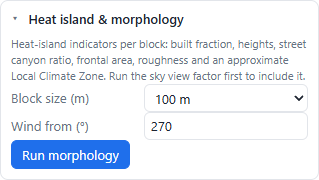
The urban heat island is not a single number; it is the outcome of several geometric and material properties. The morphology analysis measures the geometric ones that can be derived from footprints and heights, then maps the result to an approximate Local Climate Zone.
\(\lambda_p\) describes how much of the ground is covered by buildings. \(\lambda_f\) describes how much vertical surface faces the wind, as a function of direction. Together with the mean building height \(H\) and the mean street width \(W\), they determine the canyon aspect ratio \(H/W\), the sky view factor, the roughness length and the displacement height.
| Indicator | What it explains | Typical range |
|---|---|---|
| λp | Ground sealing and the share of built surface | 0.1 low density · 0.5+ compact |
| λf | Wind resistance and frontal exposure | 0.05 sparse · 0.5+ dense |
| H/W | Canyon enclosure and radiation trapping | 0.5 wide · 2+ deep canyon |
| SVF | Nocturnal long-wave loss | 0.9 open · 0.3 enclosed |
| z0, d | Wind profile and pedestrian shelter | Derived from λp, λf |
Approximate Local Climate Zones
The LCZ classification follows Stewart and Oke (2012). Built types 1–6, 8 and 9 are separated using plan fraction, mean height and footprint size. Types 7 (lightweight low-rise) and 10 (heavy industry) need material and land-use information that footprints alone cannot supply, so the plugin does not pretend to detect them.
Compact high-, mid- and low-rise
High plan fraction, low SVF, strong radiation trapping. The hottest night-time patterns usually appear here.
Open high-, mid- and low-rise
Lower plan fraction, more sky, better ventilation. Comfort depends more on orientation and shade than on trapping.
Large low-rise and sparse built
Extensive roofs, low heights and high solar exposure. Rooftop PV and surface albedo dominate the design response.
Read the indicators together. A high λp with a high SVF is a different problem from a high λp with a low SVF. The first is about ground sealing and surface materials; the second is about canyon geometry and nocturnal cooling. The analysis reports both so that the diagnosis is not reduced to a single colour.
Draw a line, get a section with buildings
The section tool samples the terrain along a line and adds the building silhouettes that intersect it. The result is the drawing that a planner or an architect would otherwise construct by hand: ground profile, vertical exaggeration, storey lines and a scale bar.
Drawn or imported line
Draw the line in the 3D view, or use a line layer from the QGIS project. The tool reports length and bearing.
Ground and silhouettes
Terrain is sampled at a fixed interval; each building contributes its footprint intersections and its height above the ground.
PNG, CSV, DXF
Export a publication image, the sampled profile as CSV, or a CAD-ready DXF for further drafting.
Vertical exaggeration is a display setting, not a data transformation: the CSV and DXF always contain true elevations. This matters when a section is used for cut/fill or for checking a slope against a regulation.
Bathtub and connected inundation
The flooding tool fills the terrain from a chosen water level and reports depth, affected buildings and the flooded area. Two modes are available because they answer different questions.
Every cell below the level
Fast and conservative. Useful for a first scan, for a uniform design flood or for a site with no clear drainage path.
Reachable from a source
A flood-fill from a chosen seed cell or water body. Cells below the level but isolated by higher ground stay dry, which is closer to how water actually arrives.
Buildings are counted when the water level exceeds the lowest ground under their footprint. The result also reports the depth at each building entrance when a footprint edge is available, which is more useful for adaptation planning than a simple binary flag.
Balancing the earthwork
Cut and fill compares the existing terrain with a design level. The volume above the design level is cut; the volume below is filled. The balancing level is the elevation at which the two volumes are equal, which is the first number a grading study needs.
For a uniform cell area \(a\), the balancing level can be found without iteration by sorting the elevations and accumulating area until the cut and fill integrals match. The plugin reports both volumes, the net imbalance, the balancing level and a raster of cut and fill depths.
Design use. A net-zero balance is a useful starting point, but real projects also care about haul distance, soil bulking and the difference between rock and topsoil. The plugin gives the geometric baseline; the construction estimate adds the rest.
B minus A, on the same grid
Two scenes can be compared cell by cell. Scenario A is the baseline; scenario B is the proposal. The difference map shows where sun, sky view, irradiation or wind improves or worsens, and the summary reports the area that gains and the area that loses.
Because both scenes share the same grid and origin, no resampling is needed. The comparison is exact where the geometry is identical and explicit where it is not. A swipe control and synced 2, 4, 6 or 8 panel layouts make the spatial pattern visible without reading a table.
Scenario-aware planning check
The planning check can evaluate scenario B against the thresholds defined for A. For daylight, it reports the retained vertical sky component as a ratio to the former value; the BRE 209 screening threshold is 0.8, below which a loss is considered noticeable. For sun on open ground and for heat stress, the check reports the share of the surrounding area that meets the chosen threshold.
Floor area versus sun on the ground
The optimiser searches over the floor counts of selected buildings. More floors add floor area but cast longer shadows, so the two objectives conflict. NSGA-II is used because it returns a set of non-dominated designs rather than a single weighted compromise.
Each candidate is evaluated on the GPU using the same sun model as the interactive analysis. Optional constraints include minimum sun around each building and the BRE 209 25° test for the windows of neighbouring buildings. The latter is prepared once from the existing geometry, which keeps the per-design cost low.
Algorithm
- Population. A set of floor-count vectors, initialised within the allowed ranges.
- Non-dominated sorting. Candidates are ranked by Pareto dominance on floor area and sun hours.
- Crowding distance. Diversity is preserved by preferring candidates in sparse regions of the front.
- Variation. Simulated binary crossover and polynomial mutation generate the next generation.
- Selection. Elitist survival keeps the best fronts until the population size is reached.
The result is a Pareto front. The knee point is the design that gains the most floor area for the least loss of sun; the extreme points show the maximum floor area and the maximum sun. Selecting a point applies its heights to the scene, so the chosen design can be inspected, compared and exported like any other result.
Interpretation. A Pareto front is a negotiation tool, not an answer. The choice of a point is a planning decision that depends on policy, programme and the value of open space — the optimiser only makes the trade-off explicit.
Results become project layers
An analysis that stays in a browser is a screenshot. The round trip is the point of the plugin: every grid result can be written as a GeoTIFF in the project CRS, and every per-building result can be written as fields in a results GeoPackage.
GeoTIFF per analysis
Sun hours, shadow share, SVF, irradiation, PV yield, wind speed, UTCI, flooding depth and cut/fill depth are written with the correct extent, cell size and CRS.
Fields per building
Per-building means, maxima, ranks, suitability, comfort hours and planning-check outcomes are joined back to the source features in a results GeoPackage.
How the export works
- Press To QGIS on a result card. The browser posts the grid and the field table to the bridge.
- QGIS writes a GeoTIFF to a temporary or user-chosen folder and adds it to the project.
- The results GeoPackage is created or updated with one layer per source layer, keyed by feature id.
- Symbology is applied so the raster is readable immediately; the user can replace it with any QGIS style.
- For extrusion layers, a 3D style can be applied so the same buildings are coloured by the result in QGIS's own 3D view.
Selection sync
Selecting features in QGIS sends their ids to the viewer, which highlights the corresponding meshes. Selecting a building in the viewer posts the ids back, and the QGIS selection changes. The bridge stores a monotonic sequence number so that an old selection cannot overwrite a newer one, and it caps the number of ids per message to keep the loop responsive.
No hidden state. The results GeoPackage is an ordinary file. It can be shared, versioned, joined or mapped without the plugin, which is what makes the workflow reproducible.
A complete solar study, start to finish
The walkthrough below uses only QGIS and the plugin. It takes a project with no data and ends with a solar-potential GeoTIFF and a set of building fields.
Prepare the project
Create a project in a projected CRS in metres. Set the project CRS before loading data; the plugin uses it for the scene and for the exported rasters.
- Project → Properties → CRS: choose the local projected CRS.
- Keep the map extent around the site; the scene area follows the canvas or the chosen boundary.
Load or download a DEM
Add a terrain raster, or skip this step for a flat site. A DEM in metres is required for flooding, cut/fill and sections.
- Use a raster with a cell size appropriate to the design scale (1–5 m for a district study).
- If the DEM is in a geographic CRS, reproject it first; slope and volume calculations assume metres.
Get buildings and trees
If the project has no building layer, press Download OSM buildings & trees. The plugin queries OpenStreetMap for the scene area, derives heights from height and building:levels tags, and falls back to a height by building type.
-- check the downloaded heights in the attribute table
"height"          -- explicit metres, when tagged
"building:levels" -- storeys, converted with 3.0 m per storey
"building"        -- used for the type-based fallback
Configure the objects
Open the plugin dock. In step 2, tick the building layer, set its role to building, choose height expression and enter "floors" * 3.2 (or the expression that matches your data). Set the colour rule from the QGIS style.
If the site is on a slope, choose whether buildings stand on the lowest, average or highest ground under their footprint. Add trees and poles from point layers with a height field.
Open the 3D scene
Press Open in 3D. The browser opens the local viewer. Check the scene: terrain, extrusions, colours and the north arrow. Use the sun clock to move through the day and confirm that shadows fall in the expected direction.
Run sun hours for 21 March and 21 June
Open Analyze, choose Sun hours & shadows, set the date and the sampling step, and run. The result colours ground, roofs and facades. Switch to the section view to inspect a street canyon and to the chart view for the distribution.
Recommended screening settings
Date           21 March (equinox) and 21 June (summer solstice)
Sampling       hourly (step = 1 h)
Quality        high for the final run, medium while iterating
Surfaces       ground + roofs + facades
Add the weather file and run irradiation
Press Nearest station… to download the closest TMYx EPW, or load a project EPW. Run Solar radiation & PV for the annual period. Check the roof suitability threshold and the assumed system efficiency before reading the yield.
Send the results to QGIS
Press To QGIS on each result you want to keep. The GeoTIFF appears in the project and the results GeoPackage receives the per-building fields. Open the layer properties to confirm the CRS and the value range.
Compare a proposal
Change the building heights, reopen the scene as scenario B, and run Run A vs B with the same settings. The difference map shows where the proposal gains or loses sun. Use the planning check to test the thresholds and export the one-page PDF sheet with the CSV of per-building outcomes.
Every analysis in one table
The viewer groups tools by task. The tabs below summarise what each one needs and what it returns.
| Tool | Inputs | Output |
|---|---|---|
| Sun hours & shadows | Date, sampling step, surfaces | Hours of direct sun, shadow share, BRE 2 h proxy |
| Sky view factor | Sampling quality (64–256 rays) | Cosine-weighted SVF on ground, roofs and walls |
| Solar radiation & PV | EPW or clear sky, period, efficiency, PR | Irradiation (kWh/m²), roof and facade yield, suitable area |
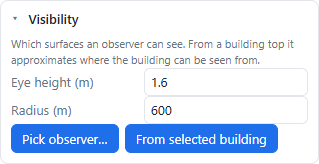
| Visibility | Viewer point or top of a building | Binary viewshed and visible area |
| Wind | Weather file, sector, pedestrian height | Wind ratio and speed, sheltered share, per-building rose |
| Thermal comfort | EPW, date and hour | UTCI and mean radiant temperature grids |
| Heat island & morphology | Building footprints and heights | λp, λf, H/W, z0, d, approximate LCZ |
| Planning check | Threshold profile | Pass/fail per building, PDF sheet, CSV |
| Tool | Inputs | Output |
|---|---|---|
| Section & profile | Drawn line or QGIS line layer | Section image, CSV profile, DXF |
| Water level & flooding | Water level, bathtub or seed point | Depth grid, flooded area, affected buildings |
| Cut & fill | Design level or balancing mode | Cut and fill volumes, net imbalance, depth grid |
| Terrain maps | DEM | Elevation, slope, aspect, hillshade, curvature, TPI, ruggedness, wetness |
| Tool | Inputs | Output |
|---|---|---|
| Scenario A vs B | Two scenes with the same grid | Difference grids for sun, SVF, irradiation or wind |
| Swipe and panels | Two results or two scenes | Synced 2, 4, 6 or 8 panel comparison |
| Optimise heights | Selected buildings, floor ranges, constraints | NSGA-II Pareto front, knee point, applied heights |
| Export | What it contains | Typical use |
|---|---|---|
| GeoTIFF | One grid result in the project CRS | Further QGIS analysis, layouts, sharing |
| GeoPackage | Per-building fields joined by feature id | Tables, joins, thematic maps |
| PNG up to 8K | Scene with legend and north arrow | Reports and presentations |
| PDF sheet | One-page result and planning summary | Design review and permits |
| Interactive HTML | Single-file scene | Sharing without QGIS |
| GLB | Scene geometry | CAD, Blender, web viewers |
| Video | Orbit or sun-through-the-day animation | Communication and teaching |
Keyboard
While a drawing tool is active, Esc cancels it, Enter finishes the current line or polygon and Backspace removes the last vertex. Esc also closes an open comparison or help overlay.
What the models assume
The plugin is deliberately explicit about its methods. Every result carries a note naming the model and its limits, and the sources below are the ones implemented in the viewer.
Core assumptions
- Clear geometry. Buildings are extruded prisms from footprints; roof shape is flat unless the source geometry says otherwise.
- Direct sun is geometric. A ray either reaches the sun or it does not; there is no partial penumbra from the solar disc.
- Diffuse sky is anisotropic. Perez or Hay–Davies, not a uniform sky, except where a result explicitly says otherwise.
- Surfaces are opaque. No transmission through glass, no transparent canopies and no vegetation porosity in the radiation model.
- Wind is morphological. A screening model based on roughness, wakes and corners, not a solution of the Navier–Stokes equations.
- Comfort uses standard indices. SolarCal for radiant temperature and the Bröde polynomial for UTCI.
References
- Oke, T. R. (1987). Boundary Layer Climates, 2nd edition. Routledge, London. The foundation for the canyon, roughness and energy-balance interpretation used throughout the climate tools.
- Macdonald, R. W., Griffiths, R. F., & Hall, D. J. (1998). An improved method for the estimation of surface roughness of obstacle arrays. Atmospheric Environment, 32(11), 1857–1864. doi:10.1016/S1352-2310(97)00403-2
- Stewart, I. D., & Oke, T. R. (2012). Local Climate Zones for urban temperature studies. Bulletin of the American Meteorological Society, 93(12), 1879–1900. doi:10.1175/BAMS-D-11-00019.1
- Littlefair, P. (2011). Site Layout Planning for Daylight and Sunlight: A Guide to Good Practice, 2nd edition (BRE Report 209). BRE Press. The source of the amenity-area, VSC and 25° screening tests.
- Perez, R., Ineichen, P., Seals, R., Michalsky, J., & Stewart, R. (1990). Modeling daylight availability and irradiance components from direct and global irradiance. Solar Energy, 44(5), 271–289. doi:10.1016/0038-092X(90)90055-H
- Bröde, P., Fiala, D., Blazejczyk, K., et al. (2012). Deriving the operational procedure for the Universal Thermal Climate Index (UTCI). International Journal of Biometeorology, 56, 481–494. doi:10.1007/s00484-011-0454-1
- Arens, E., Clark, R., Kimes, R., & Saito, M. (2011). Estimating solar radiation on a person: SolarCal. Center for the Built Environment, University of California, Berkeley.
- NOAA Global Monitoring Laboratory. Solar Calculation Details — the NOAA solar position equations used for declination, equation of time and hour angle.
- Deb, K., Pratap, A., Agarwal, S., & Meyarivan, T. (2002). A fast and elitist multiobjective genetic algorithm: NSGA-II. IEEE Transactions on Evolutionary Computation, 6(2), 182–197. doi:10.1109/4235.996017
Reproducibility. A result depends on the scene geometry, the CRS, the solar parameters, the weather file and the analysis settings. The result card records the settings used, and the exported GeoTIFF carries the grid definition, so a study can be repeated or audited later.
Document and software record
| Plugin | 02 Geo3D Analyzer |
| Package | zero2geospatial3d |
| Version | 1.0.0 |
| QGIS | 3.28 or newer; QGIS 4 supported |
| Runtime | WebGL 2 browser, local loopback bridge |
| Dependencies | None beyond QGIS and the bundled viewer |
| Author | Yusuf Eminoğlu |
| Studio | GEOPHILO Spatial Software Studio |
| License | MIT |
| Contact | [email protected] |
| Source | github.com/YusufEminoglu/zero2geospatial3d |
| Hub | plugins.qgis.org/plugins/zero2geospatial3d |
| Revision | October 2026 |
Scope of this manual
This document describes the plugin as shipped in version 1.0.0. Analyses are screening tools for design and planning; they are not a substitute for a formal daylight assessment, a wind-tunnel study, a structural calculation or a statutory compliance report. The note attached to each result names the method and the main limitation.